Linux Users, Permissions and Package Management
Manage users, groups, sudo, file permissions, links, apt packages, archives and processes on Ubuntu, with the commands and the files behind each one.

ON THIS PAGE
Every service you deploy needs an account to run as, the right file permissions, its packages installed, and a way to inspect it once it is running. This part covers that administration layer on Ubuntu: users and groups, sudo rules, permissions and special bits, links, APT and dpkg, archives, and process monitoring. Everyday file and text commands are in Essential Linux Commands for DevOps.
Users and groups
Linux is a multi-user system: many users can work on one machine at the same time, and permissions isolate each user from the others.
Types of users
| Type | Example | UID / GID | Home | Shell |
|---|---|---|---|---|
| Root (superuser) | root | 0 | /root | /bin/bash |
| Regular | deependra, vagrant | 1000 and above | /home/username | /bin/bash |
| System (service) | www-data, sshd, tomcat | 1 to 999 | varies, for example /var/www | /usr/sbin/nologin |
System users are created by software packages (installing Apache creates www-data on Ubuntu) so services do not run as root. Only root can create or remove users.
The files behind users
/etc/passwd has one line per user with seven :-separated fields:
root:x:0:0:root:/root:/bin/bash| Field | Value here | Meaning |
|---|---|---|
| 1 | root | Username |
| 2 | x | Password placeholder; the real hash is in /etc/shadow |
| 3 | 0 | User ID (UID) |
| 4 | 0 | Primary group ID (GID) |
| 5 | root | Comment, usually the full name |
| 6 | /root | Home directory |
| 7 | /bin/bash | Login shell (/usr/sbin/nologin blocks interactive login) |
/etc/shadow stores password hashes and password ageing rules. Only root can read it.
root:*:19229:0:99999:7:::| Field | Meaning |
|---|---|
| 1 | Username |
| 2 | Password hash (* or ! means password login is not possible) |
| 3 | Date of the last password change, in days since 1 January 1970 |
| 4 | Minimum days before the password can be changed |
| 5 | Maximum days before the password must be changed |
| 6 | Days of warning before the password expires |
| 7 | Days after expiry before the account is disabled |
| 8 | Account expiry date, in days since 1 January 1970 |
| 9 | Reserved |
/etc/group has one line per group, with the group's members at the end. Defaults for new users are in /etc/default/useradd (print them with useradd -D).
Creating and changing users
adduser (Debian and Ubuntu) is interactive: it creates the home directory, copies the default files from /etc/skel, and asks for a password. useradd is the low-level tool and does only what its options specify, which makes it the right choice for scripts.
$ sudo adduser dipen
$ sudo useradd -c "Dipendra" -m -d /var/dipen -e 2023-01-05 -g staff -G hr,admin -s /bin/bash -u 2000 dipendrauseradd / usermod option | Meaning |
|---|---|
-c | Comment |
-m | Create the home directory (useradd does not create it without this) |
-d | Home directory path |
-e | Account expiry date (YYYY-MM-DD) |
-g | Primary group |
-G | Secondary groups (comma-separated) |
-s | Login shell |
-u | User ID |
usermod takes the same options to change an existing user, plus a few of its own:
$ sudo usermod -e 2023-01-30 -s /bin/sh -u 3000 dipen
$ sudo usermod -l dipendra dipen
$ sudo usermod -L dipen
$ sudo usermod -U dipen
$ sudo usermod -aG docker dipen-l renames the login, -L locks the account, -U unlocks it, and -aG adds a secondary group.
Other user commands:
| Command | What it does |
|---|---|
su - username | Switches to another user (with -, you get their login environment) |
sudo userdel username | Deletes a user |
sudo userdel -r username | Deletes the user plus their home directory and mail spool |
id username | Shows UID, GID and groups |
groups username | Shows the user's groups |
sudo passwd username | Sets another user's password |
who | Users logged in right now |
last | History of logins |
lsof -u username | Files the user has open |
Password ageing with chage
$ sudo chage -l dipen
$ sudo chage -m 1 -M 14 -W 2 -I 3 -E 2023-02-02 dipen| Option | Sets |
|---|---|
-l | Lists the current rules |
-m | Minimum days between password changes |
-M | Maximum days a password is valid |
-W | Days of warning before the password expires |
-I | Grace days after expiry before the account is locked |
-E | Account expiry date |
Run chage username without options to set each value interactively.
Groups
$ sudo groupadd staff
$ sudo groupdel staff
$ sudo gpasswd -d dipen staffgpasswd -d removes a user from a group. Editing /etc/group by hand also works, but the commands validate the format and are safer.
sudo
sudo lets a normal user run a command as root, or as another user, after entering their own password. It is safer than sharing the root password: every use is logged, and each user can be limited to specific commands.
| Command | What it does |
|---|---|
sudo command | Runs one command as root |
sudo -u www-data command | Runs a command as another user |
sudo -i | Opens a root login shell in /root |
sudo su | Opens a root shell but stays in your current directory |
Giving a user sudo rights
On Ubuntu, members of the sudo group can run any command (older releases also used admin):
$ sudo usermod -aG sudo usernameFor finer control, write a rule file in /etc/sudoers.d/. Always edit sudoers files with visudo: it checks the syntax before saving, and a broken sudoers file can lock everyone out of sudo.
$ sudo visudo -f /etc/sudoers.d/dipenA rule has this shape:
root ALL=(ALL:ALL) ALL| Part | Meaning |
|---|---|
root | The user the rule applies to (%groupname for a group) |
ALL= | On all hosts |
(ALL | May run commands as any user |
:ALL) | May run commands as any group |
ALL | May run any command |
Examples:
# Only allow two specific commands
dipen ALL=(ALL:ALL) /usr/bin/df, /usr/bin/du

# Any program directly inside /usr/bin (note the trailing slash)
dipen ALL=(ALL:ALL) /usr/bin/

# A whole group, without a password prompt
%devops ALL=(ALL) NOPASSWD: ALLVagrant boxes ship with vagrant ALL=(ALL) NOPASSWD: ALL, which is why vagrant ssh users can run sudo without a password.
Aliases group users and commands so rules stay short:
User_Alias TRUSTED = rabindra, pankaj
Cmnd_Alias LIMITED = /usr/sbin/useradd, /usr/bin/passwd
TRUSTED ALL = ALL, !LIMITEDThis lets rabindra and pankaj run everything except the commands in LIMITED. Host_Alias works the same way for groups of machines.
File permissions
Every file has an owner, a group, and three sets of permissions: for the user (owner), the group, and others.
| Permission | On a file | On a directory |
|---|---|---|
r read (4) | View the contents | List the files inside |
w write (2) | Change the contents | Create, delete and rename files inside |
x execute (1) | Run it as a program or script | Enter it with cd and access files inside |
- | No permission | No permission |
The number form adds the values: 7 = rwx, 6 = rw-, 5 = r-x, 4 = r--. So -rw-r--r-- is 644.
chmod: change permissions
$ chmod 644 notes.txt
$ chmod 755 script.sh
$ chmod u+x script.sh
$ chmod o-x /path/file
$ chmod -R 755 /path/dir644: owner can read and write; group and others can only read. The standard for files.755: owner has full access; group and others can read and execute. The standard for directories and scripts.u+x/o-xchange one permission and leave the rest.uuser,ggroup,oothers,aall.-Rapplies the change to everything inside a directory.chmod -R 755also makes every regular file executable, so apply it deliberately.
chown and chgrp: change ownership
$ sudo chown -R dipen /home/dipen/testdir1
$ sudo chgrp -R testgroup1 testdir1
$ sudo chown -R apache:apache /data/dipen.com.npchown user:group changes both at once. The old user.group form with a dot is deprecated; use the colon.
Special permissions
| Bit | Set with | Effect | Real example |
|---|---|---|---|
| Sticky bit | chmod 1777 dir or chmod +t dir | In that directory, users can delete only their own files | /tmp |
| SUID | chmod u+s file (remove with u-s) | The program runs with the file owner's rights, not the caller's | /usr/bin/passwd runs as root so it can write /etc/shadow |
| SGID | chmod g+s dir | New files in the directory get the directory's group | Shared team folders |
They show up in ls -l as t or s in place of x, for example drwxrwxrwt on /tmp.
Links and inodes
Inodes
An inode (index node) is the record the file system keeps for each file. It holds everything about the file except its name and contents: type and permissions, owner and group, size, timestamps, link count, and pointers to the data blocks on disk. A directory is a list that maps names to inode numbers. See inode numbers with ls -i or stat file.
Soft links and hard links
| Soft (symbolic) link | Hard link | |
|---|---|---|
| What it is | A small file that points to a path, like a Windows shortcut | Another name for the same inode |
| Inode number | Different from the original | Same as the original |
| If the original is deleted | The link breaks | The data is still there through the link |
| Works for directories | Yes | No |
| Works across file systems | Yes | No |
The syntax is ln [-s] TARGET LINK_NAME:
$ ln -s /home/student/abc.txt /tmp/slabc.txt
$ ln /home/student/xyz.txt /home/student/hlxyz.txt
$ ls -li /tmp/slabc.txt /home/student/hlxyz.txt
$ unlink /tmp/slabc.txt
$ unlink /home/student/hlxyz.txtPackage management
Ubuntu and Debian use .deb packages, with two layers of tools:
- dpkg is the low-level tool. It installs, removes and inspects
.debfiles, but it does not download packages or resolve their dependencies. - APT (Advanced Package Tool) is the high-level tool. It downloads packages from repositories and installs their dependencies automatically.
apt
apt is the newer command designed for interactive use. apt-get and apt-cache cover the same operations with output that stays stable for scripts.
| Command | What it does |
|---|---|
sudo apt update | Downloads the latest package lists from the repositories |
sudo apt upgrade | Upgrades installed packages (run update first) |
sudo apt install pkg | Installs a package and its dependencies |
sudo apt install ./file.deb | Installs a local .deb file and pulls in its dependencies |
sudo apt remove pkg | Removes a package but keeps its config files |
sudo apt purge pkg | Removes a package and its config files |
sudo apt autoremove | Removes dependencies that nothing needs any more |
sudo apt clean | Deletes downloaded .deb files from the cache in /var/cache/apt/archives |
apt search pkg / apt-cache search pkg | Searches package names and descriptions |
apt show pkg / apt-cache show pkg | Shows version, dependencies and description |
When an install fails because of a wrong package name, apt-cache search finds the correct one. In my lab it located the PyMySQL package for Python 3:

aptitude is another high-level front end with the same subcommands (install, remove, search, show) and a text menu interface. It is not installed by default.
dpkg
| Command | What it does |
|---|---|
sudo dpkg -i file.deb | Installs a .deb file (fails if dependencies are missing) |
dpkg -l | Lists installed packages |
sudo dpkg --configure -a | Finishes configuring packages left half-installed, for example after an interrupted upgrade |
sudo dpkg-reconfigure pkg | Runs the setup questions again for an installed package |
Files behind APT
| Path | What it is |
|---|---|
/etc/apt/sources.list and /etc/apt/sources.list.d/ | The repositories APT uses (Ubuntu 24.04 uses /etc/apt/sources.list.d/ubuntu.sources) |
/var/lib/apt/lists/ | Package lists downloaded by apt update |
/var/lib/dpkg/status | Database of installed packages |
/var/log/apt/history.log | History of apt commands |
To list every package installed with apt install, search the history log:
$ grep " install " /var/log/apt/history.log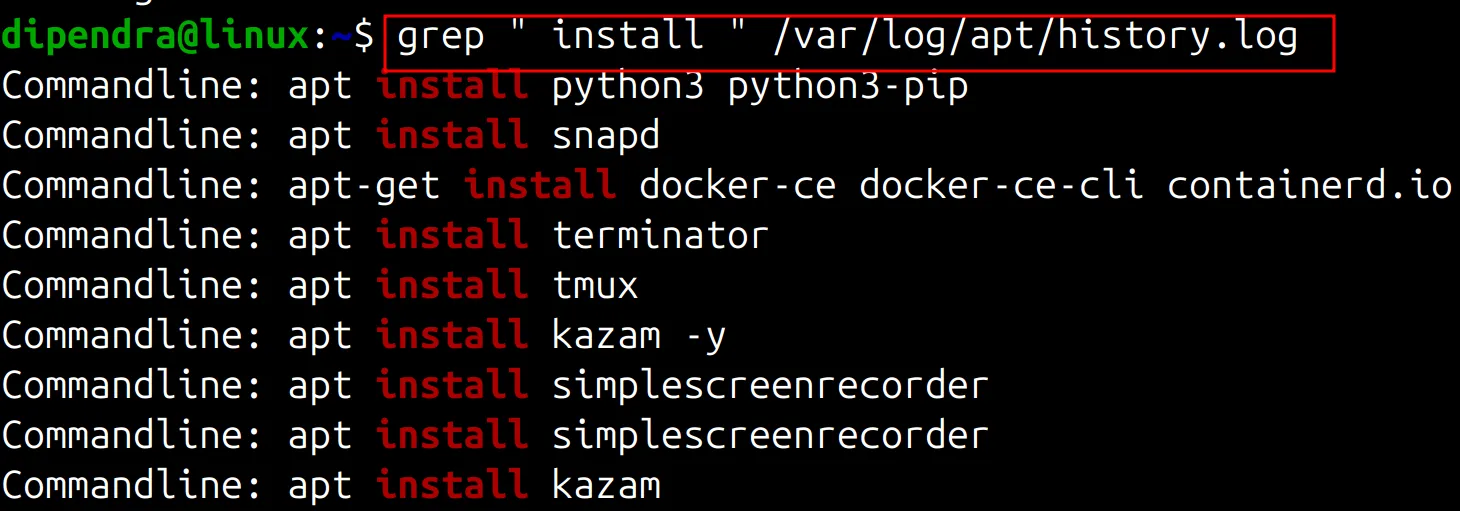
Archiving and compressing
Archiving joins many files and folders into one file; it does not make them smaller. Compression makes a file smaller by removing repeated data. tar archives and can compress at the same time; zip always does both.
| Command | What it does |
|---|---|
tar -cvf backup.tar dir1 file1 | Creates an archive |
tar -czvf backup.tar.gz dir1 file1 | Creates a gzip-compressed archive |
tar -tvf backup.tar | Lists what is inside |
tar -xvf backup.tar | Extracts an archive |
tar -xzvf backup.tar.gz -C /tmp | Extracts a compressed archive into /tmp |
zip -r hello.zip testdirectory | Zips a directory |
unzip hello.zip | Extracts a zip file |
gzip file / gunzip file.gz | Compresses / decompresses a single file |
tar flags: c create, x extract, t list, v verbose, f archive file name (must come last before the name), z gzip. Other compression tools are bzip2 (j in tar) and xz (J in tar).
Without -r, zip adds only the empty directory and none of the files inside it.
Processes
top
top shows a live view of the system and its processes. The capture below comes from a lab VM running Jenkins and Tomcat:
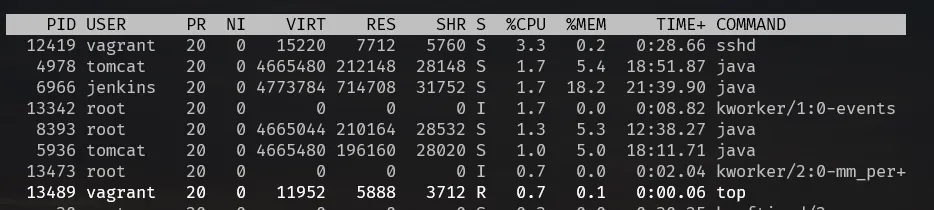
How to read the header:
top - 04:10:44 up 1 day, 2:41, 3 users, load average: 0.09, 0.09, 0.06
Tasks: 196 total, 1 running, 195 sleeping, 0 stopped, 0 zombie
%Cpu(s): 0.2 us, 0.5 sy, 0.0 ni, 99.3 id, 0.0 wa, 0.0 hi, 0.0 si, 0.0 st
MiB Mem : 3843.4 total, 1682.4 free, 1658.1 used, 735.4 buff/cache- up: time since boot. users: logged-in sessions.
- load average: average number of processes running or waiting for CPU over the last 1, 5 and 15 minutes. Compare it with the number of CPU cores (
nproc): a load of 2.0 on a 2-core machine means it is fully busy. - Tasks:
sleepingprocesses are waiting for input or I/O;zombieprocesses have finished but are still in the process table. - %Cpu:
ususer programs,sykernel,nilow-priority (niced) processes,ididle,wawaiting for disk or network I/O,hi/sihardware/software interrupts,sttime taken by the hypervisor on a VM. - Mem:
buff/cacheis memory used for disk cache; the kernel gives it back when programs need it.
Process columns:
| Column | Meaning |
|---|---|
PID | Process ID |
USER | Owner |
PR / NI | Priority / nice value (-20 is the highest priority, 19 the lowest) |
VIRT | Virtual memory the process has mapped |
RES | Physical RAM in use |
SHR | Part of RES shared with other processes |
S | State: R running, S sleeping, I idle kernel thread, T stopped, Z zombie |
%CPU / %MEM | CPU and memory share |
TIME+ | Total CPU time used |
Keys inside top: M sort by memory, P sort by CPU, T sort by run time, R reverse the order, k kill a process by PID, h help, q quit.
ps
ps prints a snapshot of processes and exits.
| Command | What it does |
|---|---|
ps aux | All processes: a all users, u user-oriented columns, x include processes without a terminal |
ps -ef | All processes in full format (-e every process, -f full) |
ps -ef | grep apache2 | Finds a process by name |
ps -u username | Processes owned by one user |
ps -T -p 1234 | Threads of process 1234 |
ps aux --sort=-%mem | Sorted by memory, highest first |
ps aux --sort=-%cpu | Sorted by CPU, highest first |
Names in square brackets in ps aux, such as [kworker/0:1], are kernel threads.
Stopping processes
kill PID sends SIGTERM, which asks the process to shut down cleanly. kill -9 PID sends SIGKILL, which ends it at once with no clean-up, so use it only when SIGTERM does not work.
This pipeline kills every apache2 process. grep -v grep drops the grep command itself from the list, and awk prints the PID column:
$ ps -ef | grep apache2 | grep -v grep | awk '{print $2}' | xargs kill -9sudo pkill apache2 does the same in one step. For anything managed by systemd, sudo systemctl stop apache2 is the correct method.
Zombie and orphan processes
- Zombie: a process that has finished, but its parent has not yet read its exit status, so it still has an entry in the process table.
- Orphan: a child process that is still running after its parent has exited. The init process (PID 1, systemd) adopts it.
Common mistakes
usermod -G group userwithout-aremoves the user from all other secondary groups.- Editing
/etc/sudoerswith a normal editor: one typo can breaksudo. Usevisudo. - Using double quotes around an awk program (
awk "{print $2}"): the shell replaces$2before awk sees it. Use single quotes. apt purgeis not "remove plus clean": it removes the package's config files, whileapt cleanempties the download cache.
Key takeaways
- User data lives in
/etc/passwd, password hashes in/etc/shadow, groups in/etc/group. - Give sudo rights with group membership or a file in
/etc/sudoers.d/, always edited withvisudo. 644for files and755for directories and scripts cover most cases; avoid777.- APT resolves dependencies, dpkg does not;
apt install ./file.debgives you both. topfor a live view,psfor a snapshot, andSIGTERMbeforekill -9.
Next in this series: Bash Shell Scripting Basics with an EC2 Automation Script.
Keep reading
- Essential Linux Commands for DevOps
A task-based Linux command reference: navigating and managing files, reading logs, grep, sed, cut and awk, redirection, Vim, services, and basic networking.
- tmux Cheat Sheet: Sessions, Windows, Panes and Copy Mode
A tmux reference for remote work: sessions that survive SSH drops, windows, split panes, copy mode, synchronized panes, and a minimal tmux.conf.
- Bash Shell Scripting Basics with an EC2 Automation Script
Bash scripting from first script to loops: variables, input, arguments, command substitution, if, for and while, ending with a safe script that launches and cleans up EC2 instances.