Linux Introduction
Overview Operating System A layer of software required to manage varied components of a computer. Acts as interface between user and the computer hardware. Processors Main memory Disks Input/output…


ON THIS PAGE
Overview
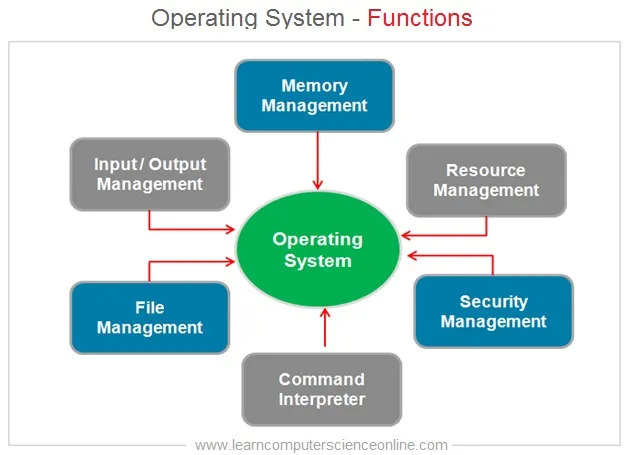
Operating System
- A layer of software required to manage varied components of a computer.
- Acts as interface between user and the computer hardware.
- Processors
- Main memory
- Disks
- Input/output devices
Principles
- Everything in Linux is file including hardware.
- Configuration files are in text formats.
- Avoid the use of the GUI.
- Small single purpose program which can be combined to solve the complex tasks.
- Open source Software
Why Linux?
- Open source and freely available.
- Community support :Any user can make contribution in linux.
- Supports wide variety of the hardware: Most of the electronic devices
- used Linux [Approximately 90%]
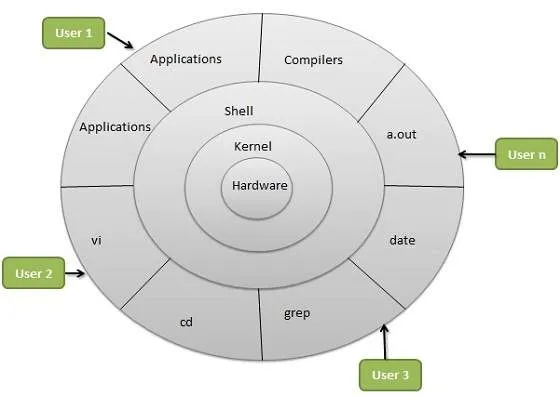
Architecture
Linux Terminology
Linux Kernel
- Considered brain of the OS.
- Glue between hardware and application.
- Controls hardware and makes hardware interact with the application.
- E.g Linux Kernel
Linux Distribution
- Collection of programs combined with the linux kernels to make up linux based OS.
- E.g Red hat, Fedora, Ubuntu.
Linux BootLoader
- Program boots the OS.
- E.g GRUB and ISOLINUX.
Linux Service
- Program that runs in the background process.
- E.g httpd, nfsd, ftpd.
Linux File System
- Method for storing and organizing files.
- E.g ext3, ext4, Fat, XFS, NTFS.
Linux X Windows System
- Provides the standard toolkit and protocol to build the graphical user interfaces on nearly all linux distos.
- They are used to make server based environment to desktop based environment.
Linux Desktop Environment
- GUI interface on the top of OS.
- E.g: Gnome, KDE, Xfce.
Linux Command Line
- Interface for typing commands on top of OS.
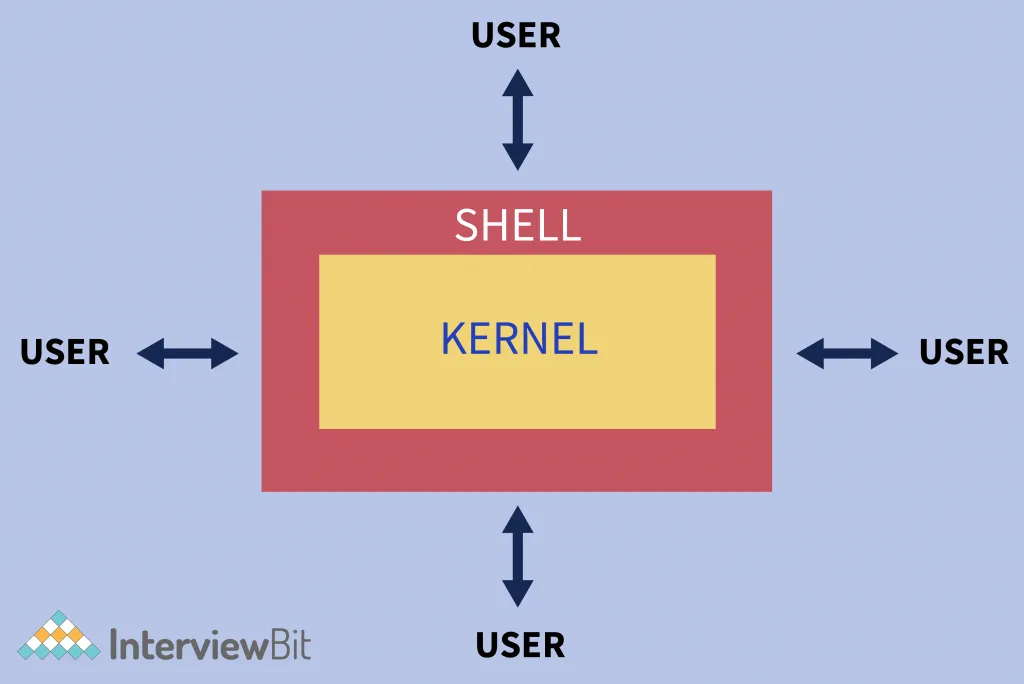
Linux Shell
- Command line interpreter that interprets the command line input and instructs the OS to perform any necessary task and commands.
- A shell provides an interface between the user and the operating system kernel.
- Either a command interpreter or a graphical user interface
- Traditional Unix shells are command-line interfaces (CLIs)
- Usually started automatically when you log in or open a terminal.
- E.g bash, tcsh, zsh, sh, tsh, file, ksh.
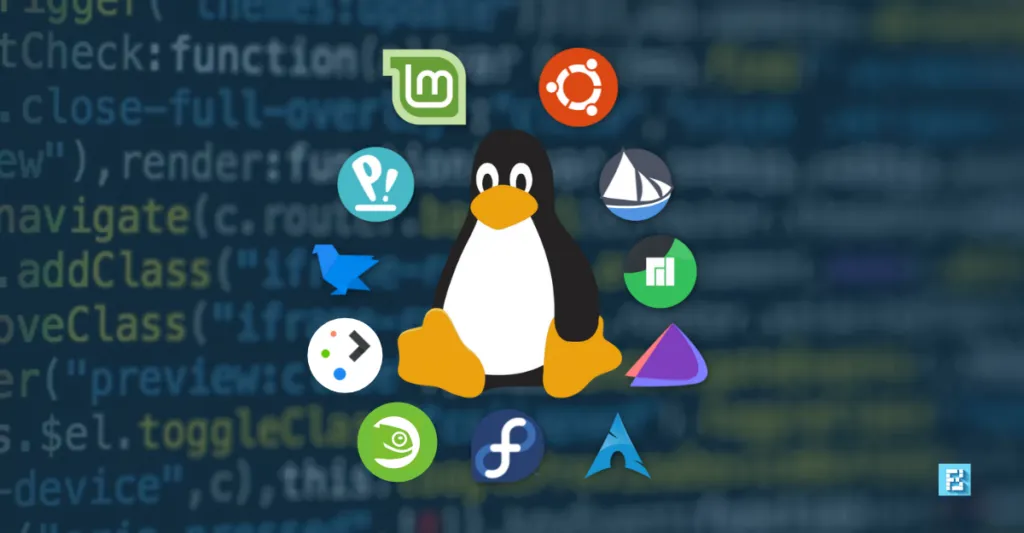
Linux Distros
- Red Hat
- CentOS
- Community Enterprise OS.
- Derived from Redhat Enterprise Linux sources.
- Ubuntu
- Derivative of debian linux.
- Popular for desktop installation.
- Ubuntu African word which means ‘Humanity to others’, help to others.
- Server and desktop
- Easy to deploy in the cloud: i.e. Amazon EC2, Rackspace Cloud, Custom Cloud, VMware.
- 1-cd <= 3.6 GB which includes GUI, if needed.
- Debian
- Kali•
- Suse
- Backtrack etc.
Linux File Structure
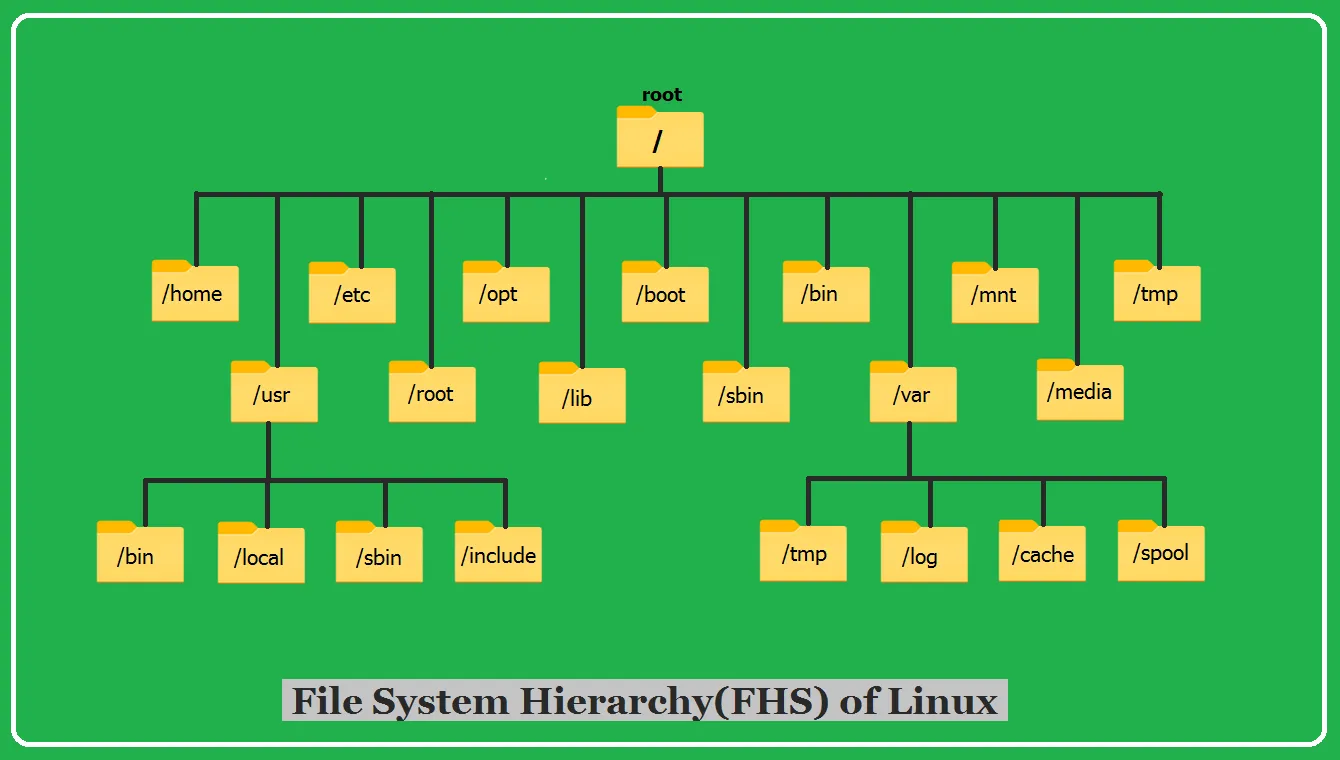
/ – Root
- Top-level root directory.
- Every single file and directory starts from the root directory.
- Only root user has write privilege under this directory.
- Note: /root is root user ’s home directory, which is not same as /.
/bin – User Binaries.
- Contains binary executables.
- Common Linux commands you need to use in single-user modes are located under this directory.
- Commands used by all the users of the system are located here.
- For example: ps, ls, ping, grep, cp.
/sbin – System Binaries
- Just like /bin, /sbin also contains binary executables.
- But, the Linux commands located under this directory are used typically by system administrator, for system maintenance purpose.
- For example: iptables, reboot, fdisk, ifconfig, swapon.
/etc – Configuration Files
- Contains configuration files required by all programs.
- This also contains startup and shutdown shell scripts used to start/stop individual programs.
- For example: /etc/resolv.conf, /etc/logrotate.conf
/dev – Device Files
- Contains device files.
- These include terminal devices, usb, or any device attached to the system.
- For example: /dev/tty1, /dev/usbmon0.
/proc – Process Information
- Contains information about system process.
- This is a pseudo file system contains information about running process. For example: /proc/{pid} directory contains information about the process with that particular pid.
- This is a virtual filesystem with text information about system resources. For example: /proc/uptime.30
/var – Variable Files
- var stands for variable files.
- Content of the files that are expected to grow can be found under this directory.
- This includes — system log files (/var/log); packages and database files (/var/lib); emails (/var/mail); print queues (/var/spool); lock files (/var/lock); temp files needed across reboots (/var/tmp);
/tmp – Temporary Files
- Directory that contains temporary files created by system and users.
- Files under this directory are deleted when system is rebooted.
/usr – User Programs
- Contains binaries, libraries, documentation, and source-code for second level programs.
- /usr/bin contains binary files for user programs. If you can’t find a user binary under /bin, look under /usr/bin. For example: at, awk, cc, less, scp
- /usr/sbin contains binary files for system administrators. If you can’t find a system binary under /sbin, look under /usr/sbin. For example: atd, cron, sshd, useradd, userdel.
- /usr/lib contains libraries for /usr/bin and /usr/sbin
- /usr/local contains users programs that you install from source. For example, when you install apache from source, it goes under /usr/local/apache2
/home – Home Directories
- Home directories for all users to store their personal files.
- For example: /home/deependra, /home/student
/boot – Boot Loader Files
- Contains boot loader related files.
- Kernel initrd, vmlinux, grub files are located under /boot
- For example: initrd.img-2.6.32-24-generic, vmlinuz-2.6.32-24-generic
/lib – System Libraries
- Contains library files that supports the binaries located under /bin and /sbin
- Library filenames are either ld* or lib*.so*
- For For example: ld-2.11.1.so, libncurses.so.5.7
/opt – Optional Add-on Applications
- opt stands for optional.
- Contains add-on applications from individual vendors.
- add-on applications should be installed under either /opt/ or /opt/ sub-directory.
/mnt – Mount Directory
- Temporary mount directory where sysadmins can mount filesystems.
/media – Removable Media Devices
- Temporary mount directory for removable devices.
- For examples, /media/cdrom for CD-ROM; /media/floppy for floppy drives; /media/cdrecorder for CD writer.
/srv – Service Data
- srv stands for service.
- Contains server specific services related data.
- For example, /srv/cvs contains CVS related data.
Interface and logging in via terminal
- After starting terminal provide username and password.
- Shell prompt usually ends in a dollar sign ($)
- [dipen@example.com ~]$ :This interface can be seen when we are logged in as normal user
- [root@example.com ~]#: This can be seen when we are logged in as root user
- NOTE: To logout simply press ctrl+D or exit command.
Remote login via ssh
- See the Ip address of the virtual machine.
- Note: The network of virtual machine should be in the bridge adapter.
- By default it is in NAT(Network address translation).
- Change it to the bridge network.
- Check if ssh service is available and active or nor in Linux terminal.
- sudo systemctl is-active ssh
- After that start the ssh service by using
- sudo systemctl start ssh ;To start ssh service
- sudo systemctl status ssh ;To see the status of the ssh service.
- Now open the PowerShell or any other terminal where you want to connect remotely and check if ssh is available or not. If available then
- ssh hostname@ip_address_of_virtual_machine/another_machine
- Now you will see the prompt for entering password. In this place enter the password of the virtual machine/the machine to which you are trying to connect.
Linux File system
In Linux there are seven types of files.
1.Regular files [-]
2.Directories [d]
3.Character device files [c]
` A character special file represents a device that transfers data in bytes such as a monitor or a printer. These are also device files that provide unbuffered serial access to system hardware components. They work by providing a way of communication with devices by transferring data one character at a time.
Listing character files sockets in a directory:
ls -l /dev | grep “^c”
4.Block device files [b]
A block special file represents a device that transfers data in blocks such as a hard drive. These are device files that provide buffered access to system hardware components. They provide a method of communication with device drivers through the file system. One important aspect about block files is that they can transfer a large block of data and information at a given time.
Listing block files sockets in a directory:
ls -l /dev | grep “^b”
5.local domain sockets [s]
These are files that provide a means of inter-process communication, but they can transfer data and information between processes running on different environments. This means that sockets provide data and information transfer between processes running on different machines on a network. An example to show the work of sockets would be a web browser making a connection to a web server.
ls -l /dev/ | grep “^s”
sudo find / -type s -ls
6.Named pipes [p]
These are files that allow inter-process communication by connecting the output of one process to the input of another. A named pipe is actually a file that is used by two processes to communicate with each and it acts as a Linux pipe. Listing pipes sockets in a directory:
ls -l | grep “^p”
sudo find / -type p -ls
7.symbolic links [l]
The files
sudo find / -type l -ls | less
ls -l /dev/ | grep “^l”
Keep reading
- TMUX Complete Cheatsheet
Session Commands Command / Shortcut Description tmux Start a new session. tmux new -s [name] Create new session. tmux attach Attach to latest session. tmux detach Detach session. tmux a -t [name]…
- LVM in linux
Problems with standard partation There are some problems when working with hard disks and standard aprtiations. Consider a system with a small and a large hard disk drive, partioned. Suppose the…
- Apache web server
The Apache HTTP server, commonly known as Apache is a free and open-source web server, that delivers web content through the internet. As open-source software, its original source code is freely…