Apache web server
The Apache HTTP server, commonly known as Apache is a free and open-source web server, that delivers web content through the internet. As open-source software, its original source code is freely…


ON THIS PAGE
The Apache HTTP server, commonly known as Apache is a free and open-source web server, that delivers web content through the internet. As open-source software, its original source code is freely available for developers to view and collaborate. This has made Apache a favorite among developers who create and configure Apache models to expand its functionality and improve on its core features.
Why webserver
- To deliver app securely
- To remove downtime
- For load balancing
Difference between Apache web server and nginx web server
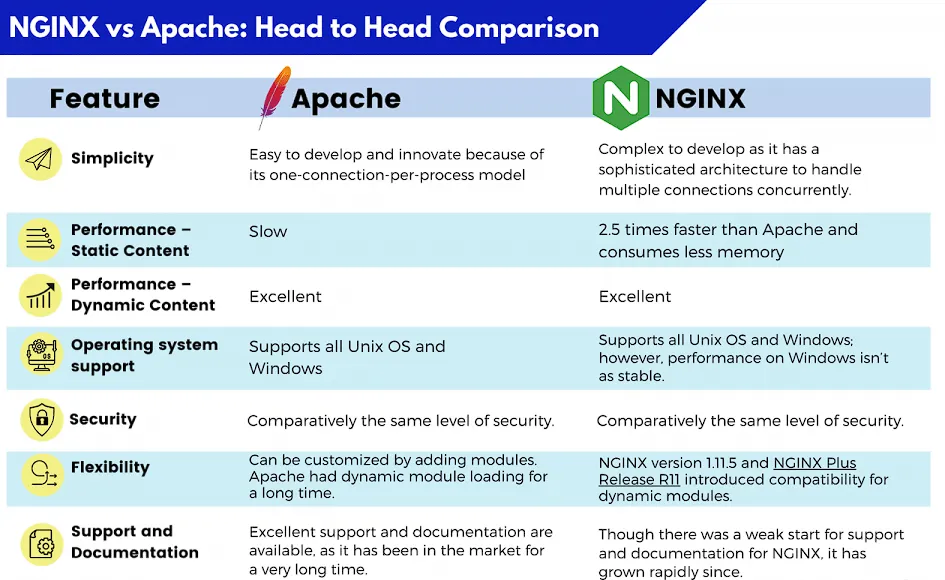
NGINX also supports reverse proxy.
Reverse proxy: A server that sits between client device [web browser] and backend server and then returning the server’s response to the client. Acts as a actual server hiding existence of characteristics of backend server.
To install apache2
- apt install apache2
- sudo systemctl status apache2
- sudo systemctl enable apache2
- sudo systemctl start apache2
Commands
- a2enmod: To enable module
- a2ensite: To enable the site
- a2enconf: To enable configuration
- a2dismod:
- a3dissite:
- a2disconf:
Apache2 configuration overview
/etc/apache2/
|-- apache2.conf
|       `--  ports.conf
|-- mods-enabled
|       |-- *.load
|       `-- *.conf
|-- conf-enabled
|       `-- *.conf
|-- sites-enabled
| `-- *.conf- apache2.conf
- Master configuration file that pulls in all other settings like modules, ports, sites,etc.
- ports.conf
- Specifies the TCP ports Apache listens on
- Example: Port 80 for HTTP request and 443 for HTTPs.
- Specifies the TCP ports Apache listens on
- mods-available and mods-enabled
- mods-available holds all the module defination [load to load code and conf to configure code]
- mods-enabled contains syslinks to subset actually in use
- Conf-enabled and conf-available
- Conf-enabled holds syslinks to the active snippets.
- conf-available store the global snippets.
- Sites available and sites enables:
- Sites available contains all virtual hosts defination
- sites enabled has syslinks to the ones currently served to clients
- envars
- Define apache’s own environmetn variables [ Ex: log directory, PID file, Run user ] that get loaded when using apache2ctl or init script.
- Magic
- Contains magic number rules for defining a file MIME type based on its initial bytes [EG: %pdf for pdf]
- logrotate
- It determines for how much time we need to place the logs.
- This is the linux utility that manages the automatic rotation, compression and removal of log files.
- Prevents log files from consuming excessive disk space.
To load a website in apache2
- Download a site from toolplate : download>>inspect >> network >> name.zip file >>copy URL of the of the zip file here is 2103_central.zip. This file name is based on the template name.
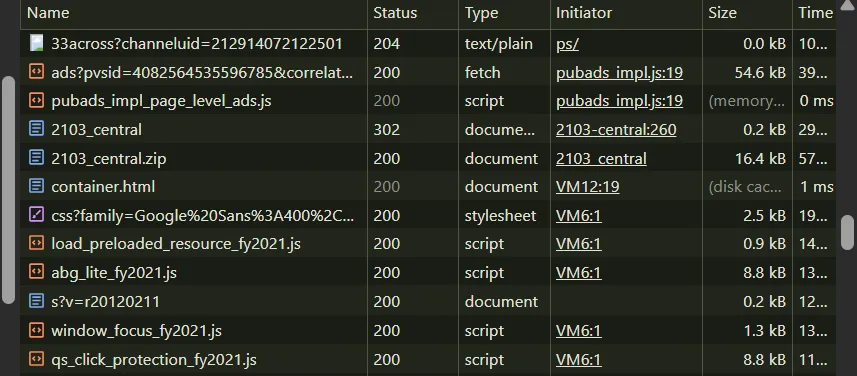
- wget /tmp or any location you want to.
- unzip the URL by using command unzip -R filename.
- Copy the unzipped files to /srv/dirname
- Now copy the /etc/apache2/000-default file and create a new file for example newfile.conf and in file change root = /srv/dirname. This is the path where you have copied file earlier.
- Now activate the site a2ensite newfile.conf
- a2dissite 000-default.conf
- chown -R www-data:www-data /srv/: When apache reads static files like HTML, CSS and javascript it as www-data user. So we need to change ownership of directory to www-data.
- vim /etc/apache2/apache2.conf
- #Simply uncomment this line
- Now systemctl restart apache2
- Now that custom website will be launched.
- To access locally curl localhost.
Other Docs
Shell Scripting
- Writing our first script
- Variable
- To take input from user we use
- Positional Argument
- Command substitute
- If
- For
- While
- Linux Links
- Packet Management
- Users and Groups
- File permissions
- Archiving and Compressing
- Sudo
- Processes
- To see Ip address of the machine
- Systemctl commands
- Change directory [cd]
- Listing command [ls]
- Basic commands
- Copy command
- Move command
- Remove Command
- To get help and see suggestion in linux
- To view/print contents of file
- Grep
- Sed [Stream Editor]
- Cut
- AWK
- VIM
- Input/Output redirection
- To download using links
Linux Introduction
- Overview
- Architecture
- Linux Terminology
- Linux File Structure
- / – Root
- /bin – User Binaries.
- /sbin – System Binaries
- /etc – Configuration Files
- /dev – Device Files
- /proc – Process Information
- /var – Variable Files
- /tmp – Temporary Files
- /usr – User Programs
- /home – Home Directories
- /boot – Boot Loader Files
- /lib – System Libraries
- /opt – Optional Add-on Applications
- /mnt – Mount Directory
- /media – Removable Media Devices
- /srv – Service Data
- Interface and logging in via terminal
- Linux File system
Keep reading
- Shell Scripting
It is a way to automate tasks by writing a series of commands in a text file called script that Linux shell can execute. It’s like creating a ‘to do list’ for your computer to follow step by step…
- To create a service file for Tomcat Server
/etc/systemd/system/multi-user.target.wants/apache2.service First we need to create a file inside /etc/systemd/system. For now i have created a file with name tomcat1.service. After that write a…
- Linux Commands
To see Ip address of the machine ip addr show :Shows all the interfaces ip ip -4 addr show: Show only ipv4 address ifconfig: Same as ip addr show but it needs net tools to show ip address. Systemctl…