AWS IAM Users, Groups, Roles and Policies
Learn how AWS IAM controls who can do what in an account. Create users and groups, use roles and JSON policies, and set up MFA and the AWS CLI safely.

ON THIS PAGE
AWS Identity and Access Management (IAM) decides who can sign in to an AWS account and what they are allowed to do there. Every request in AWS goes through IAM, which makes it the first service to configure in any new account. This guide creates users and groups, gives an EC2 instance a role, writes a policy document, sets up MFA and the AWS CLI, and closes with the practices that keep an account least-privileged.
Prerequisites
- An AWS account and a sign-in with permission to manage IAM, such as an administrator user. Avoid the root user for daily work.
- An authenticator app, passkey or security key for the MFA steps.
- A terminal on Linux, macOS or Windows for the AWS CLI section.
How IAM works
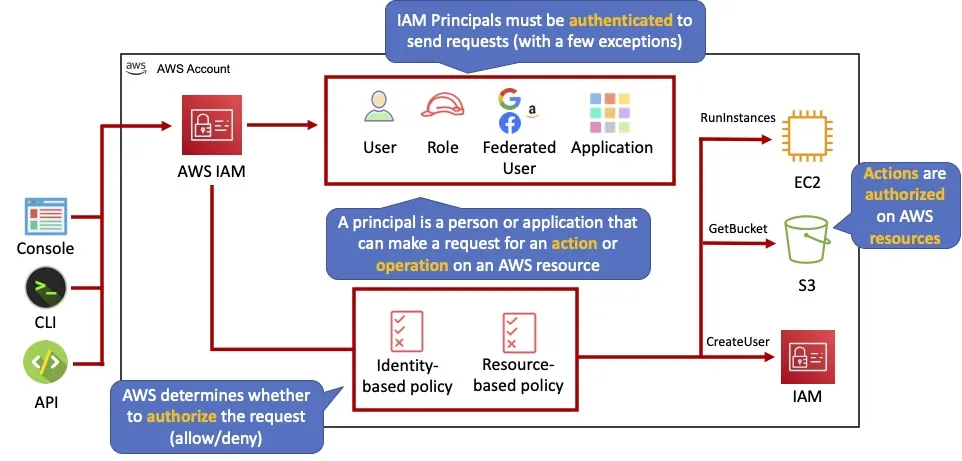
IAM does two jobs:
- Authentication: proving who you are (a password, an access key, a role session).
- Authorization: deciding whether that identity may perform an action on a resource. IAM checks the attached policies and returns allow or deny.
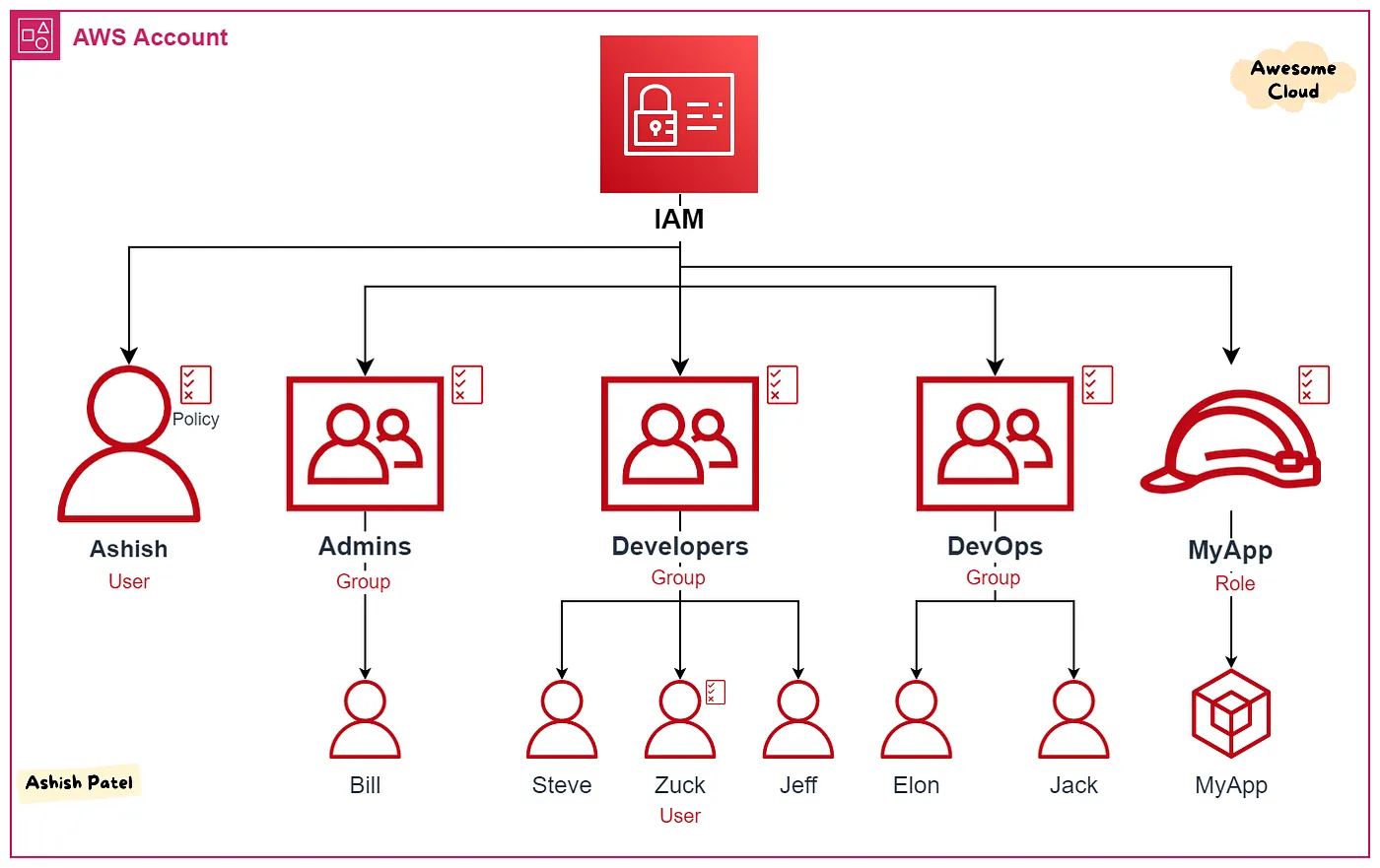
The identity that makes a request is called a principal. It can be a user, a role, a federated user (someone who signs in through an outside identity provider) or an application.
IAM is a global service (not tied to a Region) and there is no charge for it.
Official guide: IAM User Guide.
IAM building blocks
| Item | What it is | Typical use |
|---|---|---|
| User | One identity with long-term credentials (password and/or access keys) | Emergency access, or tools that cannot use roles |
| User group | A collection of users; policies attached to the group apply to every member | Give a whole team the same permissions |
| Role | An identity with no long-term credentials; anyone allowed to assume it gets temporary credentials | EC2, Lambda, CI/CD pipelines, cross-account access |
| Policy | A JSON document that lists allowed or denied actions on resources | Attached to users, groups or roles |
A user can be a member of several groups. Groups cannot contain other groups.
Creating an IAM user
- Open IAM → Users → Create user and enter a user name. The name must be unique in the account.
- Tick Provide user access to the AWS Management Console only if the person needs the console. Choose an auto-generated or custom password, and keep User must create a new password at next sign-in selected.
- Set permissions with one of these options:
- Add user to group (recommended; permissions stay in one place).
- Copy permissions from an existing user.
- Attach policies directly, using AWS managed policies or your own.
- Optionally add tags, which are key-value pairs such as
Environment = DevorOwner = Dipen. Tags help you find and organize resources. - Review and choose Create user. Share the console sign-in URL and the password with the user.
What you can do from a user's page
| Tab or action | Use |
|---|---|
| Permissions | See and change the attached policies |
| Groups | See and change group membership |
| Security credentials | Manage the console password, MFA devices and access keys; disable console sign-in |
| Last Accessed | See which services the user has used, so you can remove unused permissions |
| Delete | Remove the user completely |
Turning on MFA
Multi-factor authentication (MFA) asks for a second proof, such as a code from a phone, on top of the password. A stolen password alone is then not enough to sign in.
- Open the user, then Security credentials → Assign MFA device.
- Give the device a name, for example
my-phone. - Pick the type: passkey or security key, authenticator app, or hardware TOTP token (a small device that shows time-based codes).
- Follow the prompts. For an authenticator app, scan the QR code and enter two codes in a row.
One user can have up to eight MFA devices.
Creating a user group
- Open IAM → User groups → Create group.
- Enter a unique group name, for example
developers. - Optionally, add existing users.
- Attach the permission policies the group needs.
- Choose Create user group. Every member inherits the group's permissions.
IAM roles
A role lets an AWS service, or a user from another account, act with a set of permissions without storing any password or access key. When something assumes the role, AWS Security Token Service (STS) hands it temporary credentials that expire on their own.
Example: an EC2 instance needs to upload logs to an S3 bucket.
- Create a role with AWS service → EC2 as the trusted entity.
- Attach a policy that allows
s3:PutObjecton the log bucket. - Attach the role to the instance (EC2 uses an instance profile for this).
The instance can now write to S3, and no access keys exist on the server. The trusted-entity choice creates a trust policy like this one, which says who may assume the role:
{
  "Version": "2012-10-17",
  "Statement": [
    {
      "Effect": "Allow",
      "Principal": { "Service": "ec2.amazonaws.com" },
      "Action": "sts:AssumeRole"
    }
  ]
}A role always has two parts: the trust policy (who can assume it) and the permission policies (what it can do once assumed).
Policy documents
An IAM policy is a JSON document. This one lets a principal list one bucket and read the objects inside it:
{
  "Version": "2012-10-17",
  "Statement": [
    {
      "Sid": "ListTheBucket",
      "Effect": "Allow",
      "Action": "s3:ListBucket",
      "Resource": "arn:aws:s3:::example-bucket"
    },
    {
      "Sid": "ReadObjects",
      "Effect": "Allow",
      "Action": "s3:GetObject",
      "Resource": "arn:aws:s3:::example-bucket/*"
    }
  ]
}| Element | Meaning |
|---|---|
Version | Policy language version. Always use 2012-10-17; the older 2008-10-17 lacks features such as policy variables. |
Statement | A list of one or more permission rules |
Sid | Optional label for a statement |
Effect | Allow or Deny. An explicit Deny always wins. |
Action | The API operations, such as s3:ListBucket or ec2:StartInstances |
Resource | The ARN (Amazon Resource Name) of the resources the actions apply to |
Condition | Optional rules, for example only from an IP range or only over TLS |
NotAction and NotResource exist for "everything except" rules, but they are error-prone.
Policies come in a few kinds:
- AWS managed: written and updated by AWS, for example
ReadOnlyAccess. A good start, but often broader than needed. - Customer managed: written by you and reusable across users, groups and roles.
- Inline: embedded in one user, group or role and deleted with it.
All three use the same JSON structure.
Using the AWS CLI with access keys
Access keys are long-term credentials for the CLI, SDKs and API.
- Open the user, then Security credentials → Create access key.
- Choose Command Line Interface (CLI) as the use case. The console suggests alternatives (IAM Identity Center or CloudShell) before it lets you continue.
- Optionally add a description tag, then create the key. You get an Access key ID and a Secret access key. The secret is shown only once; if you lose it, delete the key and create a new one.
Install AWS CLI v2 with the official guide for your OS, then configure it:
$ aws --version
$ aws configure
AWS Access Key ID [None]: <your-access-key-id>
AWS Secret Access Key [None]: <your-secret-access-key>
Default region name [None]: us-east-1
Default output format [None]: json
$ aws sts get-caller-identity
$ aws iam list-usersaws sts get-caller-identity returns the identity the CLI is using, which confirms that the keys work. The keys are saved in plain text in ~/.aws/credentials and the settings in ~/.aws/config.
Handle access keys with these rules:
- Never put keys in code, Git repositories or chat messages.
- Rotate keys on a schedule and when someone leaves.
- To remove a key, first deactivate it, check nothing breaks, then delete it.
- Give the key's user only the permissions it needs.
Account settings, reports and Access Analyzer
- Password policy (IAM → Account settings): set minimum length, required character types, password expiry and reuse rules for IAM users.
- STS endpoints: the same page lets you turn regional STS endpoints on or off. STS is the service that issues temporary credentials for roles and federated users.
- Credential report: a downloadable CSV of every user with password age, MFA status and access key age and last use. Useful for audits.
- IAM Access Analyzer:
- finds resources, such as S3 buckets or roles, that are shared outside your account or organization;
- finds unused roles, access keys, passwords and permissions (this unused-access analysis is a paid feature);
- validates policies against IAM grammar and best practices while you write them;
- generates a least-privilege policy from the actions a role has used, based on CloudTrail logs.
Best practices
- Least privilege: grant only the actions and resources a task needs. Start with an AWS managed policy if you must, then narrow it using Last Accessed data or Access Analyzer.
- MFA everywhere: turn on MFA for the root user and every human user. Prefer phishing-resistant passkeys or security keys.
- Lock away the root user: do not create root access keys, and use the root user only for the few tasks that need it.
- Temporary credentials over long-term ones: roles for workloads, IAM Identity Center for people.
- Use groups, not per-user policies, so permissions stay simple to review.
- Clean up regularly: remove unused users, keys, roles and policies.
Key takeaways
- IAM handles both authentication and authorization for every AWS request, and it is free.
- Users and groups are for people; roles give services temporary credentials with no stored keys.
- A policy is JSON with
Effect,Action,Resourceand optionalCondition; an explicitDenyalways wins. - Long-term access keys in
~/.aws/credentialsare a security risk; preferaws configure ssoor roles. - Least privilege and MFA are the two habits that prevent most IAM incidents.
Next in this series: Amazon EC2.
Keep reading
- AWS Global Infrastructure and Core Services
How AWS Regions, Availability Zones and edge locations fit together, which services are global or regional, the main storage types, and the shared responsibility model.
- Amazon S3 Buckets, Bucket Policies and Static Website Hosting
Learn the core Amazon S3 ideas (buckets, keys, versioning, bucket policies, storage classes), then create a bucket and host a static website on it step by step.
- AWS Pricing, Billing and Cost Management
How AWS charges for compute, storage and data transfer, which pricing models save money, and how to estimate, track and limit costs with AWS billing tools.