GIT INTRODUCTION
Version control system VCS is basically software designed to record changes within one or more files over time. It allows us to undo or to cancel all made or pending changes within one or more…

ON THIS PAGE
Version control system
VCS is basically software designed to record changes within one or more files over time. It allows us to undo or to cancel all made or pending changes within one or more files.
>>>It allows maintaining multiple versions of a file, document, program websites etc.
>>>It keeps track of every modification to the code in a special kind of database.
Why VCS?
- It gives a time machine for going back to the earlier versions.
- Greatly simplifies concurrent works, merging changes.
- Management of changes to files.
- Keep track of what changes occur.
- Allows people to work together.
Kinds of VCS
Local Version Control System
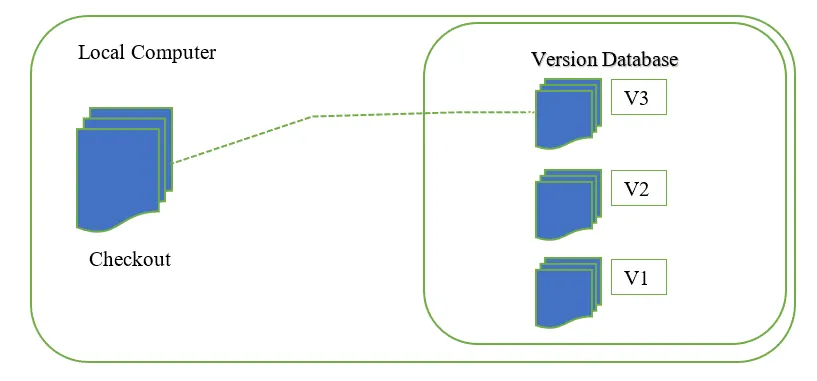
A local version control system is a local database located on your local computer, in which every file change is stored as a patch. Patch is like different version of code/file which is created when we make changes to file.
Centralized Version Control System
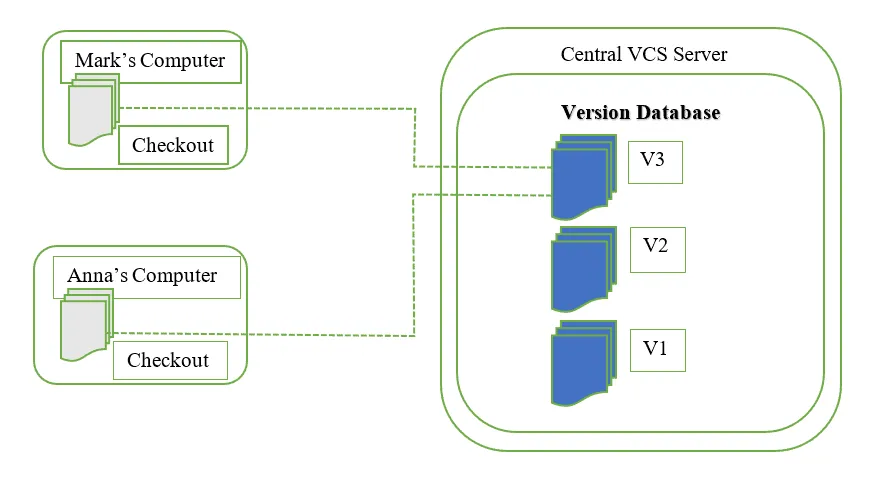
- There is a server and a client. The server is the master repository which contains all of the versions of the code.
- A central server repository holds the official copy of code, so the
connection to the central server is required for most operations. svn, cvs, perforce etc - We make checkouts of the central server to the local copy and make
local modifications. The local changes are not versioned. - Once the local modifications are done, CheckIn back to the server is
done. The check in increments the repo’s version.
Drawbacks:
Both the approaches have the drawback, one single point of failure. In local VCS, it is the individual computer and in the centralized VCS, it is a server machine. In both systems it is also harder to work in parallel on different features
Distributed Version Control System
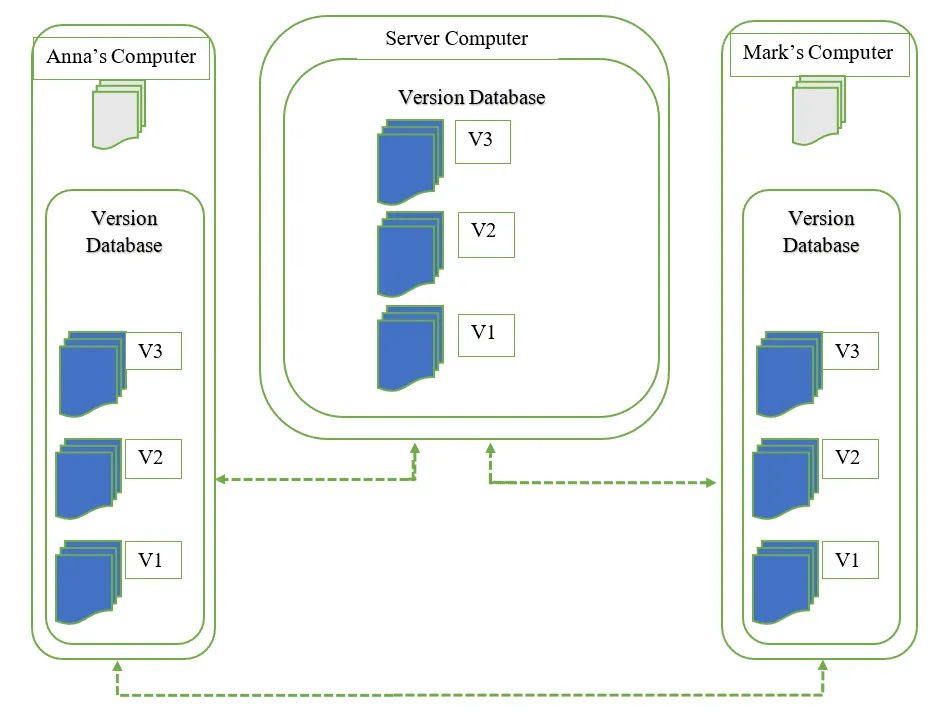
- Each user has a complete local copy of a repository on his/her individual computer.
- We don’t checkout from central repo. We clone it and pull the changes from it like git,mercurial,etc.
- The local repo is the complete copy of everything on the remote server.
- Most operations are local,and a central server is not required.
- Check in/out from the local repo.
- Commit changes to local repo
- Local repo keeps version history
- When everything is done, we can push changes back to the central repository.
- GitHub is an example of git remote repository
GIT
- Git is the distributed version control system
- Massively scales, open source
- Most operations are local and it is fast.
- Active community, it has also became the most popular vcs
- It is a Tree history storage system
- It is a content tracking management system
- It provides Ease & Speed.
- Ease: Simple to use too and command, also it is a cloud based
repository. - Speed: Support for non-linear development, fully distributed, able to
handle large projects.
- Ease: Simple to use too and command, also it is a cloud based
- Git was created by Linus Torvalds, a creator of Linux in 2005.
- Came out of linux development community
- Designed to do version control on Linux kernel
Key terminologies
- Repository contains files, history, config managed by git.
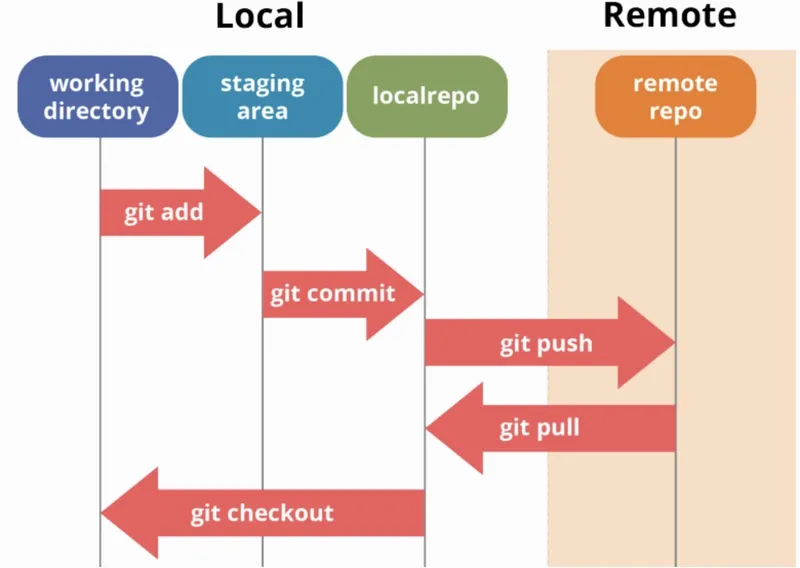
- Three stages of Git
- working directory
- staging area → Also known as pre-commit holding area
- Commit → Git repository(history)
- Remote repository (Github)
- Master branch → Branches in Git to work on different versions at the same time.
Git Workflow
To install git follow the link or just run sudo apt install git in CLI.
git –version: To check version
To setup Git for the first time.
First create a account on github and then create a repository in github. After that we can setup HTTPs or SSH link.
HTTPs
- Click the repository and click on . Inside local copy the URL of HTTPS.
- Public:
- No authentication required, anyone can access
- Private:
- Authentication required, only allowed can access
- Public:
- Now in terminal
- Create a directory
- Inside directory git init
- git remote add origin URL
- git config –global user.name ” “
- git config –global user.email” “
- git push origin main
- username: can write any name
- password: For password
- GitHub >>settings>.Developer>>Personal access token
- Fine grained token
- Can configure many things like time, users, permissions, etc.
- Classic token
- For now we are using this
- Write note for your readibility
- select scopes based on your need
- Generate token
- For now we are using this
- Fine grained token
- GitHub >>settings>.Developer>>Personal access token
- Use this token in place of the password.
- Problem with HTTPs
- Every time we make make changes and want to push we need to provide username and password. So if we are using that repo persionally in our macine then we can configure SSH.
SSH
- Click the repository and click on . Inside local copy the URL of SSH.
- Now in terminal
- Create a directory
- Inside directory git init
- git remote add origin URL
- git remote set-url origin URL #To change the existing URL
- git config –global user.name ” “
- git config –global user.email” “
- Now we need to generate SSH key
- ssh-keygen -t rsa
- Follow the screen prompt or simply press enter in each prompt and it will generate .ssh directory in ~/ path.
- Now copy the public key ie;id_rsa.pub and leave the private key as it is.
Git Branching
The best practice is creating the feature branch or other branches from main/master branch and perform development and finally integrate to the master/main branch when the feature/top branch is stabilized after running multiple tests in it.
Branches
Develop / main branch
- Main branch: Stores the official release history.
- Develop branch: Servers as integration branch for features.
- The develop branch will contain complete history of the project whereas main contain an abridged version [Shorter version of the project history ] , likely focusing on key milestone or reset changes.
Develop / main branch
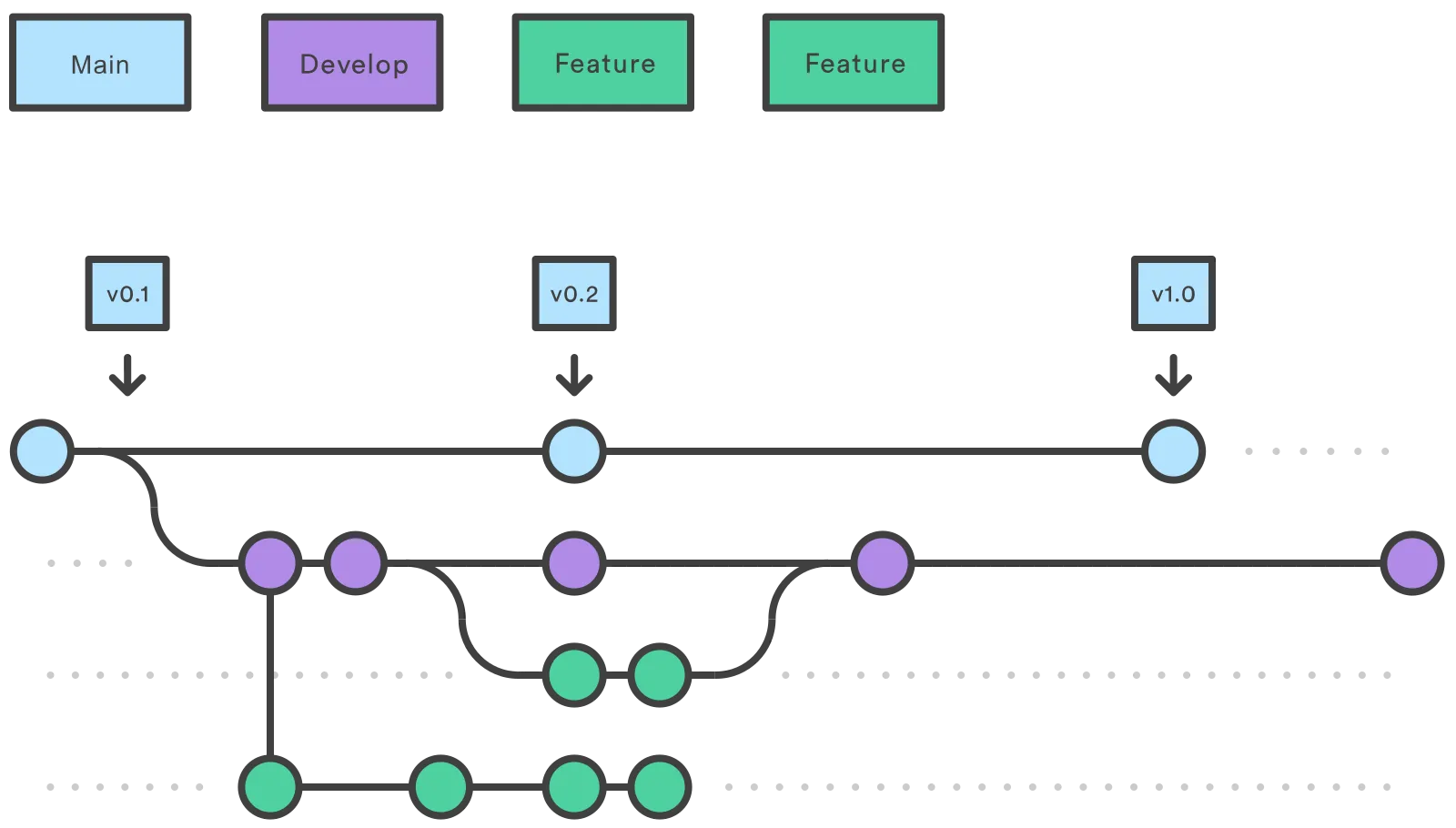
- Each new feature should reside in its own branch, which can be pushed to the central repo for backup/collaboration.
- Instead of branching off of
main,featurebranches usedevelopas their parent branch. - When a feature is complete, it gets merged into the develop branch.
- Features should never interact directly with
main.
Release branches
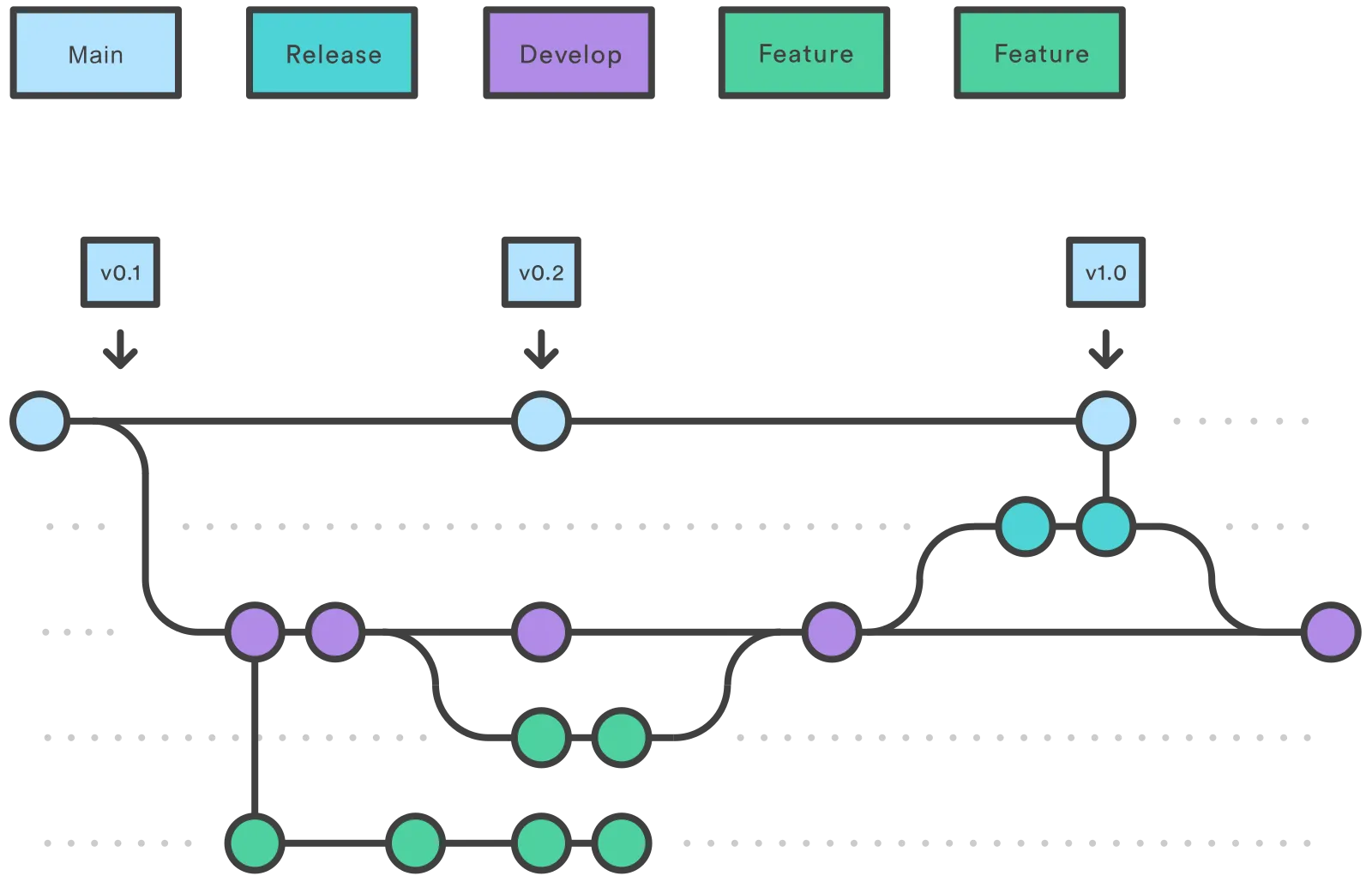
- Once
develophas acquired enough features for a release, you fork areleasebranch off ofdevelop. - Creating this branch starts the next release cycle, so no new features can be added after this point only bug fixes, documentation generation, and other release-oriented tasks should go in this branch.
- Once it’s ready to ship, the
releasebranch gets merged intomainand tagged with a version number. - In addition, it should be merged back into
develop, which may have progressed since the release was initiated. - Using a dedicated branch to prepare releases makes it possible for one team to polish the current release while another team continues working on features for the next release.
Hotfix branches
- used to quickly patch production release/fix bugs.
- They are a lot like release and feature branch except they are based on main instead of develop.
- As soon as fix is completed, merged back to the main and the develop.
- Dedicated line for development for bug fixes lets team address issue without interrupting the rest of the flow.
For detailed study refer to this link
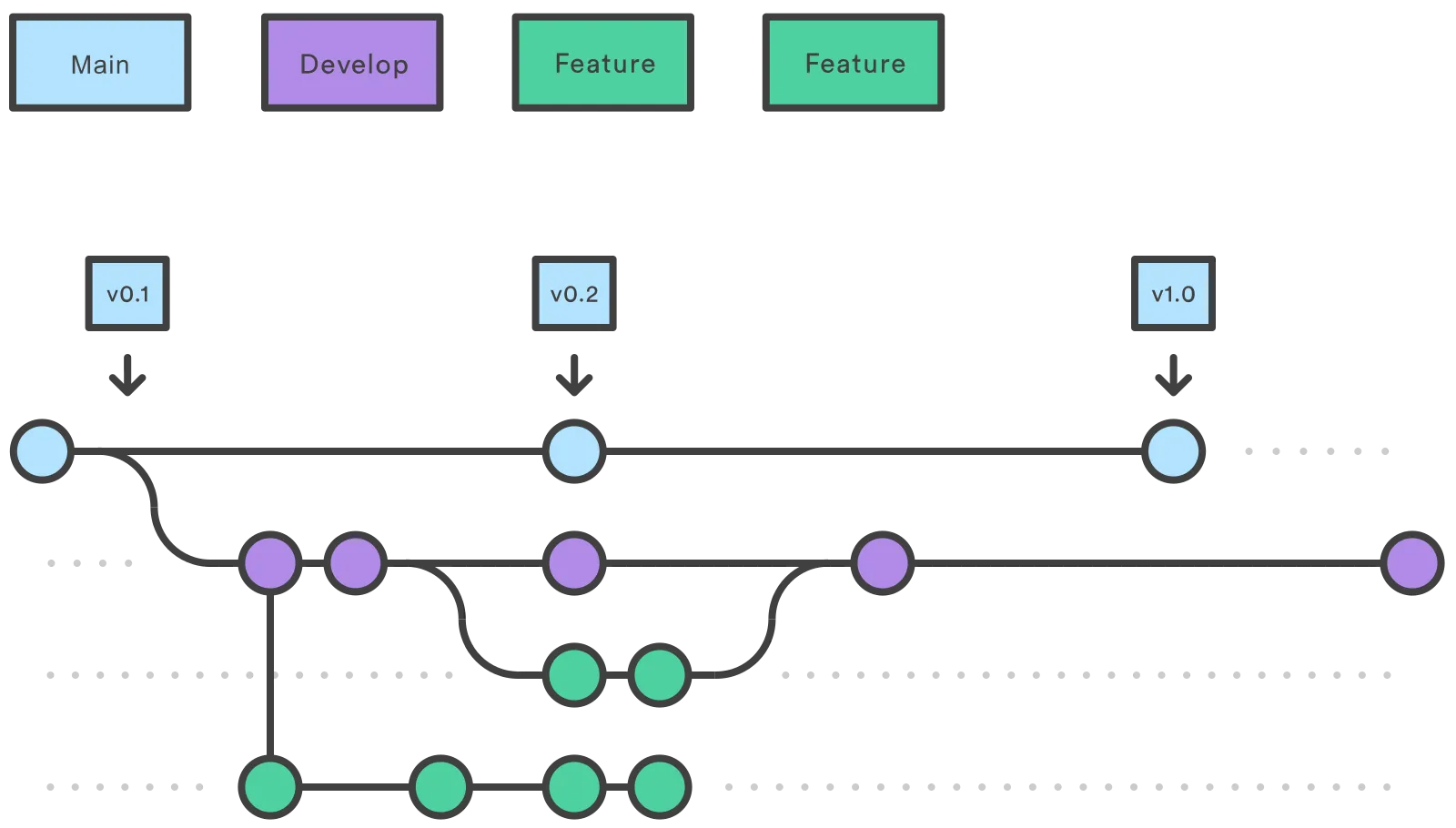
We will use branch in this order in some of the examples to merge or rebase
Merge Conflicts
When we make changes to the same line of the code or files in different branches then it will create merge conflict. Due to incompatibility between different files it will create merge conflict.
Why merge conflicts happens ?
1.Two or more developers make different changes to the same line of the code.
2. One developer modifies a file while another detects it.
3.Multiple developer makes changes to the same file at the same time.
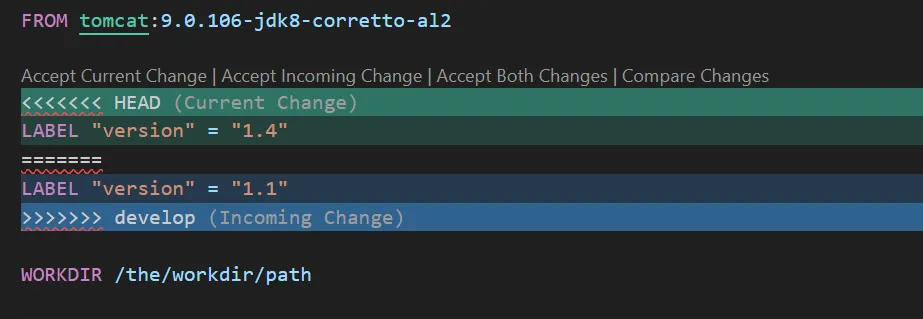
When conflict occurs during merging we can see a file like this.
Here HEAD means the change in this branch and Incoming change means the change that is done in another branch due to which conflict is occurring.
So to resolve this remove the lines of one branch and save it. For example.
Now add the file and commit a message and now if you try to merge it will not raise error.
So to avoid merge conflicts continuously merge the branches.
Rebase
- Rebasing your means you are moving the entire feature branch to begin on the tip of main branch, effectively incorporating all of the new commits in main.
- Rebasing re – writes the project history by creating brand new commit for each commit in original branch.
- This means it will create a new time in top of main time line.
- This provides much clearer history but not used while working in group. When you are working in your specific branch and you want much clearer history then use this.
- Command:
git rebase branchname
git rebase –abort: To abort the rebase
We can also get conflict while doing rebase. To resolve that conflict follow the same steps as git merge conflict.
Git Stash
Git stash temporarily save unfinished changes to your working copy so you can work on something else, and then come back and reapply them later on. Sometimes you need to quickly switch tasks or fix a bug, but you’re not ready to commit your work. git stash lets you save your uncommitted changes and return to a clean working directory. You can come back and restore your changes later.
Note:
They reshuffle each and every time here stash@{0} is the latest one and stash@{1} is older. Every time new will get 0 and other will pushed down as 1,2,3 and so on. stash@{1} is called reflog syntax, it allows you to reference the specific stash to show.

GIT tagging
A tag in Git is like a label or bookmark for a specific commit.Tags are most often used to mark important points in your project history, like releases (v1.0 or v2.0).Tags are a simple and reliable way to keep track of versions and share them with your team or users.
Some common tag types include:
- Releases: Tags let you mark when your project is ready for release, so you (and others) can always find that exact version later.
- Milestones: Use tags to highlight major milestones, like when a big feature is finished or a bug is fixed.
- Deployment: Many deployment tools use tags to know which version of your code to deploy.
- Hotfixes: If you need to fix an old version, tags make it easy to check out and patch the right code.
Annotated vs Lightweight Tags
Lightweight Tag: Just a simple name for a commit (no extra info, like a bookmark).
Annotated Tag: Stores author, date, and message.
Recommended for releases and sharing with others.
Cherry Pick
- Bring in changes from specific commits. Can choose one or more commits.
- We can do git rebase or git merge but it is not good as it merges all the changes.
- In simple cherry pick means picking a commit from a branch and applying it to the another.
- It will pickup the changes of that commitId only not the whole code.
When to use ?
- When both of the developer have same similar commands in their feature, they can cherry pick certain similar conditions to their branch.
NOTE: When cherry-picking multiple commit ids, it can create conflicts. We can resolve conflicts like we did in merge conflicts.
We can continue, abort or skip the conflicts.
Git Squashing
- To “squash” in Git means to combine multiple commits into one.
- Process of taking series of commits and merges them into a single commit.
- Useful when a feature branch has numerous small, incremental commits that is cluttering the commit history.
- It doesn’t alter any changes in the code
Keep reading
- GIT commands
Basic commands git pull origin branch_name: To pull changes from git git push origin branch_name: To push the changes to remote repository ssh-keygen -t rsa: To generate ssh key git –version: To see…
- Vagrant
Vagrant is an automation tool to manage VM lifecycle, right from creating avirtual machine to making any changes, deleting it, recreating it, provisioningit, anything that we do manually with VMs, we…
- Shell Scripting
It is a way to automate tasks by writing a series of commands in a text file called script that Linux shell can execute. It’s like creating a ‘to do list’ for your computer to follow step by step…