Jenkins Basics: Install, Job Settings and Administration
Install Jenkins LTS on Ubuntu, learn the controller and agent model, the job types, every common job setting, and how to lock Jenkins down with roles.

ON THIS PAGE
Jenkins remains one of the most widely deployed CI servers, and most of the time spent with it goes into finding the right setting on the right page. This guide installs Jenkins LTS on an Ubuntu VM, configures a freestyle job with parameters and triggers, and secures the server with role-based access control.
What Jenkins does
Jenkins is a free, open source automation server. Its main job is continuous integration (CI): every time someone pushes code, Jenkins pulls it, builds it, runs the tests and reports the result. Most other capabilities, such as Git, Docker, cloud providers and test reports, come from plugins.
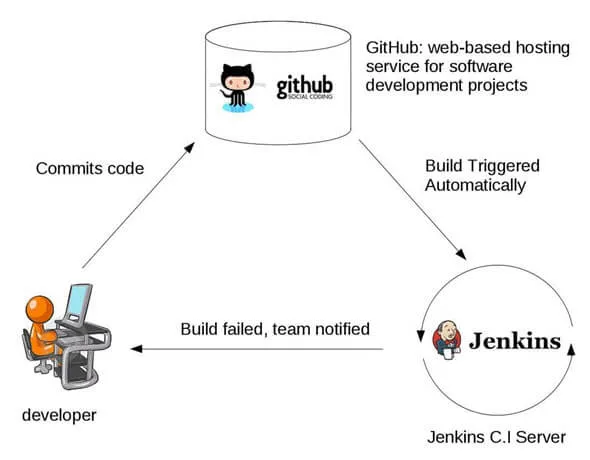
Continuous integration delivers four concrete benefits:
- Bugs surface minutes after the commit that introduced them, not weeks later.
- Every change is built and tested the same way, which raises code quality.
- The whole team sees the build status, which improves collaboration.
- Builds and deployments no longer depend on manual steps.
Controller and agent architecture
A single Jenkins server cannot run many large builds at once, and some builds require a specific operating system. Jenkins solves both problems with a distributed design:
- Controller (older docs and plugins call it "master"): the main Jenkins server. It holds the configuration, schedules builds, sends them to agents, watches the agents and records the results. Users talk only to the controller.
- Agent (older name "slave"): a machine that runs the builds the controller sends it. One controller can have many agents, for example one Linux, one Windows and one macOS agent, each building the same code for its own platform.
The controller coordinates; the agents execute and report back. A working multi-node setup is built later in this series in Distributed Builds in Jenkins.
Environments a build moves through
A pipeline usually deploys the same build to several environments, one after another:
| Environment | Who uses it | Purpose |
|---|---|---|
| Development / test | Developers | Try new code and modules. Often messy and unstable. |
| UAT (user acceptance testing) | Selected users | Check that features work as users expect and collect feedback. |
| Staging | Developers and QA | A copy of production used for final testing. Customers never see it. |
| Production | Real users | The live app, for example Khalti, Daraz or Facebook. |
Prerequisites
- An Ubuntu VM with
sudoaccess and internet access. - Port 8080 on the VM reachable from your browser.
Installing Jenkins on Ubuntu
Jenkins has two release lines:
- LTS (Long-Term Support): a stable release picked every 12 weeks. Use this for anything long-lived.
- Weekly: new features and fixes every week, with more risk of breakage.
This guide uses the LTS release.
Install Java first
Jenkins needs Java 21 or later. Install Java before Jenkins; if Java is missing when the package installs, the service can fail to start.
$ sudo apt update
$ sudo apt install fontconfig openjdk-21-jre
$ java -versionAdd the Jenkins apt repository and install
The repository signing key goes into /etc/apt/keyrings, and the repo line points to it with signed-by. This replaces the old apt-key method, which is deprecated.
$ sudo wget -O /etc/apt/keyrings/jenkins-keyring.asc https://pkg.jenkins.io/debian-stable/jenkins.io-2026.key
$ echo "deb [signed-by=/etc/apt/keyrings/jenkins-keyring.asc] https://pkg.jenkins.io/debian-stable binary/" | sudo tee /etc/apt/sources.list.d/jenkins.list > /dev/null
$ sudo apt update
$ sudo apt install jenkins
$ systemctl status jenkinsThe package creates a jenkins user, runs Jenkins as a systemd service and listens on port 8080.
Unlock Jenkins
Open http://<vm-ip>:8080 in a browser. The first screen asks for a one-time admin password:
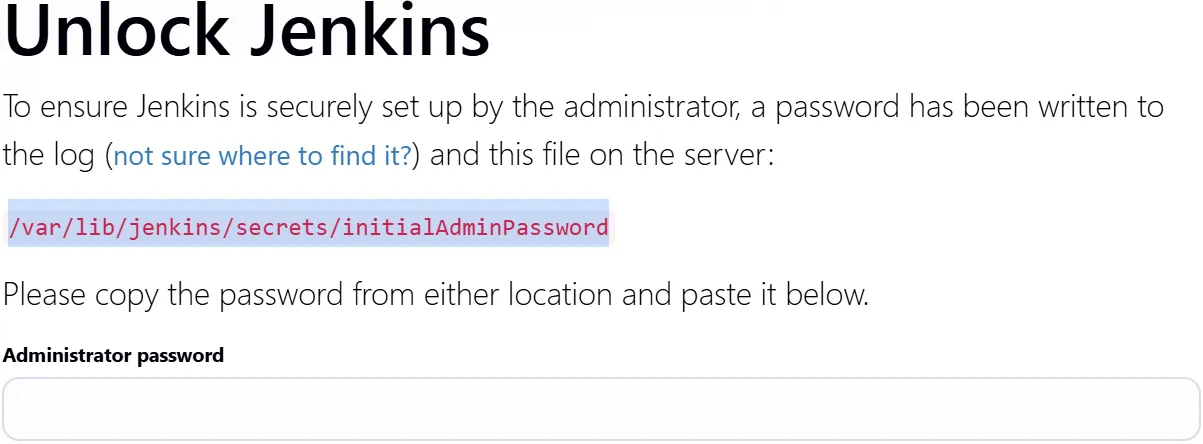
$ sudo cat /var/lib/jenkins/secrets/initialAdminPasswordPaste it, install the suggested plugins, and create the first admin user.
Job types
New Item shows the kinds of jobs Jenkins can create:
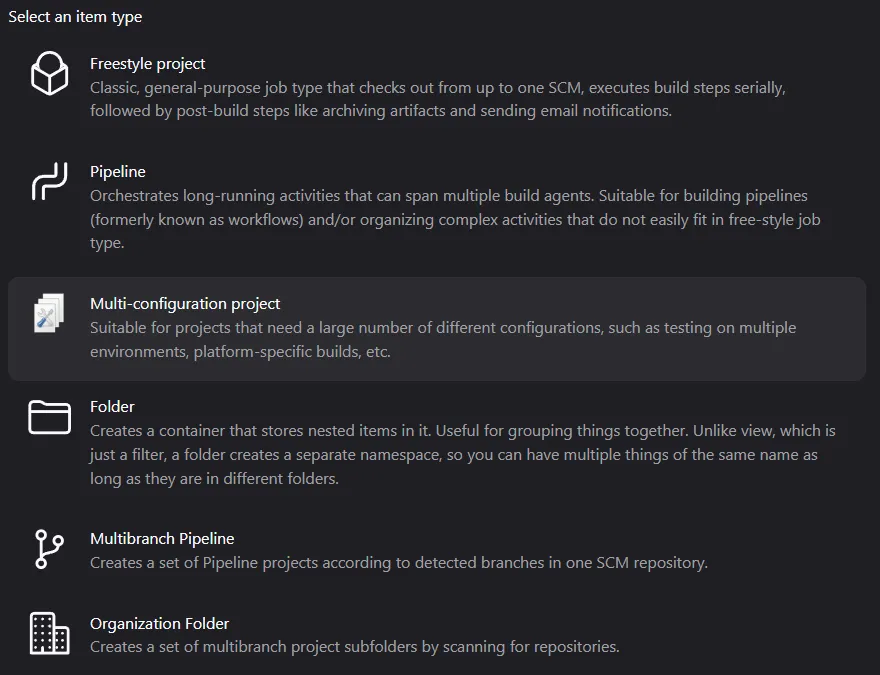
| Type | What it is | When to use it |
|---|---|---|
| Freestyle project | Steps configured in the UI. Feels like writing a shell script. | Simple tasks, for example starting or stopping a machine on a schedule. |
| Pipeline | Stages and steps written as code (Groovy) in a Jenkinsfile. | Multi-step, long-running build and deploy flows. |
| Multi-configuration project | Runs the same job across a matrix of settings. | Testing on many platforms, like a browser that must work on Windows, Linux, macOS and Android. |
| Folder | Groups jobs into a separate namespace. | Keeping many jobs organised. |
| Multibranch Pipeline | Creates one pipeline per branch that has a Jenkinsfile. | Building every branch of a Git repo. |
| Organization Folder | Scans a GitHub, Bitbucket, GitLab or Gitea organisation and creates multibranch jobs for its repos. | Many repos in one organisation. |
Copy from clones the full configuration of an existing job, so you edit only the settings that differ.
Configuring a freestyle job
On a job's page, Status shows recent builds, Changes shows the commits in each build, and Workspace shows the job's files. By default each job gets a folder named after it under /var/lib/jenkins/workspace, which you can also browse from the VM.
The Configure page has six sections:
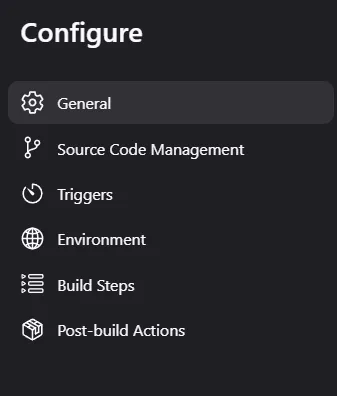
General
- Discard old builds: log rotation for builds. Keep builds for a number of days, or keep only the last N builds.
- GitHub project: links the job to a GitHub repo URL.
- This project is parameterized: asks for values when the build starts. For example, a string parameter
courseswith default valueDevopsis available to the build script as a variable. A Choice Parameter gives a drop-down list of allowed values. - Throttle builds: limits how many builds can start in a given time period.
- Execute concurrent builds if necessary: lets several builds of the same job run in parallel.
- Use custom workspace (under Advanced): build in another directory, for example
/tmp, instead of/var/lib/jenkins/workspace/<job>.
echo $courses # prints Devops unless another value is chosen at build timeSource Code Management
Add the repository URL, credentials for a private repo, and the branch to build. Git is supported out of the box; other version control systems need a plugin.
Triggers
Triggers decide when a build starts:
| Trigger | What starts the build |
|---|---|
| Trigger builds remotely | An HTTP request to a URL that contains a secret token. |
| Build after other projects are built | Another job finishing with the status you choose. |
| Build periodically | A cron-style schedule. |
| GitHub hook trigger for GITScm polling | A webhook from GitHub on push or merge. |
| Poll SCM | Jenkins checks the repo on a schedule and builds only if something changed. |
Remote trigger: set an authentication token in the job, then call the job URL with it. In my lab the job simplescript was triggered with http://192.168.56.150:8080/job/simplescript/build?token=HELLO. Parameterized jobs use buildWithParameters instead of build.
Upstream and downstream: when job A triggers job B, A is the upstream job and B is the downstream job. Both job pages show this link.
Build periodically uses cron syntax. Jenkins adds H (hash), which spreads jobs across the time window so they do not all start at the same minute:
# Every fifteen minutes (perhaps at :07, :22, :37, :52)
H/15 * * * *The GitHub hook trigger needs a webhook in the GitHub repo. I set that up in GitHub Webhooks in Jenkins.
Environment
- Delete workspace before build starts: every build starts from a clean folder.
- Use secret text(s) or file(s): injects credentials stored in Jenkins as variables, so they are never written in the job.
- Add timestamps to the Console Output: prints the time of each line, which shows the slow step when debugging.
- Terminate a build if it's stuck: aborts builds that hang for too long.
- With Ant: sets up Apache Ant for the build.
Build steps
Build steps hold the actual work of the job. My first freestyle job ran a short shell script:
#!/bin/bash
echo "Hello Good evening Devops!!!"
df -h
free -m
date
timedatectlThe same idea as a pipeline, running inside a Node.js container (this needs Docker on the agent and the Docker Pipeline plugin):
pipeline {
    agent { docker { image 'node:22.16.0-alpine3.22' } }
    stages {
        stage('build') {
            steps {
                sh 'node --version'
            }
        }
    }
}Post-build actions
Post-build actions run after the build finishes: archive the artifacts, trigger another job, deploy to a container or send an email.
Manage Jenkins
Manage Jenkins holds the global settings:
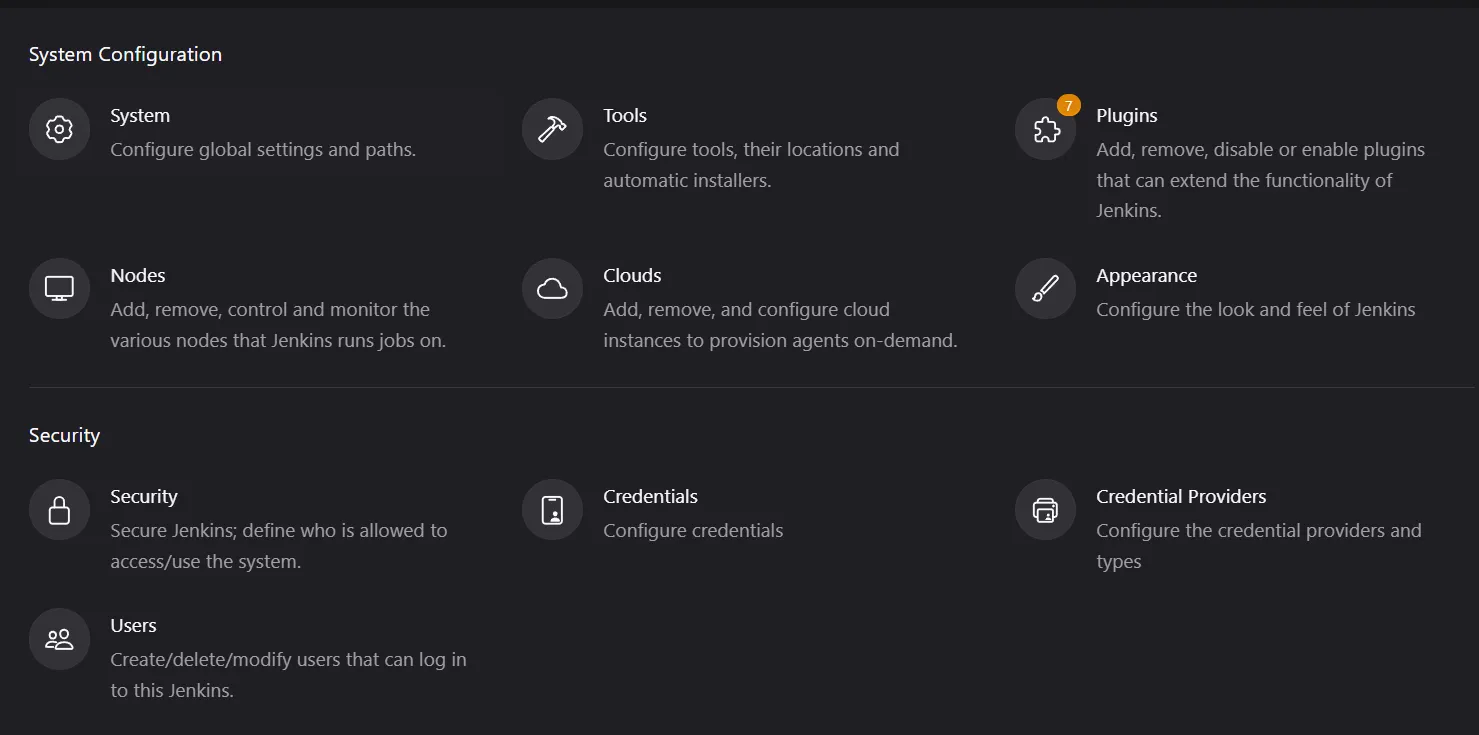
System
- Home directory and # of executors: how many builds can run at once on the built-in node.
- Jenkins URL: the address Jenkins uses in links and emails.
- System Admin e-mail address, Global properties (environment variables and tool locations for all jobs) and E-mail Notification (SMTP settings, used in part 3).
The Jenkins URL is saved as XML in the Jenkins home directory:
$ cat /var/lib/jenkins/jenkins.model.JenkinsLocationConfiguration.xml
<?xml version='1.1' encoding='UTF-8'?>
<jenkins.model.JenkinsLocationConfiguration>
<adminAddress>address not configured yet <nobody@nowhere></adminAddress>
<jenkinsUrl>http://192.168.56.159:8085/</jenkinsUrl>
</jenkins.model.JenkinsLocationConfiguration>Changing the URL here does not change the port Jenkins listens on. The port is set in the systemd service. Run sudo systemctl edit jenkins, add the lines below, then restart Jenkins:
[Service]
Environment="JENKINS_PORT=8085"Other system configuration pages
| Page | What it is for |
|---|---|
| Tools | Let Jenkins install JDK, Maven, Git and other tools on nodes, instead of installing them by hand on every machine. |
| Plugins | Install, update, disable and remove plugins. Most Jenkins features come from here. |
| Nodes | Add, remove and monitor the machines that run builds. |
| Clouds | Start agents on demand in AWS, Azure, Kubernetes and others. |
| Appearance | Change the look of the UI. |
Security
Security realm decides where users and passwords live: Jenkins' own user database, or an external directory such as LDAP. Allow users to sign up adds a registration form to the login page. You can also disable the "Keep me signed in" option.
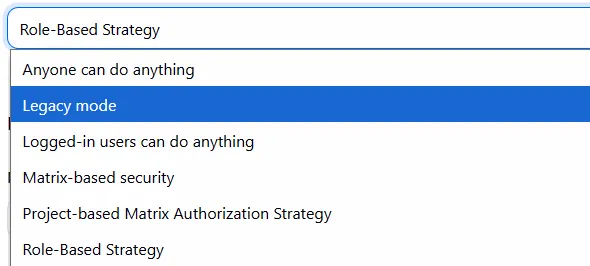
Authorization decides what a logged-in user can do:
| Strategy | Effect |
|---|---|
| Anyone can do anything | No login needed. Only for a throwaway lab. |
| Legacy mode | Old behaviour: admins have full control, everyone else read-only. |
| Logged-in users can do anything | Any account has full control. |
| Matrix-based security | A grid of fine-grained permissions per user or group. |
| Project-based Matrix Authorization Strategy | The same grid, but it can also be set per job. |
Role-based access with a plugin
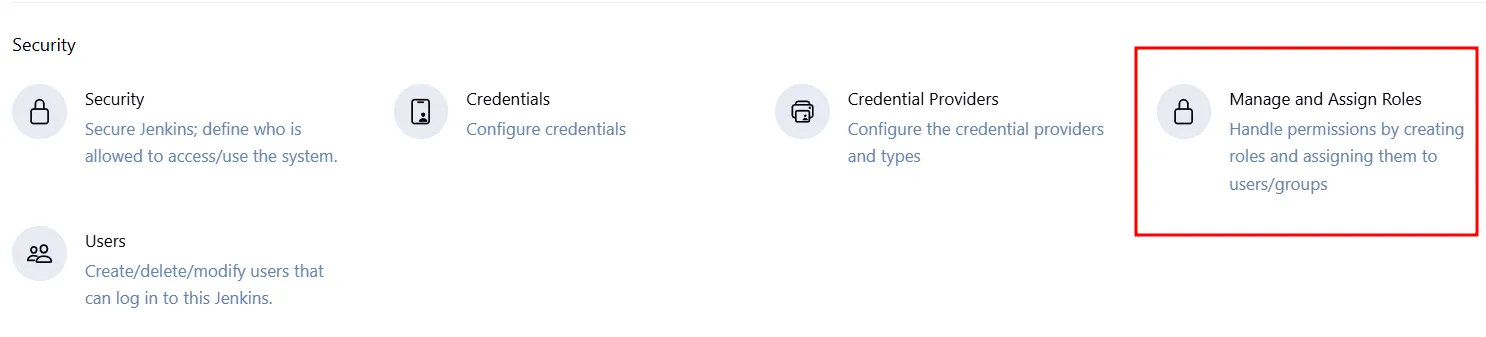
For a team, I prefer the Role-based Authorization Strategy plugin. After installing it, a new Role-Based Strategy option appears in the Authorization list. Select it and save.
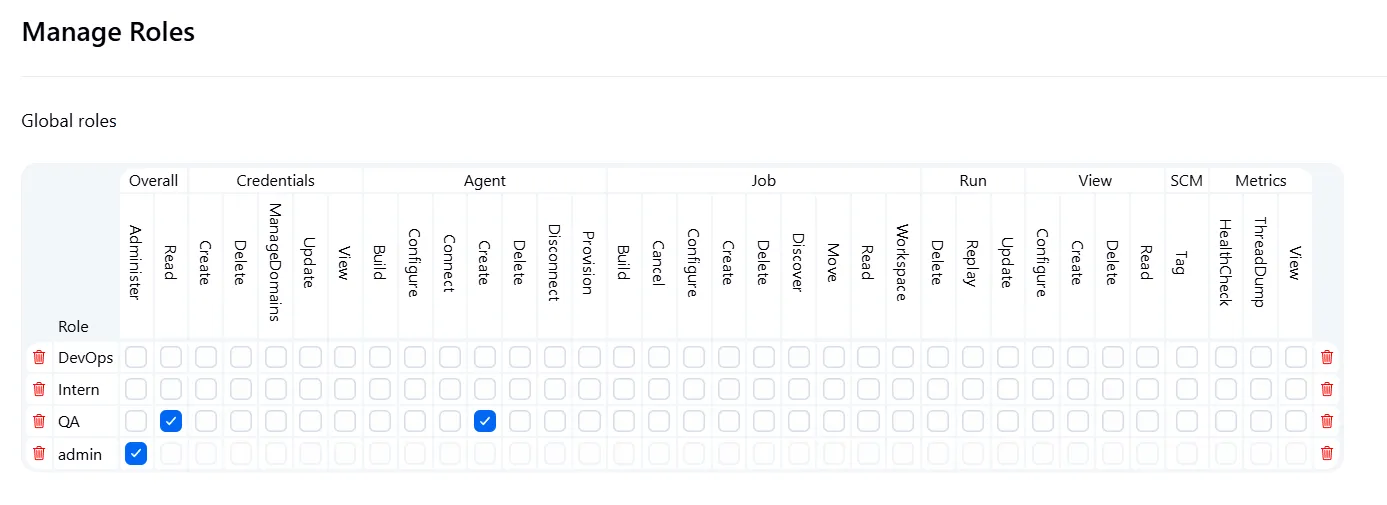
A new Manage and Assign Roles page then appears under Security:
Under Manage Roles, create the roles your team needs (here DevOps, Intern, QA and admin) and tick the permissions each one gets:
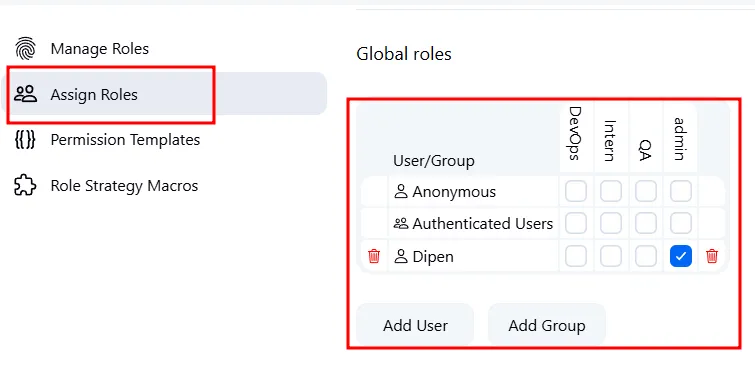
Under Assign Roles, give each user a role. Here the user Dipen has the admin role:
Credentials and users
- Credentials: stores passwords, tokens and SSH keys that jobs use by ID.
- Credential Providers: where credentials come from. The built-in store covers a single server; plugins add others.
- Users: create, edit and delete accounts in the Jenkins user database.
Status information
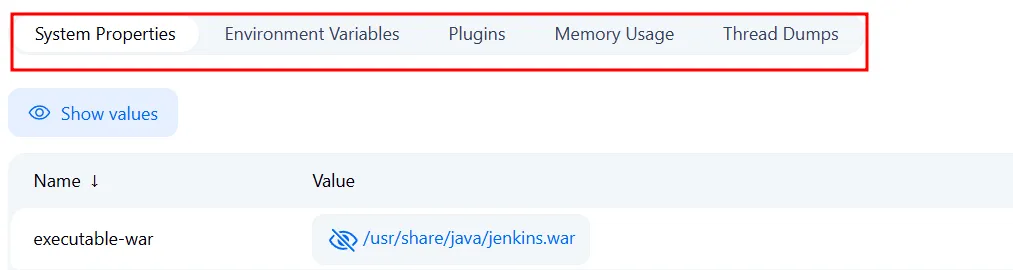
System Information shows system properties, environment variables, installed plugins and memory use:
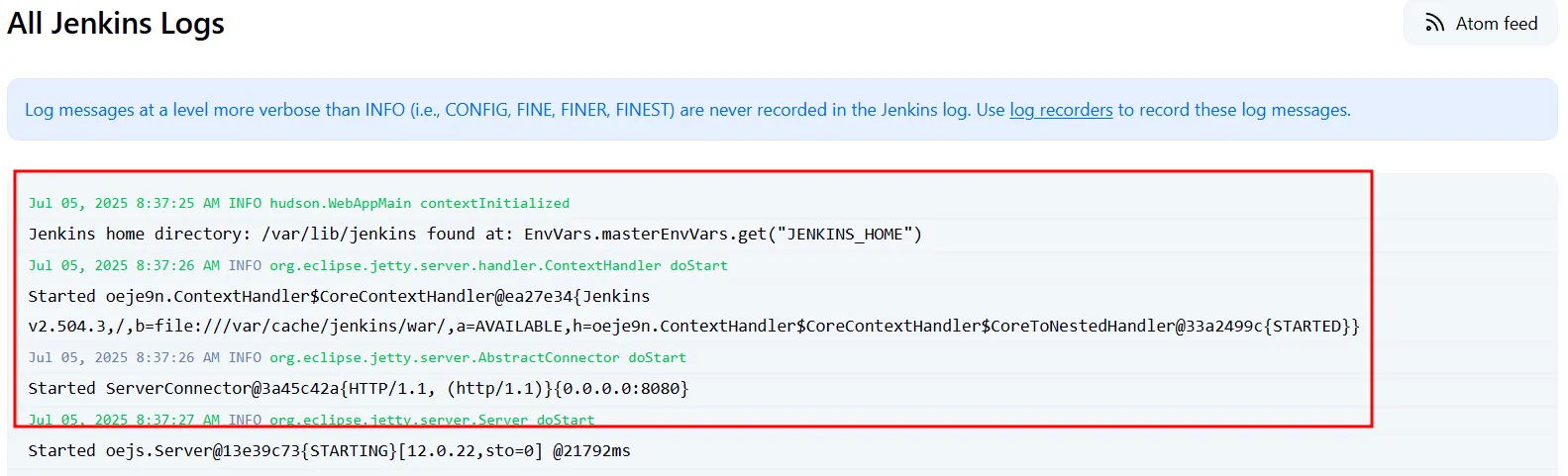
System Log shows the Jenkins server log. On startup it prints the home directory, version and port:
Troubleshooting and tools
- Manage Old Data (under Troubleshooting): cleans up old data left behind by removed or updated plugins.
- Reload Configuration from Disk: re-reads all configuration from
JENKINS_HOME. Useful after copying configuration files in by hand, for example from another Jenkins server. - Prepare for Shutdown: stops new builds from starting so Jenkins can be restarted safely once running builds finish.
Blue Ocean
Blue Ocean was a popular plugin that gave pipelines a modern visual UI. It is now deprecated and gets no new features or security fixes. Its most useful views live on in the Pipeline Graph View plugin, which draws the stage graph used in the next part of this series.
Key takeaways
- Install Java 21 first, then Jenkins LTS from the signed apt repository.
- The controller schedules work; agents run it. Old docs call them master and slave.
- Freestyle jobs suit simple scheduled tasks; pipelines suit multi-stage build and deploy flows.
- Learn the trigger options: remote token, upstream job, cron with
H, SCM polling and GitHub webhooks. - Never leave authorization on "Anyone can do anything". Role-based access keeps team permissions clear.
Next in this series: Build and Deploy a Java WAR to Tomcat with Maven and Jenkins.
Keep reading
- Jenkins Pipeline for Building and Deploying Docker Images
Write a declarative Jenkinsfile that builds a Maven app, packs it into a Docker image, scans it with Trivy, pushes it to Docker Hub, deploys it and emails the team.
- SonarQube and Nexus in a Jenkins Pipeline
Install SonarQube and Sonatype Nexus, define a quality gate, and extend a Jenkins pipeline to scan Java code and publish each WAR build to a Nexus repository.
- Trigger Jenkins Builds with GitHub Webhooks
Connect GitHub to Jenkins so every push to a branch starts the pipeline, using a GitHub token, the githubPush trigger and ngrok to expose a local Jenkins.