IAM in AWS
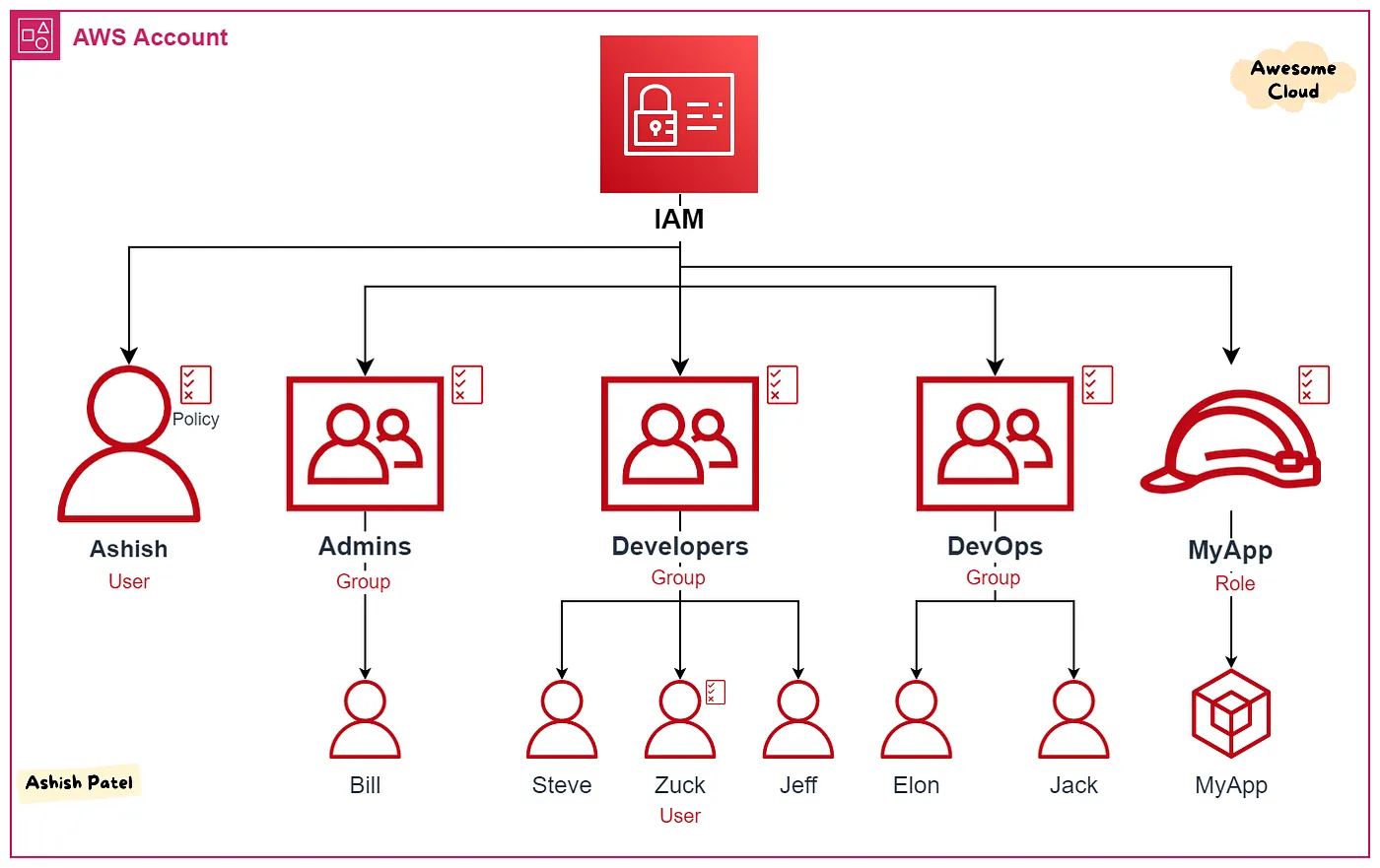
IAM (Identity and Access Management) With IAM, you manage who can access your AWS resources and what actions they can perform.It controls authentication (sign-in) and authorization (permissions) for…

ON THIS PAGE
IAM (Identity and Access Management)
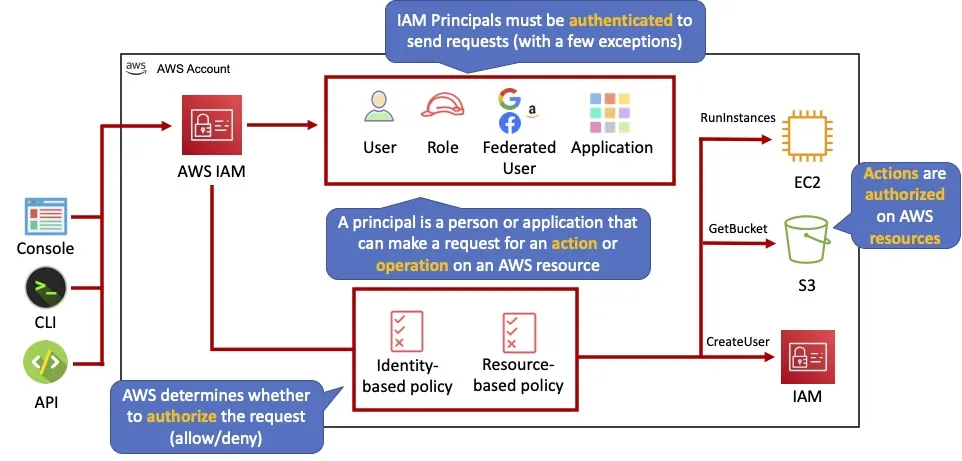
With IAM, you manage who can access your AWS resources and what actions they can perform.
It controls authentication (sign-in) and authorization (permissions) for users and services.
Access Management
Steps to Create an IAM User in AWS
1. Go to IAM → Users → Create User
- Provide a unique username (duplicates are not allowed).
- Choose the type of access:
- AWS Management Console access (UI login via console.aws.amazon.com).
- You can either:
- Set a custom password, or
- Let AWS auto-generate a password.
- Option to require the user to change the password on first login.
- You can either:
- Programmatic access (for CLI, SDK, API access).
- Use this if the user doesn’t need console login.
- AWS Management Console access (UI login via console.aws.amazon.com).
2. Permission Settings
- You must assign permissions during or after user creation.
- Options:
- Add user to existing group (recommended for easier permission management).
- Attach existing policies directly (choose from many AWS pre-defined policies).
- Copy permissions from another user (copies previously set policies).
- Create custom policy (write your own in JSON format if needed).
3. Add Tags (Optional but Recommended)
- Tags are key-value pairs (e.g.,
Environment = Dev,Owner = Dipen). - Help you organize, identify, and manage resources across AWS.
4. Review and Create
- Once all settings are confirmed, click Create User.
- After creation, you can view user details, including:
- Permissions
- Group memberships
- Access keys (for programmatic access)
- Login info
Additional Notes
- A user can be a member of multiple groups.
- It’s best practice to assign least privilege — give only the permissions needed.
- You can manage IAM users directly or via AWS IAM Identity Center (for SSO and enterprise-level access control).
When You Click on a Particular IAM User
- Delete User:
You can delete the user completely from the AWS account. - Turn Off Console Sign-In:
You can disable the user’s ability to sign in to the AWS Management Console. - Console Sign-In Link:
The user’s unique console login URL is visible here for sharing or reference. - Access Advisor:
This tool shows which AWS services and permissions the user has actually used.
It helps analyze if any permissions are unused and can be removed to follow the principle of least privilege. - Security Credentials:
View and manage the user’s security credentials such as access keys. - MFA (Multi-Factor Authentication):
MFA adds an extra layer of security by requiring multiple verification methods beyond just username and password.
For AWS, you can assign up to 8 MFA devices per user. - Assigning MFA:
- Choose the type of MFA device, for example, Authenticator app (like Google Authenticator or AWS Virtual MFA).
- Click Next.
- Give the device a name (e.g., “My Phone”) for easy identification.
- Follow prompts to complete setup.
ANOTHER WAY TO LOGIN USING TERMINAL/CMD LINE
Creating Access Keys for AWS CLI
- Create Access Keys
- Go to the IAM user, select Security Credentials tab.
- Choose Create Access Key and select CLI access.
- Optionally, add tags to help identify the keys (e.g., environment, purpose).
- AWS will generate an Access Key ID and Secret Access Key.
- Important Best Practices for Access Keys
- Never store keys in plain text or code repositories.
- Disable or delete keys immediately when no longer needed.
- Always follow least privilege—give only the permissions necessary.
- Rotate access keys regularly (replace old keys with new ones periodically).
- If you lose the secret key, you must delete and create a new one—AWS does not allow viewing the secret key again.
- Deleting Access Keys
- First deactivate the key.
- Then delete it securely.
Setting Up AWS CLI on Your Machine
- Install AWS CLI
- Follow the installation instructions from the official AWS documentation based on your OS.
- LINK ;Follow this link and install based on your OS
- After installation, verify with:
aws --version
- Configure AWS CLI
Run the command:aws configure- Provide:
- Access Key ID (generated earlier)
- Secret Access Key
- Default AWS Region (e.g., us-east-1)
- Output format (commonly
json)
- Provide:
- After Configuration
- The credentials and config files are stored in the
.awsdirectory in your home folder. - You can now run AWS CLI commands, for example:
aws iam list-users
- The credentials and config files are stored in the
Security Note
- You can block console (UI) access and provide only CLI access (or vice versa) for users.
- However, storing keys locally in
.awsdirectory can be risky if your machine is compromised. - Always follow security best practices and avoid exposing your credentials.
But This is not a good practice to configure a machine like this. This is not secure and bad approach. All the things are stored in .aws directory like credentials keys etc. So in any case if our computer got compromised then our whole AWS service will be compromised.
How to Create an IAM Group
- Go to IAM → Groups
- Click Create Group.
- Provide a unique group name.
- Attach policies to the group:
- Choose from AWS pre-defined policies or custom policies.
- These policies define the permissions for all users in the group.
- After creating the group, you can add users to it.
- Users in the group inherit all permissions assigned to the group.
IAM Roles
- Roles allow AWS services to securely interact with each other without needing human credentials.
- They grant permissions to one service so it can access or manage other AWS resources.
- Without roles, services cannot communicate or access resources on behalf of each other.
Example:
- Suppose you have an EC2 instance (virtual machine) that needs to store logs in an S3 bucket.
- You create an IAM role with the necessary S3 permissions (like
PutObject). - Attach this role to the EC2 instance.
- Now, the EC2 instance can upload logs to the S3 bucket securely, without storing or using manual access keys.
IAM Policies
- Policies are documents that list permissions in AWS.
- They define what actions are allowed or denied on which resources.
- Policies are written in JSON format and attached to users, groups, or roles.
- They control access and enforce security rules across AWS services.
Account Settings in AWS IAM
- Password Policies:
Define rules for user passwords, such as minimum length, required characters, and complexity to enhance security. - Password Expiration:
Set how often users must change their passwords to reduce risk from compromised credentials. - Security Token Service (STS):
Provides temporary, limited-privilege credentials for AWS resources, typically used for sessions or federated access.
Access Reports & Access Analyzer
- Access Analyzer:
Helps you review and simplify permissions by showing:- Which permissions are actually being used.
- Which permissions are not used (can be removed).
- Helps identify over-permissioned users or roles to improve security.
- Credential Report:
Provides a detailed snapshot of your AWS account’s user credential status.- Shows information like password age, MFA status, access key usage, etc.
- Useful for auditing and tracking user activity related to security.
Policy Document
An IAM policy document is a JSON-formatted file that defines permissions for users, groups, or roles in a cloud environment, commonly AWS. The document follows a specific structure with several main elements:
Structure of an IAM Policy Document
{
  "Version": "2012-10-17",
  "Statement": [
    {
      "Effect": "Allow",
      "Action": "s3:ListBucket",
      "Resource": "arn:aws:s3:::example-bucket"
    }
  ]
}Key Elements:
- Version: Specifies the version of the policy language (commonly
"2012-10-17"for AWS; earlier versions like"2008-10-17"are rarely used). - Statement: The main policy block. An array that can contain one or more statements, with each defining specific permissions.
- Sid (optional): Statement identifier for distinguishing between statements.
- Effect:
AlloworDeny– whether access is granted or denied. - Action: Lists the operations (like
s3:ListBucket,ec2:StartInstances) that the statement refers to. - Resource: Specifies the AWS resources (like an S3 bucket ARN) the actions apply to.
- Condition (optional): Adds conditional logic (e.g., only allow access from a certain IP range or within specific time frames).
Example Explained
- The above example allows (
"Effect": "Allow") a principal to list the contents ("s3:ListBucket") of a specific bucket ("arn:aws:s3:::example-bucket").
Additional Notes
- IAM policies can also include multiple statements within the
"Statement"array for complex access logic. - Some IAM policy documents may use NotAction or NotResource to specify exceptions rather than inclusions.
- Managed and inline policies both use this JSON structure.
This policy document is then attached to users, groups, or roles to enforce the defined permissions within your cloud environment.
NOTE: IN AWS We can attach already defined policies or also create our own customized policies.
Keep reading
- AWS Global Infrastructure cert
AWS Global Infrastructure Overview The AWS Global Infrastructure is designed and built to deliver a flexible, reliable, scalable, and secure cloud computing environment with high-quality global…
- Cloud Computing Economics
Fundamentals of pricing AWS Pricing Model Three fundamental drivers of cost with AWS There are three fundamental drivers of cost with AWS: compute, storage, and outbound data transfer. These…
- VPC
VPC We can isolate resources from other resources and also isolate it from other resources.Amazon Virtual Private Cloud (VPC) is an Amazon Web Services (AWS) service that allows you to launch AWS…