Docker Installation and commands
Docker Installation Installation Uninstall old versions Install using the apt repository Another method for installing docker is to run the official script from https://get.docker.com Post…

ON THIS PAGE
Docker Installation
Installation
- Follow all the steps in this document.ie;
Another method for installing docker is to run the official script from https://get.docker.com
curl -fsSL https://get.docker.com -o docker_install.sh

sudo sh ./docker_install.shPost installation steps
sudo usermod -aG docker $USER
To unistall the docker engine
sudo apt-get purge docker-ce docker-ce-cli containerd.io docker-buildx-plugin docker-compose-plugin docker-ce-rootless-extrassudo rm -rf /var/lib/docker
sudo rm -rf /var/lib/containerdsudo rm /etc/apt/sources.list.d/docker.list
sudo rm /etc/apt/keyrings/docker.ascCommands
Here i am using CIN as shortcut for container ID or name .
and CN for container name
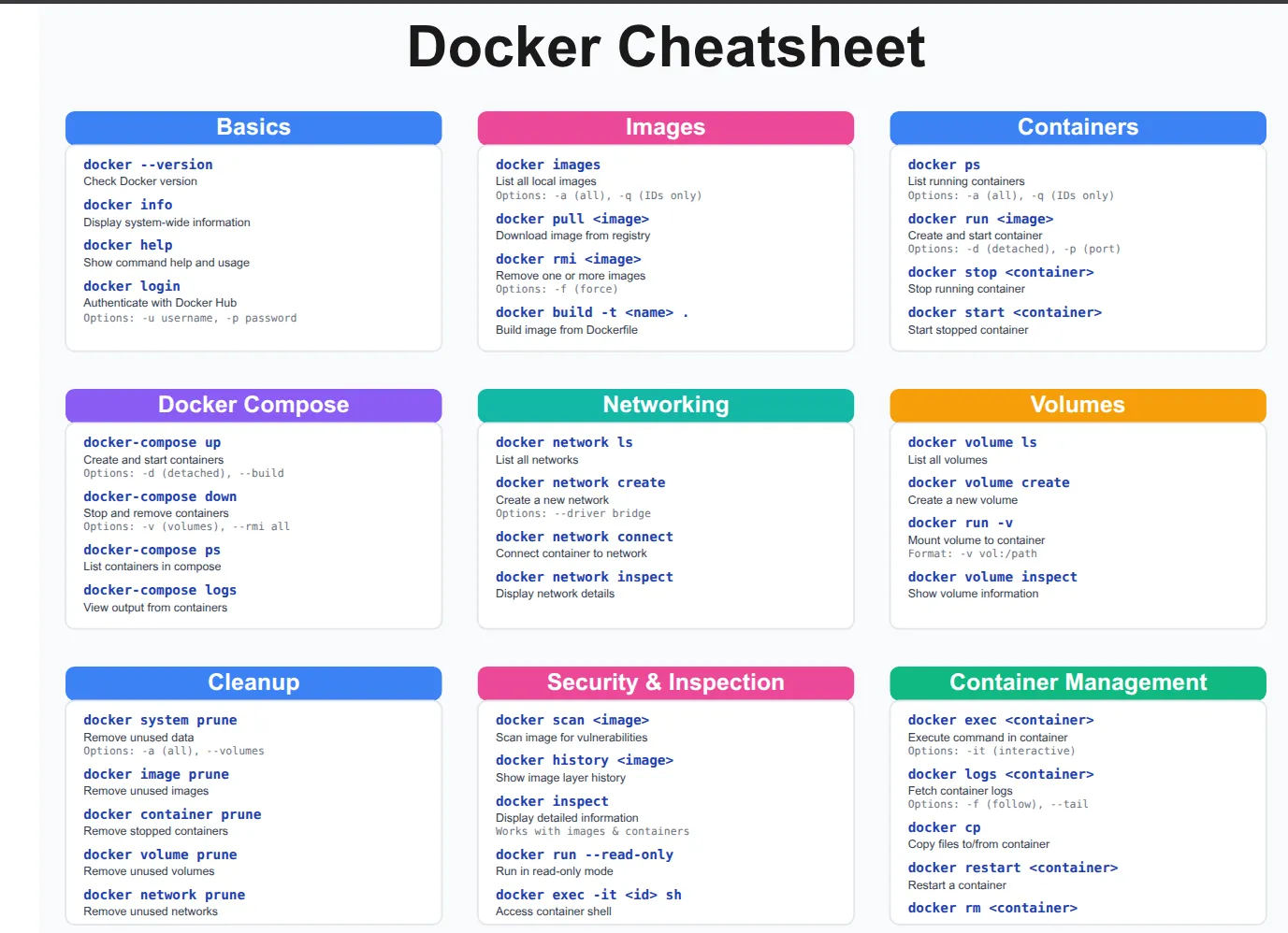
Basic commands
- docker –version : To see docker version
- docker system info / docker info : To see information of docker
- docker container ps: To see only running containers
- ps -a: To see running and exited containers.
- docker image ls: To list all the images
- docker images: To list all the images in the system
- docker: To see all the docker related commands
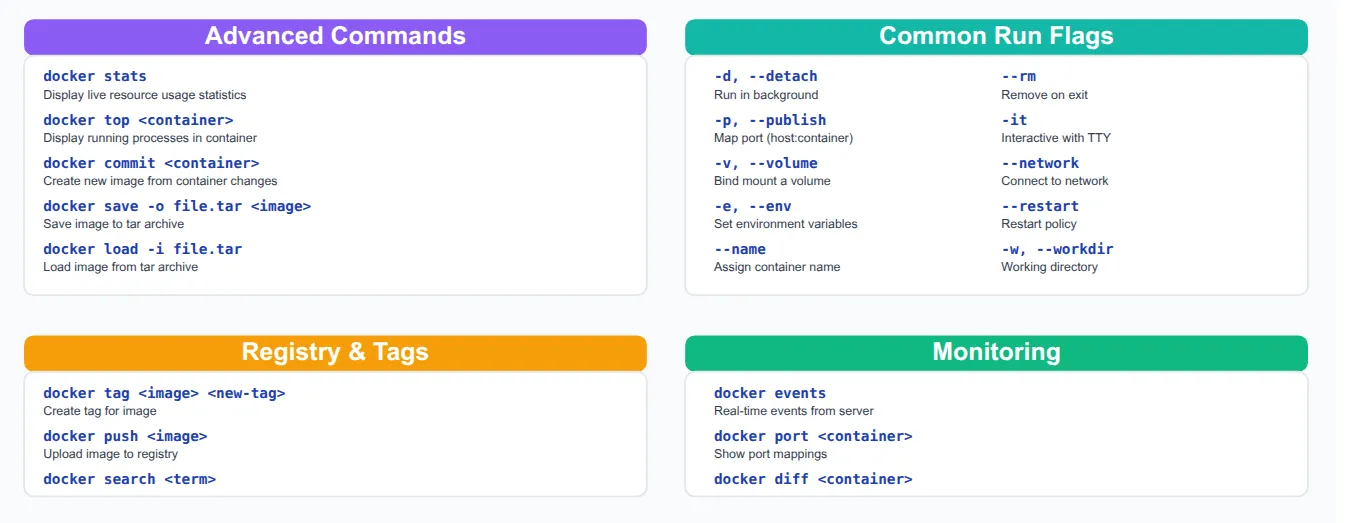
Container Commands
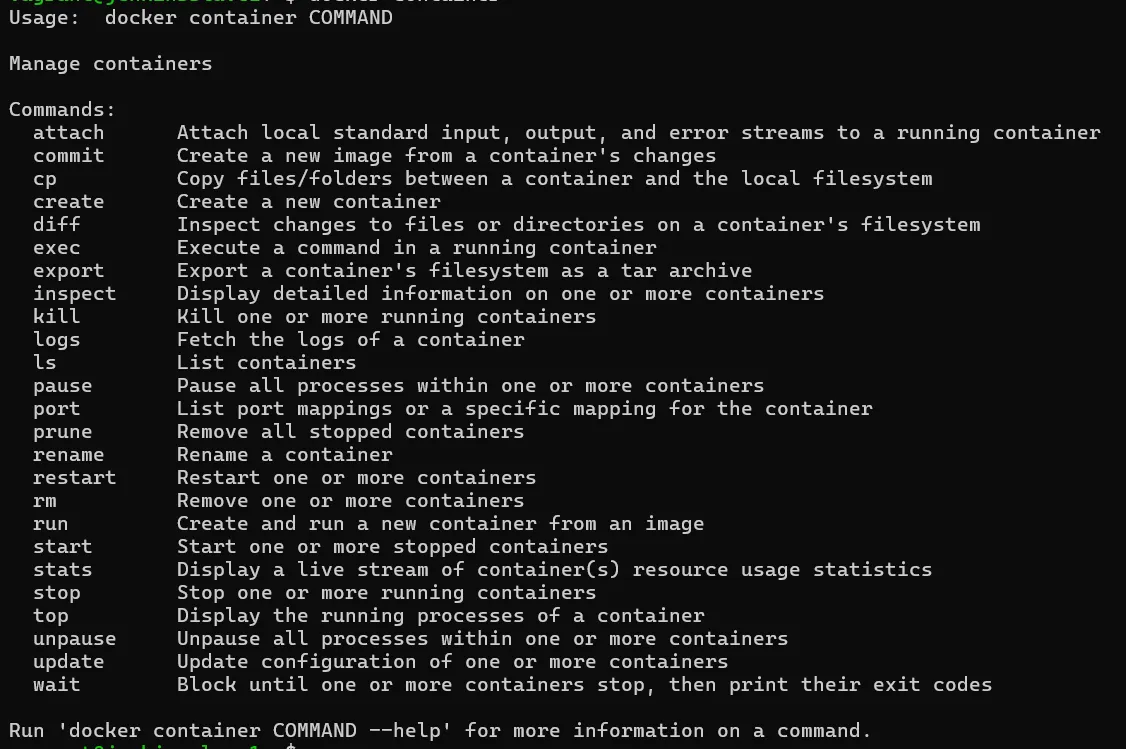
- Can use basic commands like ls, rm.
- docker container: To see all the container related commands.
- docker container exec -it CIN shell : To login to the container
- docker exec -t mynginx bash
- To exit the container write “exit” then enter.
- -i : Interactive
- -t: Terminal
- docker exec -t mynginx bash
- docker container attach CIN: To attach output of the container in current screen
- docker container commit CIN newname: To save the container as image locally. The container is volatile in nature so if we save container as image it’s data won’t be lost.
- docker container cp CIN:/path/filename /path_in_host: To copy the contents of the container in your local machine
- docker container cp ./hostfile container_name:/path : To copy from host to container
- docker container start CIN: To start the container
- docker container stop CIN: To stop the container
- docker container kill CIN: To stop the container
- docker container pause CIN: TO pause the container
- docker container unpause CIN: To unpause the container
- docker container export CIN > filename.tar: To export the container as a tar file.
- docker container inspect CIN: TO inspect the container in detail
- docker container logs CIN: To see logs related container.
Inspect command details
-
ARGS: Arguments that are passed to the container
-
state: To see the state of the container
-
OOM: Out of memory killed
-
PID: Process ID
-
Exit code=0 means it has run successfully
- Exit code=1 means it hasn’t run successfully
-
image sha256: Encryption method
-
Resolve conf path: Show the path of the container
-
logpath: Provides the path where we can see detailed logs
-
Network mode: bridge means the, the container is using which network mode
-
docker container prune: To remove all the paused and exited containers
-
docker container restart CIN: To restart the Container
-
docker container rename OLD_CIN NEW_CN: To rename the container
-
docker container stats CIN: To see the consumption of CPU, memory, etc by container. Same as top command output.
-
docker container top CIN: To see inside running process and their consumption. Similar to ps-ef command output.
-
docker container update CIN: To make update in existing container
- docker container update –restart unless-stopped CIN.
Run time configuration
- docker container run image_name:version : To run the image
- docker container run -d –name CN image_name: To run the container in detached mode.
- docker container run -d –name CN -p 8085:8080 image_name: To attach host port to the container
- -p: Attach port statically
- -P: Attach port dynamically
- 8085: Host port
- 8080:Container
- Cannot use the same port for different containers
- ie: 8080:8080 for C1 and 8080:8080 for c2
- but can use 8080:8080 for c1 and 8081:8080 for c2
- docker container run -d –restart always –name CN image_name: To set restart policy
- always: Always restart the container when it is stopped
- unless-stopped: This is similar to always. It will work unless it is stopped manually.
| Flag | Used |
|---|---|
| –help | To get help |
| –rm | Remove the container automatically when it exits. |
| -d, –detach | To run the container in detached mode |
| -i, –interactive | To run the container in interactive terminal mode |
| –name | To assign a name to the container |
| -t | Assign a pseudotty [Allocates a virtual terminal in container] |
| -v | Bind mount a volume |
| –mount | Attach a file system mount to the container |
| -p | Publish a container port to the host Note: STDIN: Standard input -i: STDIN open, can send cinput to container manually from another container |
| –network | Defines a specific network for container |
| –expose | Tells the docker that container will use a certain port internally and cannot be accessible from host unless -P is used Here -P: Dynamically maps exposed port to the host |
Docker image
NOTE: Container is volatile in nature. Once it is created and packages are installed. After logging out of the container all the data will be lost so if we install packages using image then it won’t be lost.
- docker image ls: To list the images in the machine
- docker images
- docker image rm: Remove specific image
- docker image prune -a: Remove all unused images
- docker iamge inspect
- docker image save name:tag > filename.tar: To save the image in tar format
- docker image load < filename.tar : Load the image from tar ball
- Can use import in the place of load
- docker image history: To see the history of the image
- docker image pull: To pull the image from the registry.
- docker image push deependrabhatta/jenkins_data:v1
- docker image push: To push the image to the registry
- docker image pull deependrabhatta/jenkins_data:v1
- docker image inspect: To inspect the image
- docker image -t imagename:version imageID/Name: To change the tag of the image
Docker Network
- docker network ls: To list all the available network available in the machine
- docker network rm network_name: To remove the network
- docker network prune: To remove all the unused networks.
- docker network inspect : To see detailed description of the network
- docker network create network_name: To create a network
- docker network connect network_name CIN: To connect the container to specific network
- docker network disconnect network_name CIN: To disconnect a container from specific network
- docker network create –subnet –gateway –driver network_name: To create a custom network
docker network create \
--subnet 192.168.10/0/28 \
--gateway 192.168.10.1 \
--ip-range=10.1.4.0/24 \
--driver bridge \
--label=hostnetwork
my_custom_network- docker container run -d –network mynetwork Image_name: To attach a specific network
- docker container run–name -it–network –ip : Assigning an IP to a container
Docker volumes
- docker volume ls
- docker volume rm
- docker volume inspect
- docker volume prune
- docker volume create myvol
How to mount volumes/bind mounts
-
Volumes
- METHOD 1
- docker container run -d –name -p -v volumename:/path_of_container <image_name>
- METHOD2:
- docker container run-d–name –mount type=volume,source=,target=
-
Bind mounts
- METHOD 1
- docker container run -d –name -v /home/vagrant/dir:/path_to_container <iamge_name>
- METHOD 2
- docker container run -d –name –mount type=bind,source=,target=,target>
Note:
- Volume cannot be updated using update command so need to mount volume during run time
Summary
| Command | Description |
|---|---|
| Help & Version | |
| docker –version | Show installed Docker version |
| docker version | Show client & server version |
| docker info | Detailed system info |
| docker –help | General Docker help |
| docker –help | Help for a specific command |
| Images | |
| docker images | List images |
| docker pull | Download image from registry |
| docker build -t :tag . | Build image from Dockerfile |
| docker rmi | Remove image |
| docker image prune | Remove unused images |
| Containers | |
| docker ps | List running containers |
| docker ps -a | List all containers |
| docker run | Run a container |
| docker run -d | Run in background |
| docker run -it bash | Interactive terminal |
| docker exec -it | Run command inside container |
| docker start | Start container |
| docker stop | Stop container |
| docker restart | Restart container |
| docker rm | Remove container |
| Logs & Monitoring | |
| docker logs | Show logs |
| docker logs -f | Follow logs |
| docker top | Show processes in container |
| docker stats | Show resource usage |
| docker inspect | Inspect container details |
| docker events | Show real-time events |
| Networking | |
| docker port | Show port mappings |
| docker network ls | List networks |
| docker network inspect | Inspect network |
| docker network create | Create network |
| docker network connect | Connect container to network |
| docker network disconnect | Disconnect container |
| docker network rm | Remove network |
| Volumes | |
| docker volume ls | List volumes |
| docker volume create | Create volume |
| docker volume inspect | Inspect volume |
| docker volume rm | Remove volume |
| docker volume prune | Remove unused volumes |
| Docker Compose | |
| docker-compose up | Start services |
| docker-compose up -d | Start in background |
| docker-compose down | Stop and remove services |
| docker-compose ps | List services |
| docker-compose logs | Show logs |
| docker-compose build | Build images |
| docker-compose restart | Restart services |
| Cleanup | |
| docker system df | Show disk usage |
| docker system prune | Remove unused data |
| docker system prune -a | Remove everything unused |
| Export & Import | |
| docker save -o file.tar | Save image to tar |
| docker load -i file.tar | Load image from tar |
| docker export > file.tar | Export container FS |
| docker import file.tar | Import as image |
| Registry | |
| docker login | Login to registry |
| docker logout | Logout from registry |
| docker tag :tag | Tag image |
| docker push :tag | Push image |
| docker pull :tag | Pull image |
| Swarm (Advanced) | |
| docker swarm init | Initialize swarm |
| docker swarm join | Join swarm |
| docker node ls | List nodes |
| docker service create | Create service |
| docker service ls | List services |
| docker service scale =3 | Scale service |
| docker stack deploy -c docker-compose.yml mystack | Deploy stack |
| Security & Troubleshooting | |
| docker exec -u 0 -it bash | Root shell inside container |
| docker diff | Show changes in filesystem |
| docker cp :/file ./ | Copy file from container |
| docker cp ./file :/path | Copy file into container |
- #devops
- #linux
- #docker
- #docker-container
- #docker-images
- #docker-commands-in-detail
- #docker-networks
- #docker-volumes
- #install-docker
Keep reading
- DOCKER Introduction
Docker container Container standard and industry leadership Micro kernel Monolithic Kernel Can we run Linux container on windows and vice versa? Can we run linux container on mac and vice versa?…
- Docker file, Best practices and Registry
Dockerfile Docker can build images automatically by reading the instructions from a Dockerfile. A Dockerfile is a text document that contains all the commands a user could call on the command line to…
- Docker Compose
Docker Compose Tool for defining and running multi container applications. Simplifies the control of your entire application stack, making it easy yo manage servicess, networks and volumes in a…