Install Docker on Ubuntu and Essential Docker Commands
Install Docker Engine on Ubuntu from Docker's official apt repository, then manage containers, images, networks and volumes with the essential CLI commands.

ON THIS PAGE
A reliable Docker installation starts with Docker's own apt repository, not the distribution package. This guide installs Docker Engine on Ubuntu as the official documentation recommends, then covers the CLI commands that run and manage containers, images, networks and volumes.
By the end, you can set up Docker on a fresh VM and handle everyday container operations from the terminal.
Prerequisites
- An Ubuntu machine or VM with a user that has
sudoaccess - Outbound internet access to
download.docker.comand Docker Hub
Install Docker Engine on Ubuntu
These steps follow the official guide, Install Docker Engine on Ubuntu.
Remove old or conflicting packages
Ubuntu's own docker.io package and similar packages can conflict with Docker's packages. Remove any that are installed:
$ sudo apt remove $(dpkg --get-selections docker.io docker-compose docker-compose-v2 docker-doc docker-buildx podman-docker containerd runc | cut -f1)Add Docker's apt repository
Download Docker's GPG key into its own keyring file, then add a repository entry that trusts only that key (Signed-By). The old apt-key add method is deprecated because it trusted the key for every repository on the system.
$ sudo apt update
$ sudo apt install ca-certificates curl
$ sudo install -m 0755 -d /etc/apt/keyrings
$ sudo curl -fsSL https://download.docker.com/linux/ubuntu/gpg -o /etc/apt/keyrings/docker.asc
$ sudo chmod a+r /etc/apt/keyrings/docker.asc
$ sudo tee /etc/apt/sources.list.d/docker.sources <<EOF
Types: deb
URIs: https://download.docker.com/linux/ubuntu
Suites: $(. /etc/os-release && echo "${UBUNTU_CODENAME:-$VERSION_CODENAME}")
Components: stable
Architectures: $(dpkg --print-architecture)
Signed-By: /etc/apt/keyrings/docker.asc
EOF
$ sudo apt updateInstall the packages and test
$ sudo apt install docker-ce docker-ce-cli containerd.io docker-buildx-plugin docker-compose-plugin
$ sudo docker run hello-worldThis installs the engine, the CLI, containerd, BuildKit (buildx) and Docker Compose v2 (docker compose). If hello-world prints its welcome message, the engine is working.
Quick alternative: the convenience script
For disposable lab VMs, I sometimes use Docker's script from get.docker.com. It detects the distribution and sets up the same repository. Docker does not recommend it for production.
$ curl -fsSL https://get.docker.com -o get-docker.sh
$ sudo sh ./get-docker.shRun Docker without sudo
Add your user to the docker group, then start a new shell session (or log out and back in):
$ sudo usermod -aG docker $USER
$ newgrp docker
$ docker run hello-worldUninstall Docker
$ sudo apt purge docker-ce docker-ce-cli containerd.io docker-buildx-plugin docker-compose-plugin docker-ce-rootless-extras
$ sudo rm -rf /var/lib/docker
$ sudo rm -rf /var/lib/containerd
$ sudo rm /etc/apt/sources.list.d/docker.sources
$ sudo rm /etc/apt/keyrings/docker.ascRemoving /var/lib/docker deletes all images, containers and volumes, so back up anything you need first.
CLI structure
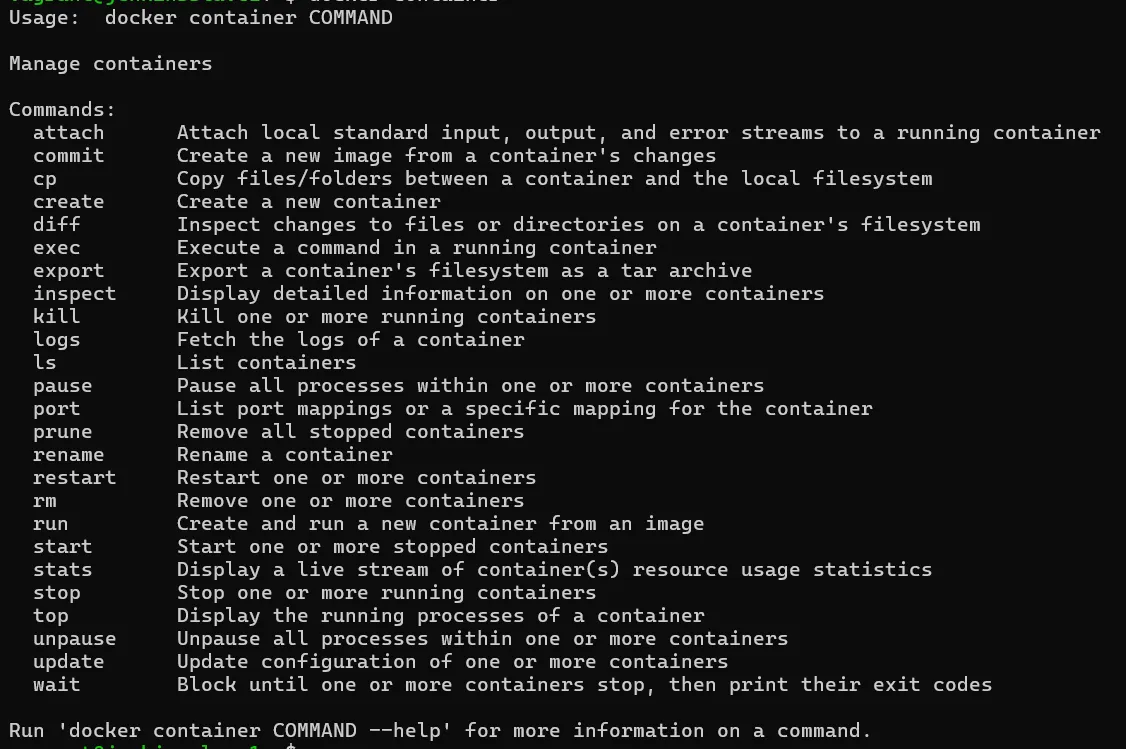
Docker groups commands by object: docker container ..., docker image ..., docker network ..., docker volume .... The older short forms still work, for example docker ps is the same as docker container ls. Run any group without a subcommand to see what it offers:
| Command | What it shows |
|---|---|
docker --version / docker version | Client version / client and server versions |
docker info | Engine details: storage driver, number of containers and images, Swarm state |
docker container ls (docker ps) | Running containers |
docker container ls -a | Running and stopped containers |
docker image ls (docker images) | Local images |
docker <command> --help | Help for any command |
In the examples below, CIN means a container ID or name.
Running containers
$ docker container run -d --name web -p 8085:80 --restart unless-stopped nginx:1.27
$ docker container ls
$ curl http://localhost:8085This starts nginx in the background, names it web, maps host port 8085 to container port 80, and tells Docker to restart it unless it is stopped manually.
| Flag | What it does |
|---|---|
-d, --detach | Run in the background |
--name | Give the container a name instead of a random one |
-it | -i keeps STDIN (standard input) open, -t allocates a terminal. Use both for an interactive shell. |
--rm | Remove the container automatically when it exits |
-p host:container | Publish a container port on a host port |
-P | Publish every port the image EXPOSEs on random high host ports |
--expose | Declare a port the container listens on, without publishing it |
-e KEY=value | Set an environment variable |
-v, --mount | Attach a volume or bind mount |
--network | Connect the container to a specific network |
--restart | Restart policy: no (default), on-failure, always or unless-stopped |
Two rules about ports and restart policies caused the most problems in my lab:
- Two containers cannot use the same host port.
8080:8080for one container and8081:8080for another is fine. alwaysrestarts the container even after you stop it, once the daemon restarts.unless-stoppedrespects a manual stop.
Managing containers
| Command | What it does |
|---|---|
docker container exec -it CIN bash | Open a shell inside a running container (use sh if the image has no bash). Type exit to leave. |
docker container logs -f CIN | Follow the container's output |
docker container attach CIN | Attach your terminal to the container's main process |
docker container start / stop / restart CIN | Lifecycle. stop sends SIGTERM and waits 10 seconds before SIGKILL. |
docker container kill CIN | Send SIGKILL at once |
docker container pause / unpause CIN | Freeze and resume all processes in the container |
docker container rename OLD NEW | Rename a container |
docker container cp CIN:/path/file ./ | Copy a file from the container to the host |
docker container cp ./file CIN:/path | Copy a file from the host into the container |
docker container stats | Live CPU, memory and network use, like top |
docker container top CIN | Processes inside the container, like ps -ef |
docker container update --restart unless-stopped CIN | Change settings such as restart policy or CPU and memory limits on an existing container |
docker container commit CIN name:tag | Save the container's current filesystem as a new image |
docker container export CIN > fs.tar | Export the container's filesystem as a tar file |
docker container rm CIN | Remove a stopped container (-f to force) |
docker container prune | Remove all stopped containers |
Reading docker container inspect
inspect prints the full JSON description of a container. These fields are the most useful during troubleshooting:
| Field | Meaning |
|---|---|
Args, Path | The command and arguments the container runs |
State.Status, State.Pid | Current state and the host process ID |
State.OOMKilled | true if the kernel killed it for running out of memory |
State.ExitCode | 0 means success. Any other value is an error, for example 137 means it was killed with SIGKILL. |
Image | The image ID, a SHA-256 content hash (a fingerprint, not encryption) |
ResolvConfPath | Host path of the container's resolv.conf (its DNS settings) |
LogPath | Host path of the container's JSON log file |
HostConfig.NetworkMode | Network the container uses, for example bridge |
Working with images
| Command | What it does |
|---|---|
docker image ls | List local images |
docker image pull nginx:1.27 | Download an image from a registry |
docker image build -t name:tag . | Build an image from a Dockerfile |
docker image tag SOURCE:tag TARGET:tag | Add a new name (tag) to an image |
docker image push repo/name:tag | Upload an image to a registry |
docker image history name:tag | Show the layers and the step that created each |
docker image inspect name:tag | Full JSON details |
docker image rm name:tag | Remove an image |
docker image prune -a | Remove all images not used by any container |
To publish an image to Docker Hub, log in, tag it with your account namespace, and push it:
$ docker login
$ docker image tag jenkins_data:latest deependrabhatta/jenkins_data:v1
$ docker image push deependrabhatta/jenkins_data:v1
$ docker image pull deependrabhatta/jenkins_data:v1To move images between machines without a registry, use save and load:
$ docker image save -o nginx.tar nginx:1.27
$ docker image load -i nginx.tarsave/load keep the image with all its layers, tags and history. container export with image import is different: it creates a new single-layer image from a container's filesystem and loses the history and settings such as CMD.
Networks
| Command | What it does |
|---|---|
docker network ls | List networks |
docker network create mynet | Create a user-defined bridge network |
docker network inspect mynet | Show subnet, gateway and connected containers |
docker network connect mynet CIN | Connect a running container to a network |
docker network disconnect mynet CIN | Disconnect it |
docker network rm mynet | Remove a network |
docker network prune | Remove all unused networks |
Create a custom bridge network with its own address range:
$ docker network create \
    --driver bridge \
    --subnet 192.168.10.0/24 \
    --gateway 192.168.10.1 \
    --ip-range 192.168.10.0/28 \
    --label env=lab \
my_custom_network--ip-range limits the addresses Docker hands out automatically, and it must sit inside --subnet. Run two containers on it, one with a fixed IP:
$ docker container run -d --name app1 --network my_custom_network nginx:1.27
$ docker container run -d --name app2 --network my_custom_network --ip 192.168.10.50 nginx:1.27
$ docker container exec app1 getent hosts app2On a user-defined network, containers reach each other by name, as the getent command confirms. A fixed --ip only works on a user-defined network that has a subnet set.
Volumes and bind mounts
| Command | What it does |
|---|---|
docker volume create myvol | Create a named volume |
docker volume ls | List volumes |
docker volume inspect myvol | Show the volume's mount point on the host |
docker volume rm myvol | Remove a volume |
docker volume prune | Remove unused volumes |
Both -v and --mount attach storage. --mount is more verbose but more explicit, and it returns an error if a bind-mount source does not exist.
$ docker container run -d --name db1 -v myvol:/var/lib/mysql -e MYSQL_ROOT_PASSWORD=changeme mysql:8.0
$ docker container run -d --name db2 --mount type=volume,source=myvol2,target=/var/lib/mysql -e MYSQL_ROOT_PASSWORD=changeme mysql:8.0$ docker container run -d --name site1 -v /home/vagrant/site:/usr/share/nginx/html nginx:1.27
$ docker container run -d --name site2 --mount type=bind,source=/home/vagrant/site,target=/usr/share/nginx/html nginx:1.27Cleanup and system commands
| Command | What it does |
|---|---|
docker system df | Disk used by images, containers, volumes and build cache |
docker system prune | Remove stopped containers, unused networks, dangling images and build cache |
docker system prune -a --volumes | Also remove all unused images and unused volumes. Use with care. |
docker events | Stream real-time events from the daemon |
docker container diff CIN | Files added, changed or deleted inside a container |
docker container port CIN | Port mappings of a container |
Docker Compose commands are in part 4 and Swarm commands in part 5.
Common mistakes
permission denied ... docker.sock: your user is not in thedockergroup yet, or you have not started a new session after adding it.port is already allocated: another container or host process already uses that host port. Pick another host port.- Lost data after
docker rm: the data lived in the container's own filesystem. Use a volume for anything that must survive. - Running
prunetoo broadly:docker system prune -a --volumesalso deletes volumes that no container is using at that moment.
Key takeaways
- Install Docker from Docker's apt repository with a dedicated keyring and
Signed-By, not withapt-key. - The
dockergroup is root-equivalent; treat it like sudo. docker container,image,networkandvolumecover most daily work, and--helpworks at every level.- Use
save/loadto copy images intact;export/importflattens them into a single layer. - Use user-defined networks so containers find each other by name, and volumes for data that must persist.
Next in this series: Dockerfile Instructions, Best Practices and Harbor Registry.
Keep reading
- Docker Introduction: Containers, Architecture and Objects
How a container differs from a VM, how the Docker client, daemon and registry fit together, and what images, volumes, bind mounts and networks do.
- Docker Swarm: Building a Cluster with Vagrant
Build a Docker Swarm cluster on Vagrant VMs, then initialise it, join nodes, run and scale services, and use overlay networks and volumes in swarm mode.
- Docker Compose: Multi-Container Apps with compose.yaml
Define a whole multi-container stack in one compose.yaml with Docker Compose v2: services, ports, named volumes, .env variables and a MySQL-backed example.