Dockerfile Instructions, Best Practices and Harbor Registry
Every Dockerfile instruction in one table, an annotated multi-stage build, image best practices, and pushing images to a private Harbor registry and Docker Hub.

ON THIS PAGE
A well-structured Dockerfile decides how large, how secure and how fast to rebuild every image a team ships. This guide covers each Dockerfile instruction, walks through an annotated multi-stage build, and lists the practices that keep images small and safe.
The second half deploys a private Harbor registry and pushes images to both Harbor and Docker Hub, so the finished image lands in a registry you control.
Prerequisites
- Docker Engine installed, as described in part 2
- For the Harbor section, a Linux VM with Docker Engine and Docker Compose
- A Docker Hub account for the final section
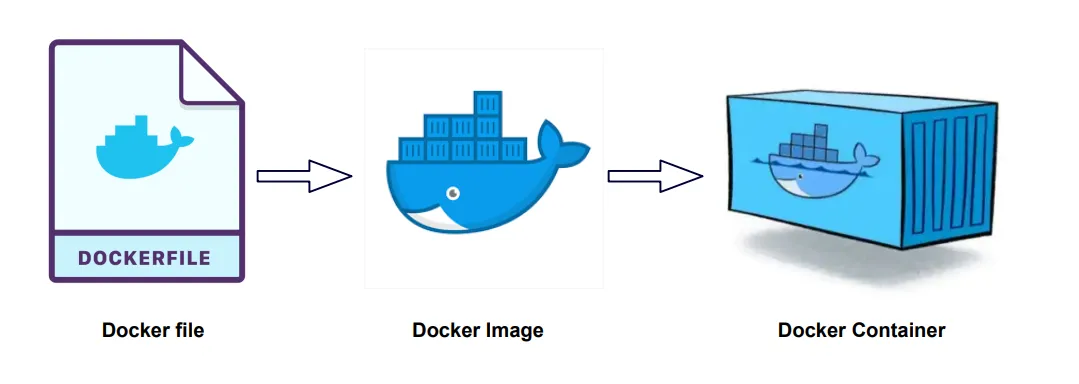
How a Dockerfile becomes an image
A Dockerfile is a text file of build steps. docker build reads it from top to bottom and runs each step:
- Each instruction adds a layer to the image.
- Docker caches layers. On a rebuild it reuses every layer up to the first step that changed, then rebuilds everything after it. Step order therefore matters: put steps that rarely change (installing dependencies) before steps that change often (copying source code).
- Lines starting with
#are comments.
Dockerfile instructions at a glance
| Instruction | What it does | Example |
|---|---|---|
FROM | Starts a build stage and sets its base image. Every Dockerfile starts with it (only ARG may come before). AS name names the stage. | FROM node:22.16.0-alpine3.22 AS build |
RUN | Runs a command at build time and saves the result as a new layer | RUN apt-get update && apt-get install -y curl |
COPY | Copies files from the build context, or from another stage with --from | COPY --from=build /app/dist /usr/share/nginx/html |
ADD | Like COPY, but can also fetch URLs and Git repos and auto-extracts local tar files | ADD https://example.com/archive.tar.gz /src/ |
WORKDIR | Sets the working directory for later instructions; creates it if missing. Relative paths build on the previous WORKDIR. | WORKDIR /app |
ENV | Sets an environment variable for later build steps and for the running container | ENV NODE_ENV=production |
ARG | Defines a build-time variable, set with --build-arg. Not present in the running container. | ARG APP_VERSION=1.0 |
EXPOSE | Documents which port the app listens on (TCP by default). It does not publish the port. | EXPOSE 80/tcp |
CMD | Default command (or default arguments to ENTRYPOINT) when the container starts. Only the last CMD counts, and docker run image <cmd> overrides it. | CMD ["nginx", "-g", "daemon off;"] |
ENTRYPOINT | Makes the container run as a fixed executable; CMD then supplies default arguments | ENTRYPOINT ["top", "-b"] |
USER | Sets the user (and optional group) for later RUN steps and for the container's process | USER appuser |
VOLUME | Marks a path as a mount point for external storage | VOLUME /var/lib/data |
HEALTHCHECK | Tells Docker how to test that the app still works. Status goes starting → healthy or unhealthy. | HEALTHCHECK CMD curl -f http://localhost/ || exit 1 |
LABEL | Adds key-value metadata, visible with docker inspect | LABEL org.opencontainers.image.authors="me@example.com" |
SHELL | Changes the shell used by shell-form commands (default /bin/sh -c on Linux, cmd /S /C on Windows) | SHELL ["powershell", "-command"] |
STOPSIGNAL | Signal sent to stop the container (default SIGTERM) | STOPSIGNAL SIGQUIT |
ONBUILD | Registers a step that runs later, when another image uses this one in FROM. Useful for base images. | ONBUILD COPY . /app |
MAINTAINER | Deprecated. Use LABEL org.opencontainers.image.authors instead. |
Exec form vs shell form
CMD, ENTRYPOINT and RUN accept two forms:
- Exec form, a JSON array:
CMD ["nginx", "-g", "daemon off;"]. The program runs directly as process 1 and receives stop signals. Prefer this forCMDandENTRYPOINT. - Shell form, a plain string:
CMD nginx -g "daemon off;". It runs through/bin/sh -c, so variables and pipes work, but the shell, not your app, receives the stop signal.
ENTRYPOINT and CMD work together:
FROM ubuntu
ENTRYPOINT ["top", "-b"]
CMD ["-c"]docker run image runs top -b -c. docker run image -n 1 runs top -b -n 1, because arguments after the image name replace CMD but not ENTRYPOINT.
COPY vs ADD, ARG vs ENV
- Use
COPYby default. UseADDonly when you need its extras (a remote URL, a Git repo, or auto-extracting a local tar file), so its behavior stays explicit. ARGexists only during the build;ENVis baked into the image. Neither is safe for secrets: both can be read from the image or its history. For build-time secrets useRUN --mount=type=secret, and pass runtime secrets when the container starts.
An annotated multi-stage Dockerfile
A multi-stage build uses one stage with all the build tools and a second, small stage that only receives the finished output. The following Dockerfile builds a frontend app with Node and serves it with nginx:
# Stage 1: build the app with Node (this stage is thrown away)
FROM node:22.16.0-alpine3.22 AS build
WORKDIR /app

# Copy only the dependency files first, so this layer stays cached
# until package.json or package-lock.json changes
COPY package.json package-lock.json ./
RUN npm ci

# Now copy the source and build it
COPY . .
RUN npm run build

# Stage 2: serve the static files with nginx
FROM nginx:alpine AS deploy
LABEL org.opencontainers.image.title="frontend"

# Take only the build output from stage 1; Node and node_modules stay behind
COPY --from=build /app/dist /usr/share/nginx/html

EXPOSE 80

# busybox wget is available in Alpine images
HEALTHCHECK --interval=30s --timeout=3s --retries=3 \
  CMD wget -q --spider http://localhost/ || exit 1

# No CMD needed: the nginx base image already starts nginx in the foregroundThe output folder (dist here) depends on the build tool, so confirm the path for your project. Build and run the image:
$ docker build -t frontend:1.0 .
$ docker run -d --name frontend -p 8080:80 frontend:1.0
$ docker ps --filter name=frontendAfter about 30 seconds the STATUS column shows (healthy). The final image contains nginx and the static files only.
Image build best practices
Choose a small, trusted base image. Start from Docker Official Images or Verified Publisher images. Alpine or -slim variants are much smaller than full distributions.
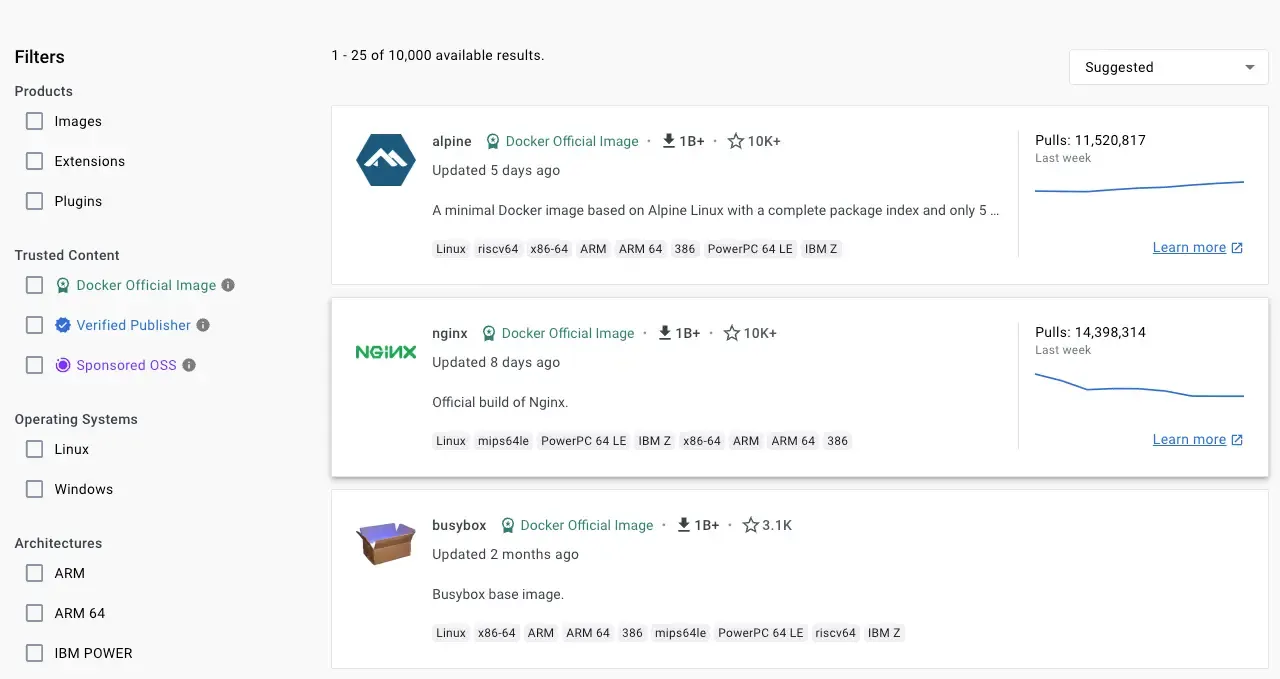
Pin versions. FROM nginx means nginx:latest, which moves to new releases without notice and can break a previously working build. Use a specific tag, such as nginx:1.27-alpine, or a digest for full reproducibility.
Order steps for the cache. Copy dependency manifests and install dependencies before copying the rest of the source, as in the example above.
Use multi-stage builds. Build tools, compilers and test dependencies stay in the build stage. If several images share setup, put it in a common stage and build from it.
Keep a .dockerignore. It stops files from entering the build context, which makes builds faster and keeps secrets out of the image:
.git
node_modules
.env
*.mdInstall only what you need, and clean up in the same layer. Combine related commands in one RUN, sort long package lists alphabetically, and delete the apt cache in that same step (a later RUN rm would not shrink the earlier layer):
RUN apt-get update && apt-get install -y --no-install-recommends \
    curl \
    git \
    unzip \
&& rm -rf /var/lib/apt/lists/*Do not run as root. Create a user and switch to it with USER so a compromised app has fewer rights:
RUN useradd --create-home appuser
USER appuserKeep secrets out of ENV and ARG. Use build secrets and runtime injection, as described in the ARG vs ENV section.
Add a HEALTHCHECK. A process can be running while the app inside is stuck. A health check lets Docker, Compose and Swarm detect that state.
One concern per container. Run the web app, the database and the cache in separate containers. They are then easier to scale, update and reuse.
Treat containers as ephemeral. Design each container so it can be stopped, deleted and replaced with no manual setup. Keep state in volumes or external services.
Rebuild often. An image is a snapshot of its base image and packages at build time. Rebuild regularly to pick up security fixes, skipping the cache and pulling a fresh base:
$ docker build --pull --no-cache -t my-image:my-tag .Running a private registry with Harbor
Harbor is an open source registry. On top of storing images, it adds projects with role-based access control, vulnerability scanning and image signing. I set it up on a VM as my private registry.
Install Harbor
Harbor runs as a set of containers, so the VM needs Docker Engine and Docker Compose first. Download and extract the offline installer from the Harbor releases page:
$ wget https://github.com/goharbor/harbor/releases/download/v2.13.1/harbor-offline-installer-v2.13.1.tgz
$ tar xzvf harbor-offline-installer-v2.13.1.tgz
$ cd harborHarbor requires HTTPS. Generate a self-signed CA and server certificate for the hostname harbor.registry.local, following Configure HTTPS Access to Harbor. For a public hostname, use a Let's Encrypt certificate instead. Then copy harbor.yml.tmpl to harbor.yml, set hostname and the certificate paths, and run ./install.sh.
Automated install script
To make the setup repeatable, I wrote a script that installs Docker, creates the certificates, configures Harbor and deploys it. It is available on GitHub: docker_harbor_registry_installation.sh.
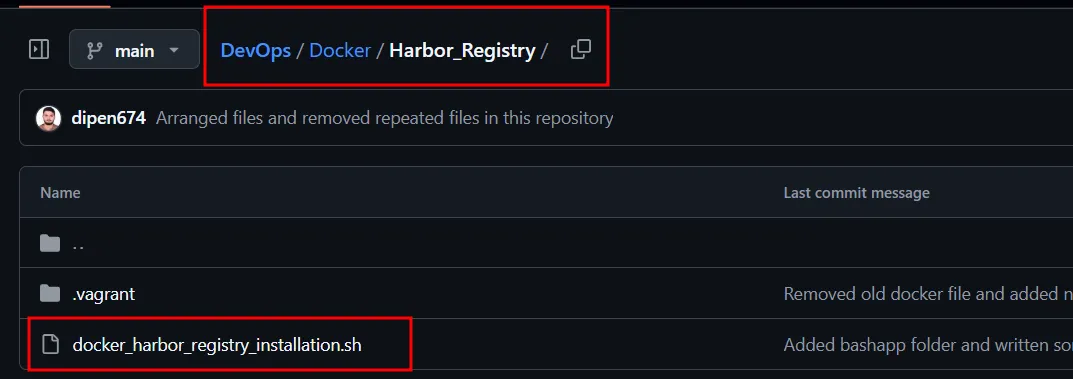
Clone the repo or copy the script, and run it with sudo. Without root rights it fails with permission errors.
Log in to the web UI
Open https://<vm-ip-address> in a browser and log in as admin with the default password Harbor12345 (set in harbor.yml). Change it immediately after the first login.
Push an image from another machine
-
Make the hostname resolve. On each client, add the Harbor VM's IP to
/etc/hosts:TXThostsetchosts<harbor-vm-ip> harbor.registry.local -
Trust the self-signed certificate. Docker looks for registry CA certificates in
/etc/docker/certs.d/<registry-hostname>/:terminal$ sudo mkdir -p /etc/docker/certs.d/harbor.registry.local $ sudo cp ca.crt /etc/docker/certs.d/harbor.registry.local/ -
Log in with your Harbor username and password:
terminal$ docker login harbor.registry.local -
Create a project in the Harbor UI. Harbor shows the push command for it. Tag the image with the registry hostname and project, then push:
terminal$ docker image tag nginx:latest harbor.registry.local/<project>/nginx:v1 $ docker image push harbor.registry.local/<project>/nginx:v1
Pushing to Docker Hub
Docker Hub is Docker's public registry and the default for docker pull. Free accounts get unlimited public repositories. To push:
-
Create an account and a repository, for example
deependrabhatta/practice. -
Tag a local image with that repository name:
terminal$ docker image tag nginx:latest deependrabhatta/practice:v1nginx:latestis the local image;deependrabhatta/practice:v1is the Docker Hub repository and tag. -
Log in and push:
terminal$ docker login $ docker image push deependrabhatta/practice:v1
docker login shows a one-time code and a URL. Open the URL, confirm the code, and the CLI is logged in. For scripts and CI, create a personal access token under Account settings → Personal access tokens and use it in place of a password.
Common mistakes
x509: certificate signed by unknown authorityondocker login: the client does not trust Harbor's self-signed CA. Copyca.crtinto/etc/docker/certs.d/harbor.registry.local/.denied: requested access to the resource is deniedon push: the image is not tagged with the registry and project (or Docker Hub username), or you are not logged in.- Cache never used:
COPY . .comes before the dependency install, so every source change reinstalls all dependencies. - Image bigger than expected: build tools left in the final image. Move them into a build stage.
Key takeaways
- Every instruction is a layer, and the cache is reused only up to the first change, so order steps from least to most often changed.
- Use exec form for
CMDandENTRYPOINT,COPYoverADD, and never put secrets inENVorARG. - Multi-stage builds, pinned small base images,
.dockerignoreand a non-rootUSERgive smaller, safer images. - Harbor provides a private registry with access control and scanning; clients need DNS for the hostname and its CA certificate.
- To push anywhere, tag the image as
registry/project/name:tagfirst.
Next in this series: Docker Compose.
Keep reading
- Docker Compose: Multi-Container Apps with compose.yaml
Define a whole multi-container stack in one compose.yaml with Docker Compose v2: services, ports, named volumes, .env variables and a MySQL-backed example.
- Docker Swarm: Building a Cluster with Vagrant
Build a Docker Swarm cluster on Vagrant VMs, then initialise it, join nodes, run and scale services, and use overlay networks and volumes in swarm mode.
- Install Docker on Ubuntu and Essential Docker Commands
Install Docker Engine on Ubuntu from Docker's official apt repository, then manage containers, images, networks and volumes with the essential CLI commands.