Jenkins Introduction
Jenkins is free, open-source tool that helps developers automate the process of building, testing and deploying code.Jenkins is the popular CI tool. Why Jenkins?1.Open source software.2.Has lots of…

ON THIS PAGE
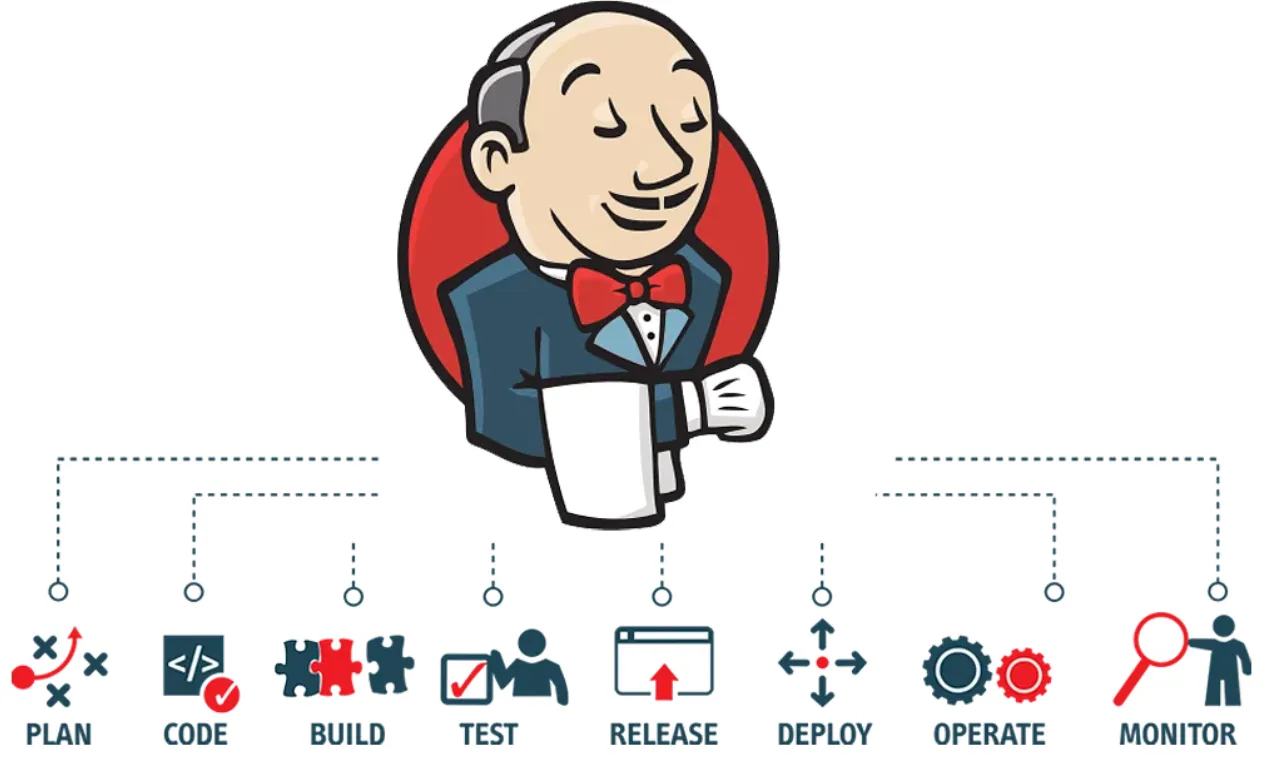
Jenkins is free, open-source tool that helps developers automate the process of building, testing and deploying code.
Jenkins is the popular CI tool.
Why Jenkins?
1.Open source software.
2.Has lots of extensions.
3.Has lot of plugins like VCs, Build, Cloud, Testing.
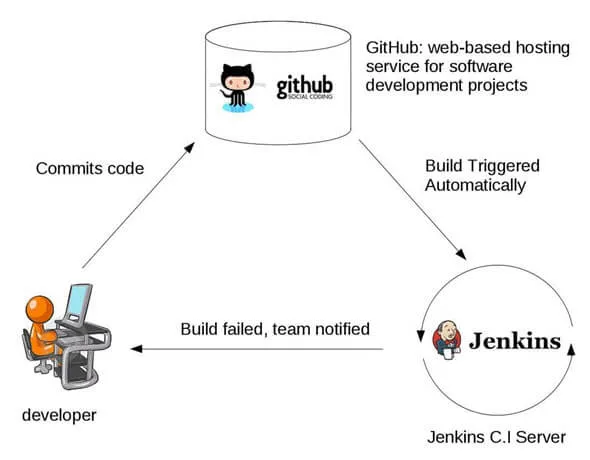
- Developers commit changes to the source code, found in the repository.
- The Jenkins CI server checks the repository at regular intervals and pulls any newly available code.
- The Build Server builds the code into an executable file. In case the build fails, feedback is sent to the developers.
- Jenkins deploys the build application to the test server. If the test fails, the developers are alerted.
- If the code is error-free, the tested application is deployed on the production server.
Why CI?
1.Early bug detection
2.To improve the quality of the code.
3.Enhance the collaboration.
4.Increased productivity
The files can contain different code and be very large, requiring multiple builds. However, a single Jenkins server cannot handle multiple files and builds simultaneously; for that, a distributed Jenkins architecture is necessary.
Jenkins Architecture
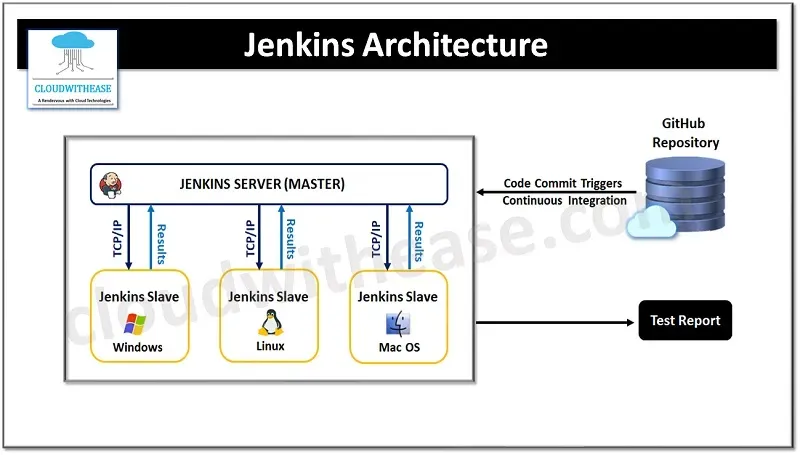
The architecture of Jenkins is master slave architecture. The Jenkins server accesses the master environment and the master environment can make multiple other Jenkins Slave environments to work based on the command passed by the manager. Simply think of a manager in a company under whom multiple other employs are working, taking tasks and completing them and reporting back to the manager.
Master Node:
– Works like a controller and schedules the build job.
– Managing the tasks which are executing on the worker nodes.
– Accepts almost all kinds of commands output is given to the user by master node
– User cannot execute and get output directly from the worker node
– Monitor slave and record the build result.
Worker Node:
– Work node will work as an execution node.
– Single master node can have multiple worker nodes
– Execute build dispatched by master
This architecture lets us to run multiple builds, tests, and product environment across the entire architecture. Jenkins Slaves can be running different build versions of the code for different operating systems and the server Master controls how each of the builds operates.
Environments in software development
- Development environment/test env: This is the environment to test the code. It is very messy and usually used to test different modules, operations, etc.
- UAT [User acceptance test environment]: To verify the user features. Completed all the features of the product and deploy among the users to gather reviews, to know whether it is working correctly or not, etc. In this phase there might be not fully developed product.
- Staging: Similar to the production environment but it is accessed by development teams, QA teams for testing. This is not accessed by the customer. It is used to see the how the product will behave in production environment.
- Production: Live apps that users are accessing is in production environment. For example Khalti, daraz, Facebook, amazon, etc.
To install and setup Jenkins
- Read the perquisites.
- Install Java latest version.
- Run the bash script provided in the below link ie; LTS script if you want to install long term release.
Releases
1.Long term release: Has very few bugs and doesn’t crash frequently. It is good for the long term use
2.Weekly release: In this case the developer make changes in the code frequently and releases it quickly to see how it works. This is not good for long term and crashes frequently.
- Now after installing Jenkins access it in your browser by using ipaddress_of_machine:8080 and it will open user interface of Jenkins in the browser.
- After installing jenkins when logging through url you will see a prompt like this
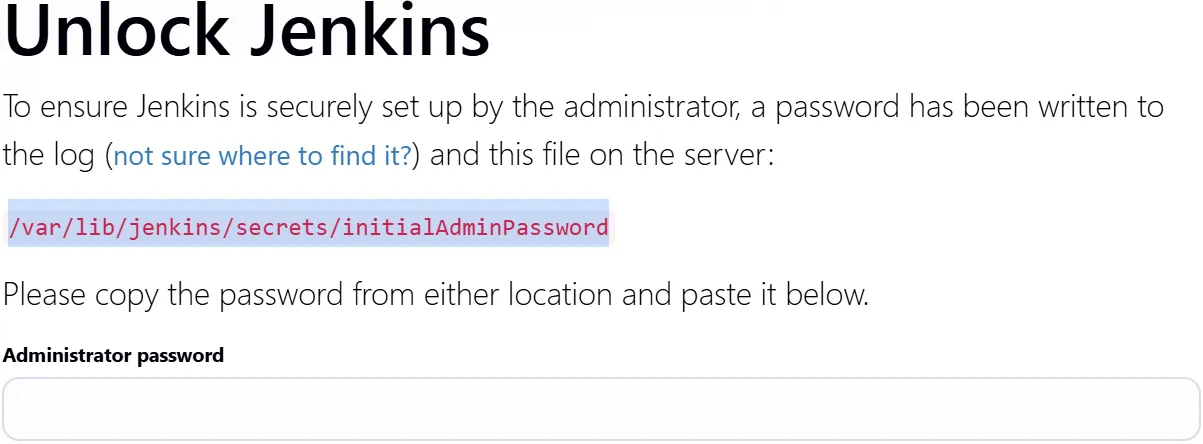
- Enter the password in this path and login to the machine.
- After that install the required plugins.
Build Types
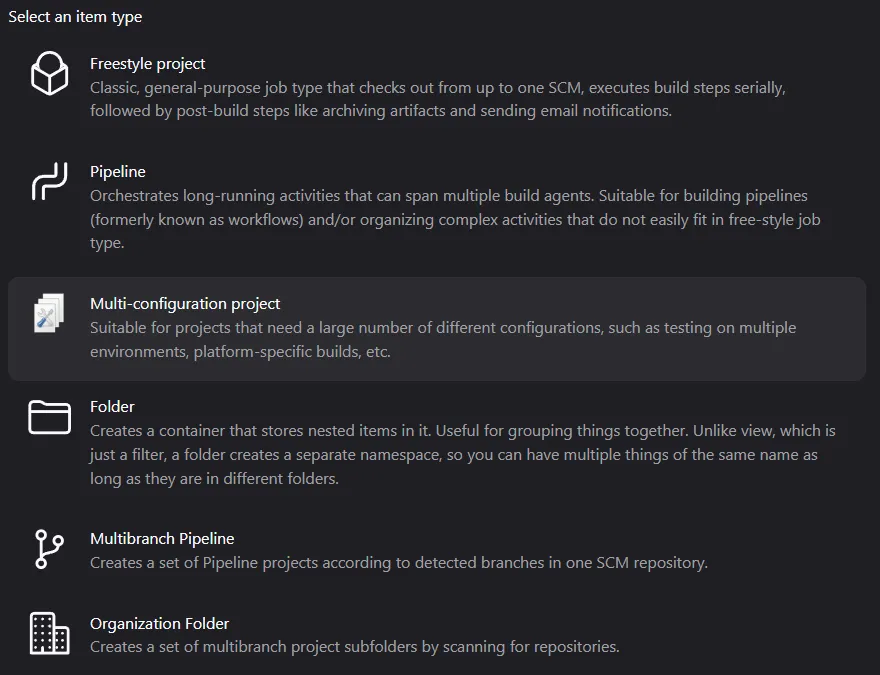

Freestyle build:
- Simplest method to create a build.
- Feels like shell scripting.
- Example scenario: If we need to start and stop the machine at certain period of time.
Pipelines:
- Use the groovy syntax to create pipelines.
- Use stages to break down different components.
- Used for multiple tasking [Long running activities]
Multi configuration projects
- If we need to test in different environment then we create these kinds of files.
- Example: Google chrome is running in different environments: Windows, linux, mac, android,etc.
Multibranch projects
- Similar concept of branching in the git.
- Can build from the multiple branches.
Organization Folder
- It allows Jenkins to automatically manage and build multiple Multibranch Pipeline jobs based on repositories and branches within a specified organization (like GitHub, Bitbucket, GitLab, or Gitea).
Copy from
Using this we can copy all the configurations from another projects and further customize it.
Jenkins Controls

Basic settings
- Status: To see the status of the current code/script.
- Changes: To see changes between the codes.
- Workspace: /var/lib/jenkins/workspace is the default workspace path for the projects. When we build the projects then it will create the directory in this path with the same name as the project name. The contents of this folder can be accessed from the machine and from browser also.
- Delete project: Delete this project
- Rename: To rename this project
Configure
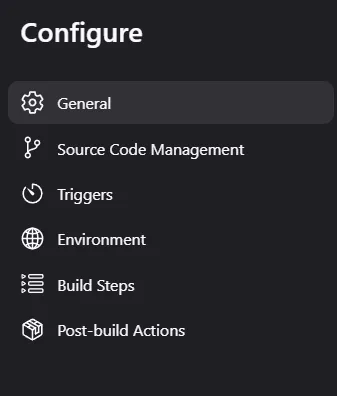
General
- Discard old builds:
- Can do log rotate ie; can configure which build we need to place for how many days.
- Log rotation
- can configure number of days to keep builds.
- Can configured maximum number of the builds.
- GitHub project
- To connect the git project
- This project is parameterized
- Can add different parameters
- Example:
- string : Name courses
Default value: Devops
Trim the string: Used to trim the lengthy strings - Now we can use this value anywhere in the script.ie;
echo $courses ;This will print Devops - Choice Parameter: To set multiple values.
Can use multiple values during build process.
- string : Name courses
- Throttle build
- Used to set the minimum time between the builds.
- Execute Concurrent builds if necessary
- Used when we need to build multiple projects parallelly.
- Use Custom Workspace
- As we know the default home directory for the Jenkins workspace is /var/lib/Jenkins/workspace. So if we want to setup custom workspace for the project we can define the directory here. For example /tmp ,/home, etc.
Source Code management
- Used to add the repo/URL of VCs like git, bitbucket etc.
- By default we can add URL of git. If we want to use any other VCs we need to install plugins.
Triggers
Triggers
- Changes in code or any other specific events that can trigger the build.
- can set time.
- Can set change in code.
- Can build remotely.
- Periodically :time
- Build after other projects :One after another
- Poll scm :Periodically query the code source code and it detect any change then trigger build.
Triggers Build remotely
>>Set the authentication token
>>Follow the URL, place the Jenkin URL and Jenkin name
Example:http://192.168.56.150:8080/job/simplescript/build?token=HELLO
>>Can build with the parameters also
Build After other projects are built.
>>Based on the status of other project triggers another project to build.
>>Example: Write a project to watch [another_project_name] and set the set the conditions and build the project.
We can see upstream in this project and downstream in another project.
upstream: An upstream is a Jenkins project that triggers another project.
downstream: A downstream is a Jenkins project that is triggered by another project.
Build periodically.
>>very similar to the cronjob. Can set values like this. To get help on this we can use the below link
# Every fifteen minutes (perhaps at :07, :22, :37, :52):
H/15 * * * *
GitHub hook trigger for GITScm polling
>>Similar to the webhook concept in the Git. Need to set hook in the github. If there is new commit/ merge two branches it will build automatically at trigger build.
Environment
Delete workspace after build
>>Remove the workspace after build starts and creates a fresh new project.
Use secret texts or files
>>If we want to use some confidential things then we can use it from here. For example user credentials.
Add time space to the console output
>>If we want to see the time instance in output we can check in this option. This will print at which time what are actions performed in the job.
>>Very useful during debugging because we can actually track the time taken by each process.
Terminate if build stops
>>It will terminate the build if process is stuck for long period of the time.
With ant
>>Builds with Apache ant.
Build
We will provide scripts, Jenkins file and all other things that we need to do are specified in this stage.
For example.
| Writing a simple script | Writing a simple pipeline |
|---|---|
| !/bin/bash echo “Hello Good evening Devops!!!” df -h free -m date timedatectl | pipeline { agent { docker { image 'node:22.16.0-alpine3.22' } } stages { stage('build') { steps { sh 'node --version' } } } } |
Post-Build actions
In this we can define what we need to do after the build is successful.
For example:
>Achieving the artifacts.
>Deploying the container.
Jenkins Administration
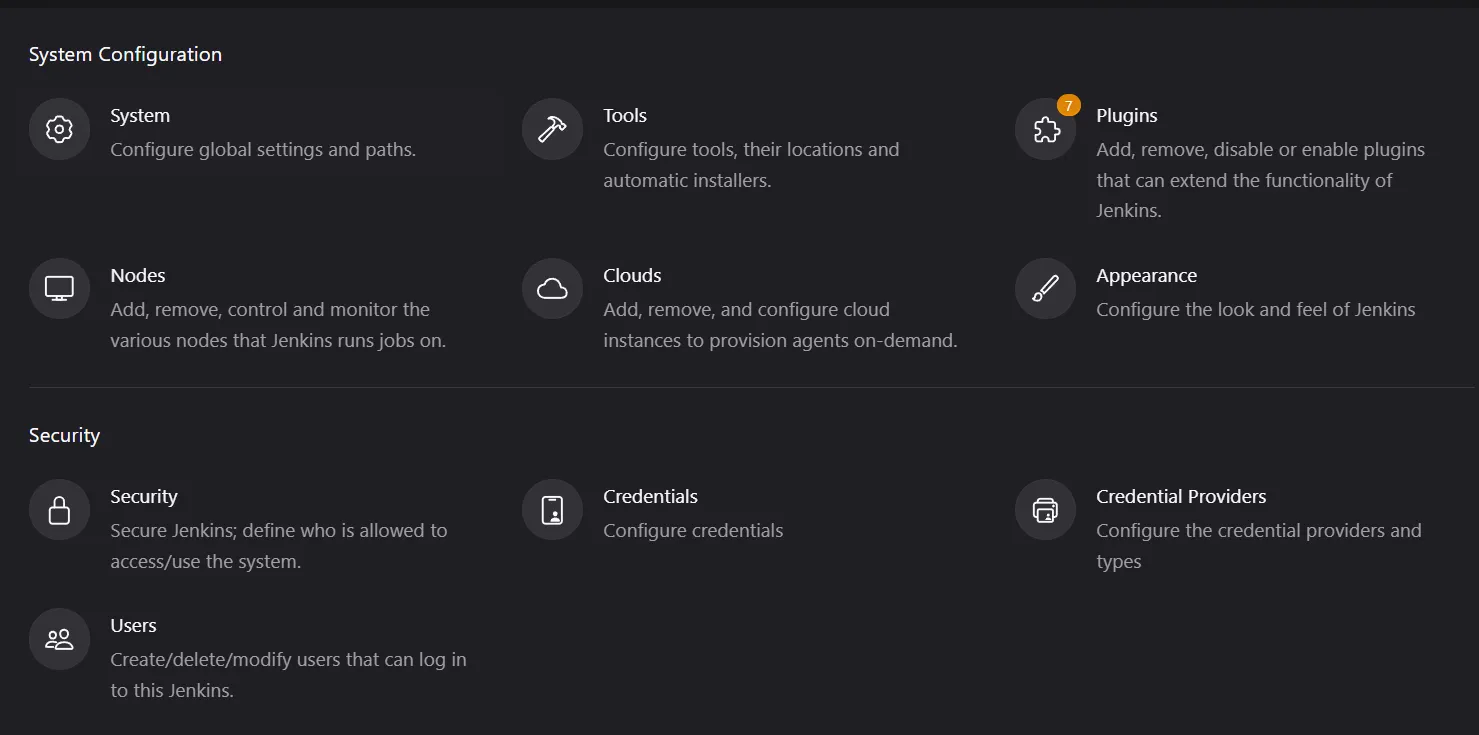
System:
- Here we have global system settings and paths.
- Default home directory
- can change default home directory
- No of executors
- How many executors we want to run in this node
- Usage
- Jenkins URL:
- We can see jenkins URL here but cannot change port from here but can change ip. These change are saved in this location
- Default home directory
root@jenkinsdemo:/var/lib/jenkins# pwd
/var/lib/jenkins
root@jenkinsdemo:/var/lib/jenkins# cat jenkins.model.JenkinsLocationConfiguration.xml
<?xml version='1.1' encoding='UTF-8'?>
<jenkins.model.JenkinsLocationConfiguration>
<adminAddress>address not configured yet <nobody@nowhere></adminAddress>
<jenkinsUrl>http://192.168.56.159:8085/</jenkinsUrl>
</jenkins.model.JenkinsLocationConfiguration>- system admin e-mail address;
- Can set system admin email address here
- Global properties
- Environment variables:
- Can set environment variables that can be used in this machine.
- Tool locations.
- Can setup location for different tools like git.
- Environment variables:
- E-mail Notification
- Can configure email notification from here
Tools
- Can setup configuration to install different tools like java, maven and other different tools by configuring here.
- Instead of manually installing all the tools manually in all nodes we can configure from here.
Plugins
- can install, update and manage plugins from here. Jenkins is all about plugins so need to explore different plugins to make it work to its full fledge.
Nodes
- Can manage, add and remove nodes from this terminal
Clouds
- To add different cloud platforms like Aws,azzure,etc.
Apperance
- To change it’s look
Security
Security
- Authentication
- Disable “Keep me signed in ”
- To remove the option keep me signed in option during logging in.
- Disable “Keep me signed in ”
- Security Realm
- From here we can see where users data, credentials are stored.
- Jenkin’s own user databsase
- Can integrate with various single sided server.
- Allow users to sign up
- Add interface to register new user in the machine.
- From here we can see where users data, credentials are stored.
- Authorization
- Controls what the logged in user can do in the machine.
- Anyone can do anything.
- Don’t require login. When using URL we can directly login to the machine.
- Logged-in users can do anything:
- Logged in user can do anything
- Matrix-based security
- Can configure granular level confidentiality.
- Based on user we can provide configure the permission
- Project-based matix Authorization Strategy:
- Based on project we can set permission on matrix level.
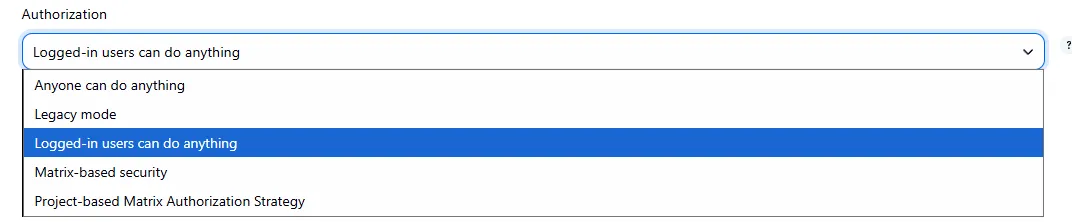
Another method to manage users credential is by using a plugin named “Role based authorization strategy”. After installing this plugin we will see another option here ie; Role-Based strategy.
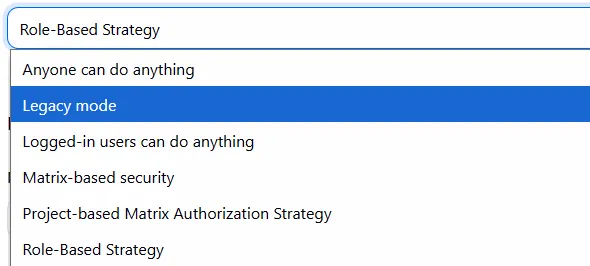
- Now select Role-Based Strategy and click save to save new changes. After saving now we can see another option in “security” ie;
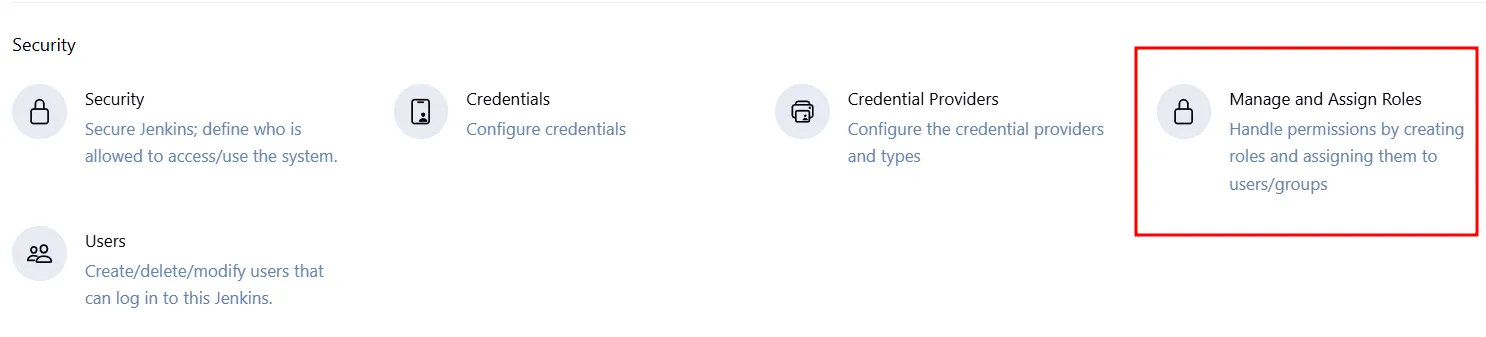
- Now click “manage and assign roles”
- In this menu we can create different roles and assign those roles to different users.
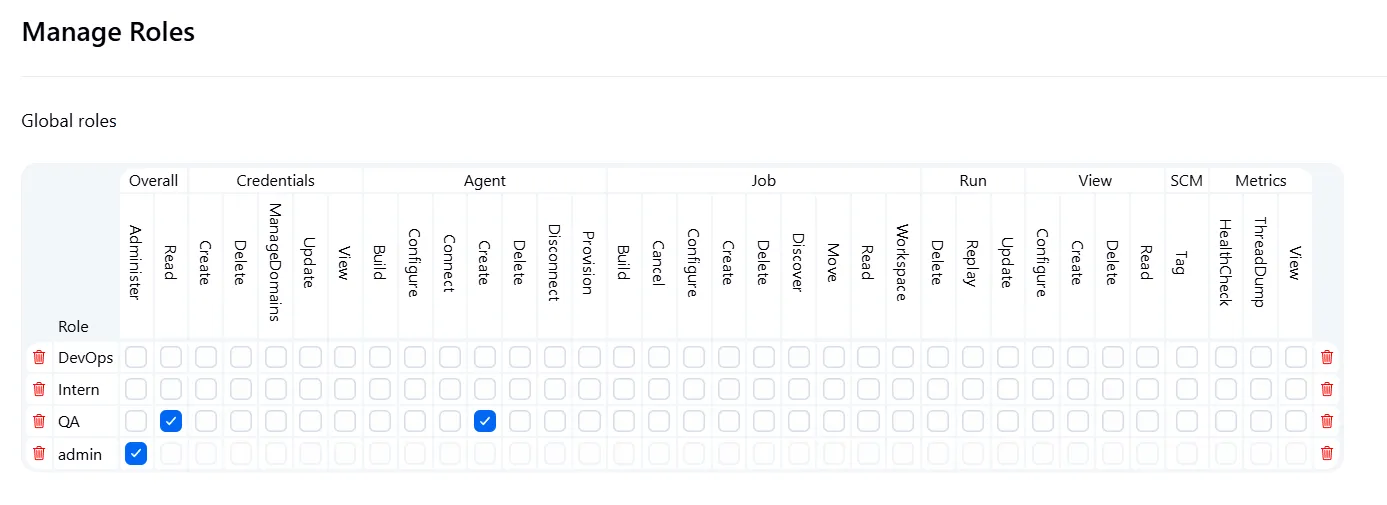
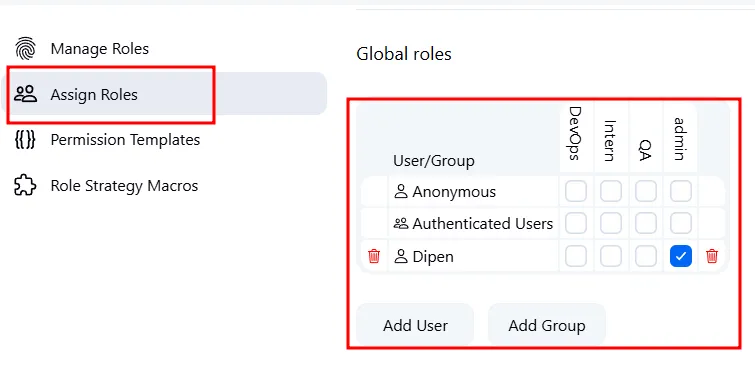
- Like this we can create different roles and based on the role we can provide them authority of what they can do. After that we can assign those roles to the users.
Credentials
- To add credentials
Credentials providers
- To add credential providers. Need to use plugins. For now we are using jenkins internal database we can integrate many more using plugins.
Manage and assign roles
- This option is seen after installing Role Based authorization strategy plugin and about this we have discussed above.
Users
- Can create, modify delete users.
Status Information
System Information
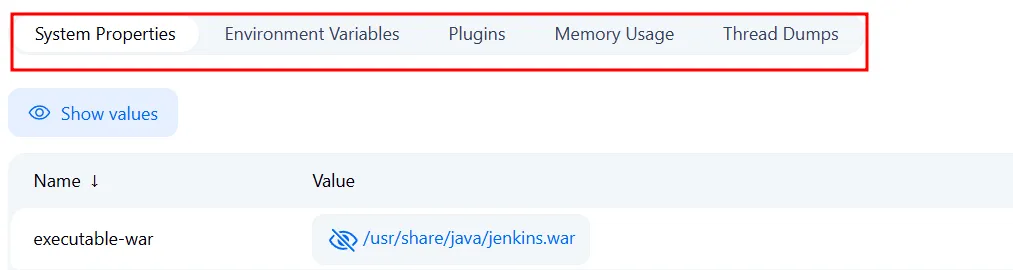
- We can see the properties of jenkins modules, plugins, etc..
- Can see environment variables here.
System log
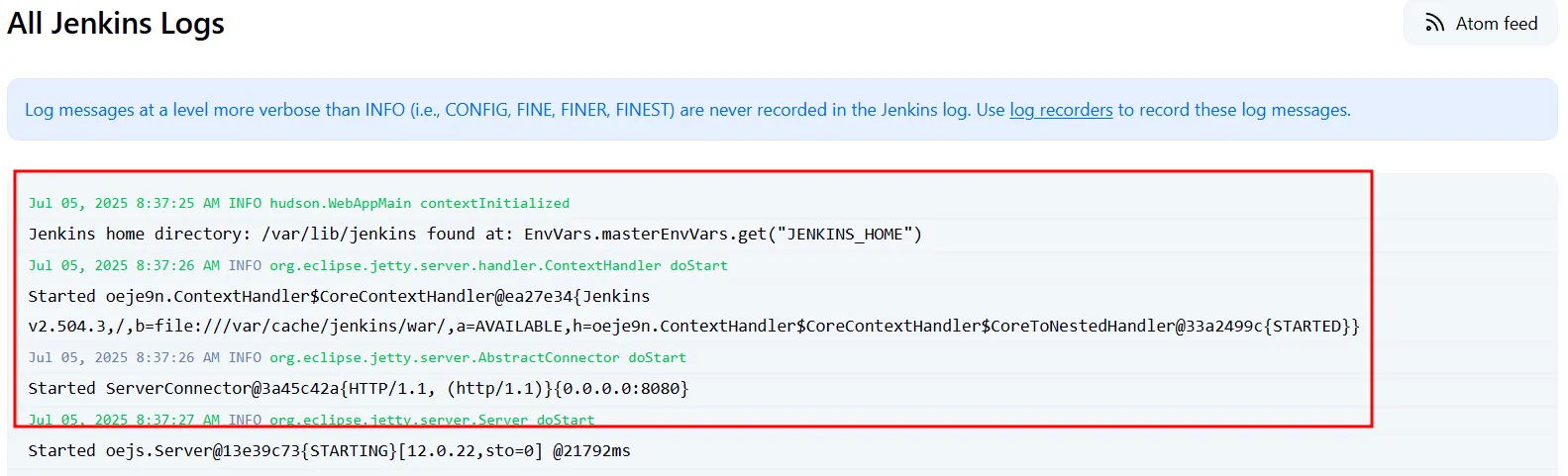
- Can see Overall jenkins logs here
Troubleshotting
- How to manage old data and for how much we want to keep data can be configured from here.
Tools and Actions
Reload configuration from Disk
- We can use this menu to reload data from another jenkins server which we have setup freshly.
Prepare for shutdown
- To shutdown the machine
Note: Jenkins is all about plugin so let’s explore one of the popular plugin named Blue Ocean
Blue Ocean
Keep reading
- GITHUB Actions
From Zero to Deploy: Building a MERN Stack CI/CD Pipeline with GitHub Actions Continuous Integration (CI) and Continuous Deployment (CD) have become essential pillars of modern software development…
- SonarQube
Installation To install sonarqube you can simply use this script. After installing this you can simply browse this machine in the ip address of the machine and the port 9000. This is the home page of…
- Github Hooks in Jenkins
🚀 Step 1: Install Required Jenkins Plugins Go to Jenkins Dashboard → Manage Jenkins → Manage Plugins. GitHub Integration GitHub Plugin Pipeline: GitHub (if not installed) Install and Restart…