Git Introduction: Version Control, Setup and Branching
Why version control matters, how local, centralized and distributed VCS differ, how Git works, how to connect to GitHub over HTTPS or SSH, and Gitflow branching.

ON THIS PAGE
Jenkins, GitHub Actions, Terraform and Ansible all start from a Git repository, so Git is the foundation of every DevOps workflow. This guide explains why version control exists, how local, centralized and distributed systems differ, how Git moves a change from a workstation to GitHub, how to authenticate over HTTPS or SSH, and how teams organize branches with Gitflow. The commands themselves, with examples, are in the next part: Git Commands.
What a version control system is
A version control system (VCS) records changes to files over time. It stores every version in a dedicated database, so you can see who changed what, restore an earlier version, or discard unfinished changes.
Why it matters:
- Any earlier version of a file, or of the whole project, can be restored.
- Several developers can work on the same code at the same time and merge their changes.
- Every change is recorded with an author and a message.
Kinds of version control systems
Local version control
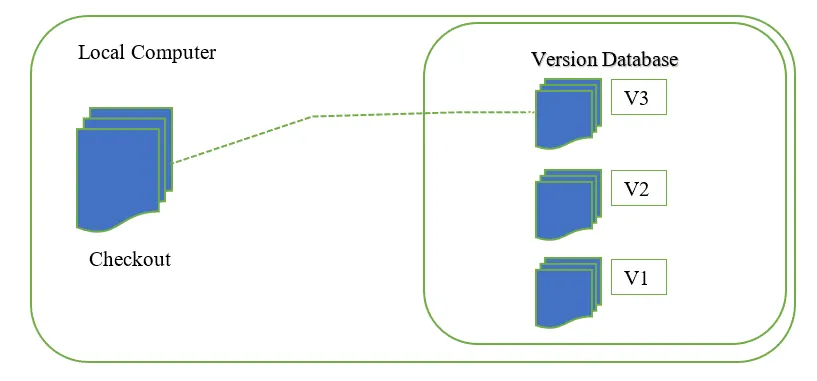
A local VCS keeps a version database on your own computer. Each change is stored as a patch (the difference between one version of a file and the next). This works for a single developer, but the history cannot be shared.
Centralized version control
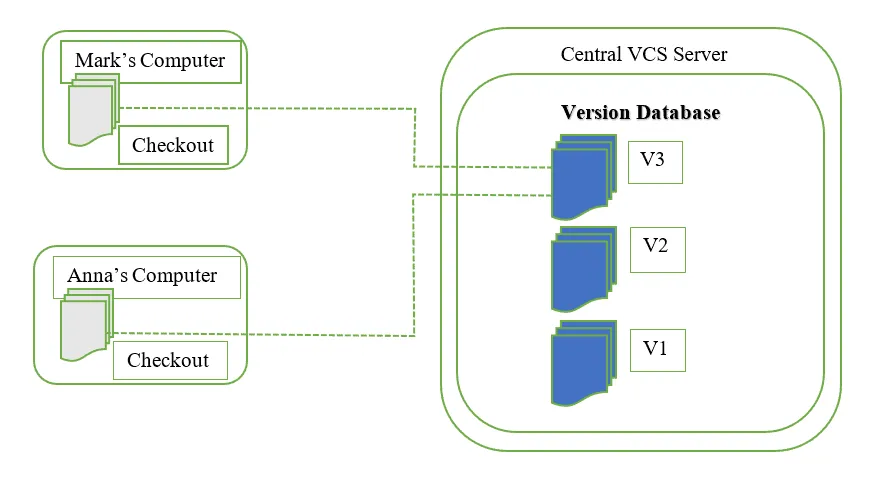
A centralized VCS (for example SVN, CVS or Perforce) has one server that holds the official copy and full history.
- Developers check out files from the server, change them locally, and check them back in. Each check-in increases the repository version.
- Local changes are not versioned until they are checked in.
- Most operations need a connection to the server.
Drawback: both local and centralized systems have a single point of failure: the one computer or the one server. If that machine is lost, the history is lost with it. Parallel work on separate features is also harder.
Distributed version control
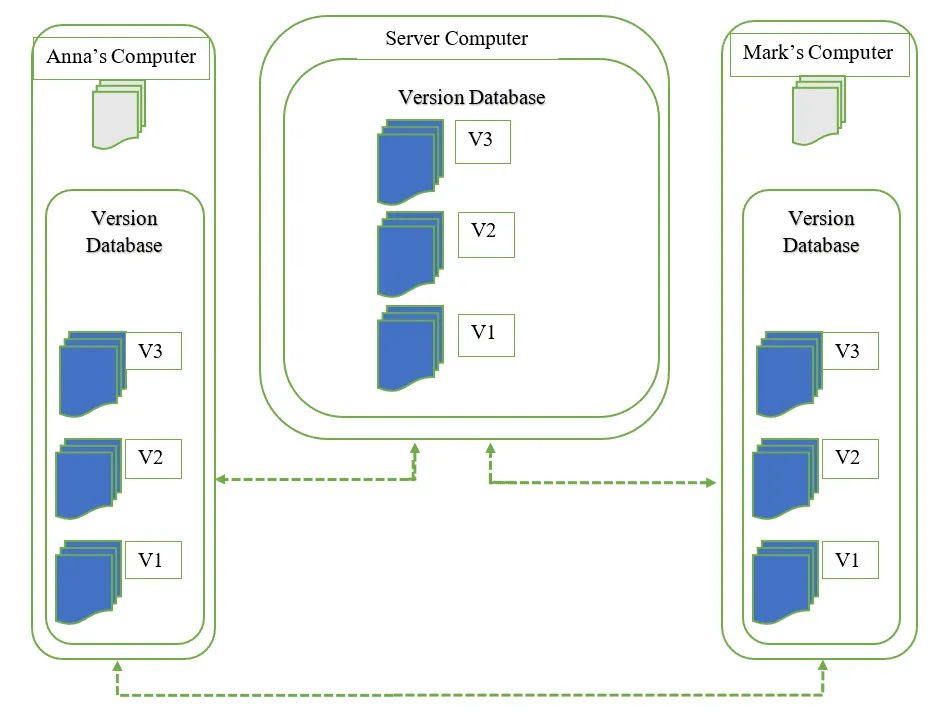
In a distributed VCS (for example Git or Mercurial) every developer has a complete copy of the repository, including the full history.
- You clone a repository instead of checking out files.
- Most operations are local: commit, view history, create branches. No server is needed for them.
- When the work is ready, you push it to a shared remote repository. GitHub is a popular place to host such remotes.
- Every clone is a full backup, so there is no single point of failure.
Git in short
Git is a free, open-source distributed VCS. Linus Torvalds created it in 2005 to manage the Linux kernel source code, and it is now the most widely used VCS.
- It is fast, because almost every operation runs against the local copy.
- It stores snapshots of the project rather than file differences alone.
- It supports non-linear development: many branches can grow in parallel and be merged later.
Git and GitHub are separate products. Git is the tool that runs on your machine. GitHub is a hosting service for Git repositories, with extras such as pull requests, issues and GitHub Actions.
Key terms
| Term | Meaning |
|---|---|
| Repository (repo) | A project folder whose files, history and config are managed by Git (stored in the hidden .git folder) |
| Working directory | The files you see and edit |
| Staging area | A holding area for changes you have chosen to include in the next commit (also called the index) |
| Commit | A saved snapshot in the repository history, with an author and message |
| Remote | A copy of the repository on another server, such as GitHub. The default name is origin |
| Branch | An independent line of development. The default branch is usually main (older repos use master) |
The Git workflow
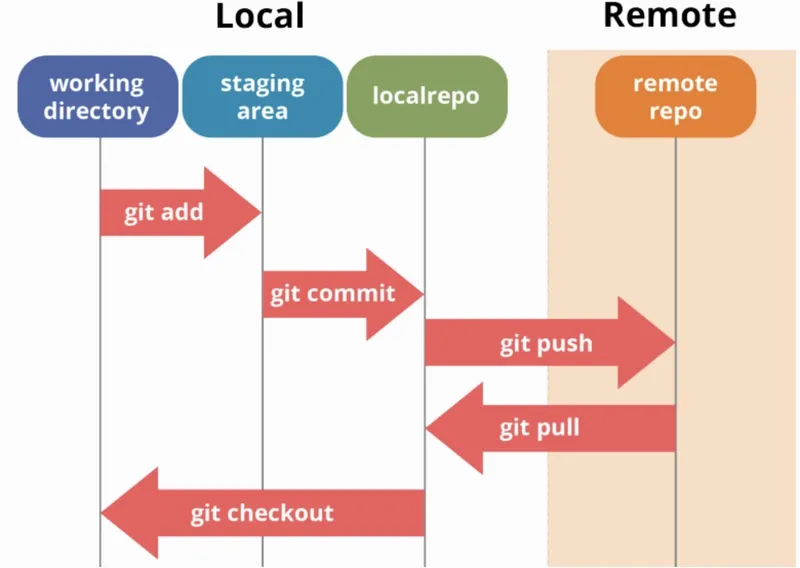
A change moves through four places:
- You edit files in the working directory.
git addcopies the changes to the staging area.git commitsaves the staged snapshot in the local repository.git pushsends your commits to the remote repository.git pullbrings other people's commits back to you.
Prerequisites
- A Linux machine with
sudoaccess (the examples use Ubuntu). - A GitHub account.
First-time setup
Install Git and set your identity
Install Git from the official download page, or on Ubuntu:
$ sudo apt update
$ sudo apt install git
$ git --versionNext, set your identity. Git records this name and email in every commit:
$ git config --global user.name "Your Name"
$ git config --global user.email "you@example.com"
$ git config --listConnect a local project to GitHub
Create an empty repository on GitHub. On the repository page, the Code button shows two URLs: HTTPS and SSH. Anyone can clone a public repository, but pushing, or cloning a private repository, requires authentication.
The steps are identical for both URL types:
$ mkdir my-project && cd my-project
$ git init
$ echo "# my-project" > README.md
$ git add README.md
$ git commit -m "First commit"
$ git branch -M main
$ git remote add origin <repository-url>
$ git push -u origin maingit branch -M main renames the first branch to main, because older Git versions create master by default. -u links the local main to origin/main, so later git push and git pull need no arguments. To correct a wrong URL, run git remote set-url origin <new-url>.
HTTPS with a personal access token
GitHub does not accept your account password for Git over HTTPS. When Git prompts for a password, supply a personal access token (PAT) instead:
- On GitHub, go to Settings > Developer settings > Personal access tokens.
- Choose a token type:
- Fine-grained tokens let you limit access to specific repositories and permissions, with an expiry date.
- Tokens (classic) are simpler to set up, and I used one while learning. Add a note that records the token's purpose, select the scopes you need (
repofor pushing code), and click Generate token.
- Copy the token immediately. GitHub shows it only once.
- When
git pushasks, enter your GitHub username and paste the token as the password.
Over HTTPS, Git prompts for the username and token on every push unless a credential helper is configured. On my own machines I use SSH instead.
SSH keys
SSH authenticates your machine with a key pair: a private key that never leaves the machine and a public key that you register with GitHub.
-
Generate a key pair. Press Enter at each prompt to accept the defaults. The keys are saved in
~/.ssh/.terminal$ ssh-keygen -t ed25519 -C "you@example.com"RSA keys (
ssh-keygen -t rsa) still work, but GitHub's documentation now recommends Ed25519. -
Print the public key and copy it. Never share the private key (
id_ed25519without.pub).terminal$ cat ~/.ssh/id_ed25519.pub -
On GitHub, go to Settings > SSH and GPG keys > New SSH key and paste it.
-
Test the connection, then use the SSH URL (
git@github.com:<user>/<repo>.git) as your remote:terminal$ ssh -T git@github.com $ git remote set-url origin git@github.com:<user>/<repo>.git
See the GitHub authentication docs for details on tokens and SSH keys.
Branching strategy: Gitflow
A branch isolates work on a feature from the stable code. The standard practice is to create a branch, develop and test on it, and merge it back only when it is stable. Gitflow is one popular way to organize branches. The commands to create, switch, merge and rebase branches are in Git Commands.
Main and develop
mainstores the official release history. Every commit onmainis a release.developis the integration branch for features. It has the complete history of the project, whilemainonly has the release points.
Feature branches
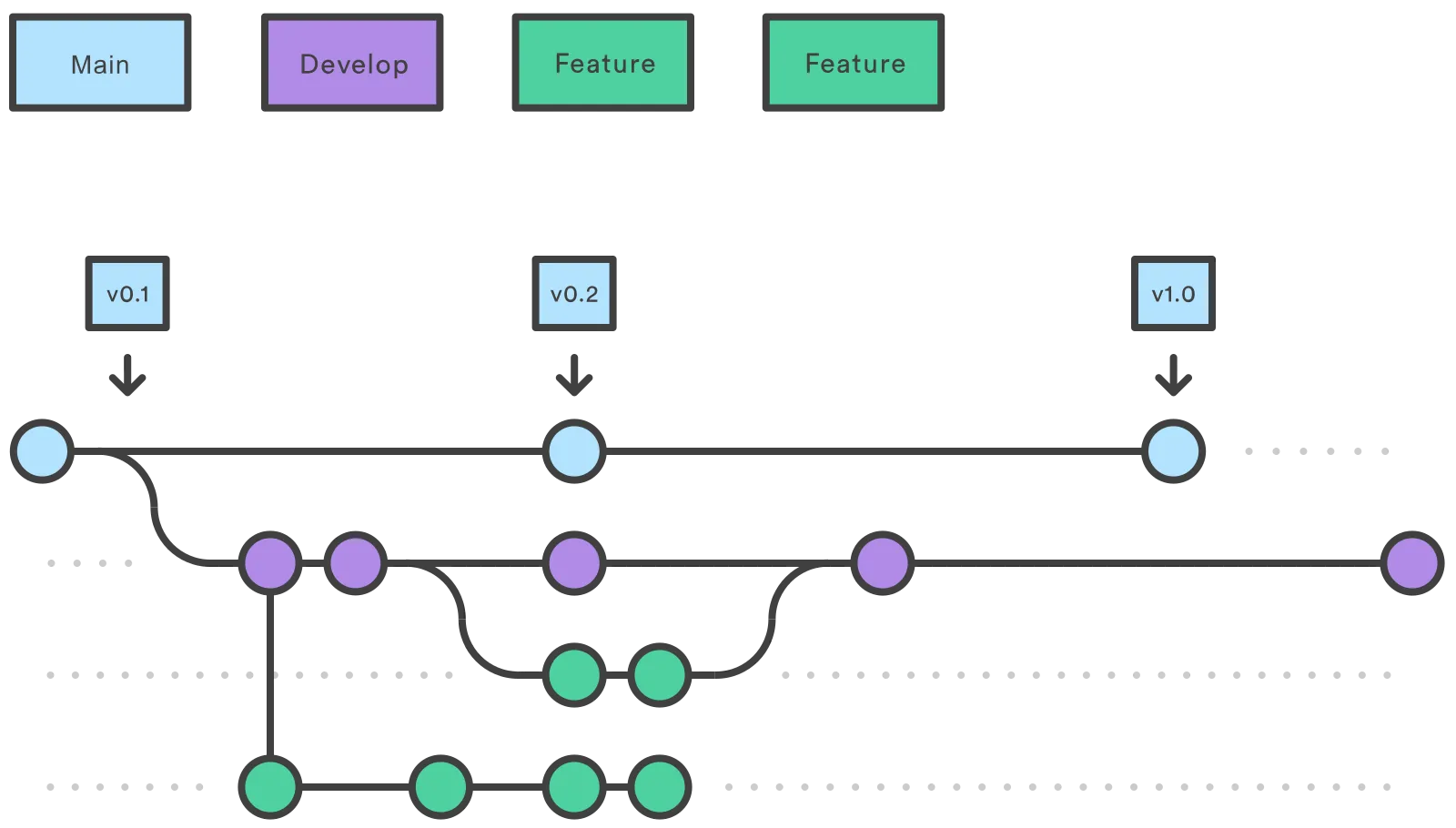
- Each new feature gets its own branch, which can be pushed to the remote for backup and review.
- Feature branches start from
develop, not frommain. - When a feature is complete, it is merged into
develop. Features never interact directly withmain.
Release branches
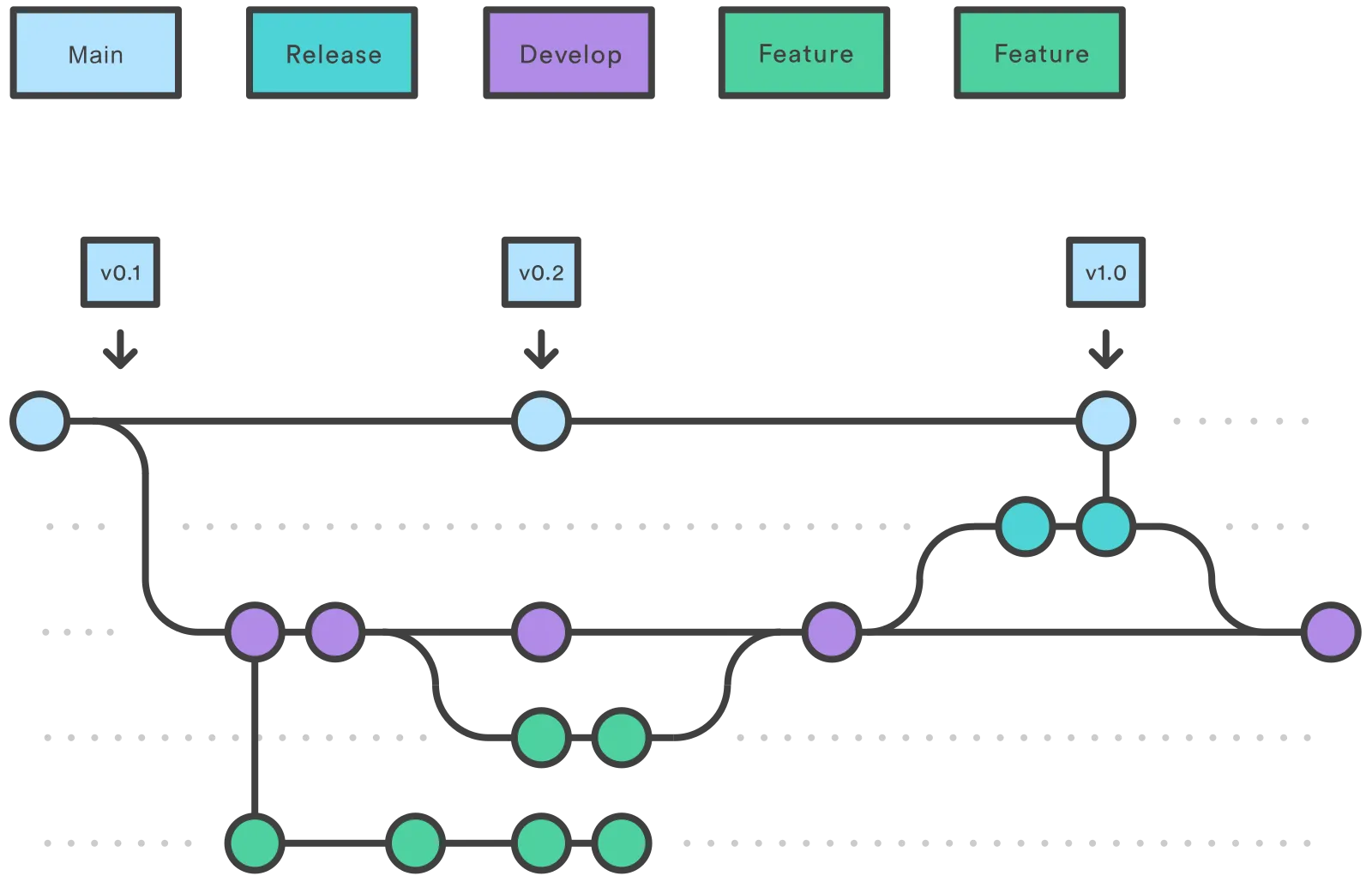
- When
develophas enough features for a release, create areleasebranch from it. - From that point, no new features go in: only bug fixes, documentation and other release tasks.
- When it is ready, the release branch is merged into
mainand tagged with a version number. It is also merged back intodevelop, which may have moved on. - One team can stabilize the current release while another continues building features for the next one.
Hotfix branches
- Hotfix branches quickly patch a production release.
- They start from
maininstead ofdevelop. - When the fix is done, it is merged into both
mainanddevelop.
Key takeaways
- Git is a distributed VCS: every clone has the full history, so most work is local and there is no single point of failure.
- Changes move from working directory to staging area to local repository to remote:
add,commit,push. - Set
user.nameanduser.emailonce; every commit records them. - GitHub authenticates Git with a personal access token over HTTPS or an SSH key; SSH avoids repeated credential prompts.
- In Gitflow, features branch from
develop, releases go tomainwith a tag, and hotfixes start frommain.
Next in this series: Git Commands.
Keep reading
- Git Commands with Examples: Branch, Merge, Rebase, Stash and More
Everyday Git commands with examples: commit, diff, undo with restore, reset and revert, branches, merge conflicts, rebase, stash, tags, cherry-pick and squash.
- tmux Cheat Sheet: Sessions, Windows, Panes and Copy Mode
A tmux reference for remote work: sessions that survive SSH drops, windows, split panes, copy mode, synchronized panes, and a minimal tmux.conf.
- Terraform on AWS: EC2, State, Backends, Workspaces and Modules
A hands-on Terraform walkthrough on AWS: launch EC2, read the state file, handle drift, use map variables, provisioners, outputs, an S3 backend, workspaces and modules.