GIT commands
Basic commands git pull origin branch_name: To pull changes from git git push origin branch_name: To push the changes to remote repository ssh-keygen -t rsa: To generate ssh key git –version: To see…

ON THIS PAGE
Basic commands
- git pull origin branch_name: To pull changes from git
- git push origin branch_name: To push the changes to remote repository
- ssh-keygen -t rsa: To generate ssh key
- git –version: To see version
- git status: To see the status on the local machine
- git add . : To add all files in which we have done changes
- git add filename: to change specific file
- git commit -m ” ” :To commit message to know the changes made in file
- git commit -am ” “: To commit and add at the same time
- git commit –amend: Change the commit message of the last commit.
- git remote add origin URL :To add new origin
- git remote set-url origin URL: To change existing URL
- git remote rm: To remove remote repo url
- git config –list: To see the configuration we have made
- git clone url: To clone remote repo
- git clone -b develop –single-branch https://github.com/dipen674/FDD_Website.git: To clone specific branch
- git log: To see detailed logs
- git log –oneline –decorate –graph: To see logs but in decorative way
- rm -rf repo_name: To delete repo forcefully
- git show commit_id: To see the details about the commit id like changes that we have made
- git ls-files: Gives the list of files repo is tracking
Comparison
**git diff** commands are used to compare changes between various Git states, which helps you understand what has been modified, staged, or committed. Here’s why each is useful:
- git diff: To compare working directory & staging area
- git diff HEAD: To compare working directory & git repository(last commit)
- git diff –staged HEAD: To compare between the staging area & the git repository(last commit)
- git diff – README.md: Limiting comparison to one file(or path)
- Comparing between commits
- git diff {commit_id} HEAD
- git diff HEAD HEAD^
HEAD^ is equivalent to HEAD-1
- git push origin –delete : To delete remote branch repository
- git diff origin/main: Comparing local main and remote branch
- git diff –cached: To see the differences in the staged files
- HEAD, origin/HEAD are the pointers to the last commit on the respective branch both local and remote.
Rollback
These Git commands are used to manage and undo changes at different stages of development. git checkout and git restore help discard changes or move files between stages.
- git checkout filename: It restores the file from the last commit.
This command discards local changes in your working directory. - git restore –staged filename: To go back or restore from the staged files
- git revert HEAD: To get back/ revert to the previous commit
- git revert HEAD (previous_commit_id): To revert to specific commit ID
- Correct the revert message if required
- While reverting it will still keep the history, However if we need to remove anyways, then we can use
- git reset filename: Removes the file from the staging area while keeping the changes in your working directory. It effectively undoes the
git addcommand for that particular file. - git reset –hard {commit_id_of_old}
- git reset filename: Removes the file from the staging area while keeping the changes in your working directory. It effectively undoes the
- git revert HEAD (previous_commit_id): To revert to specific commit ID
Git branching
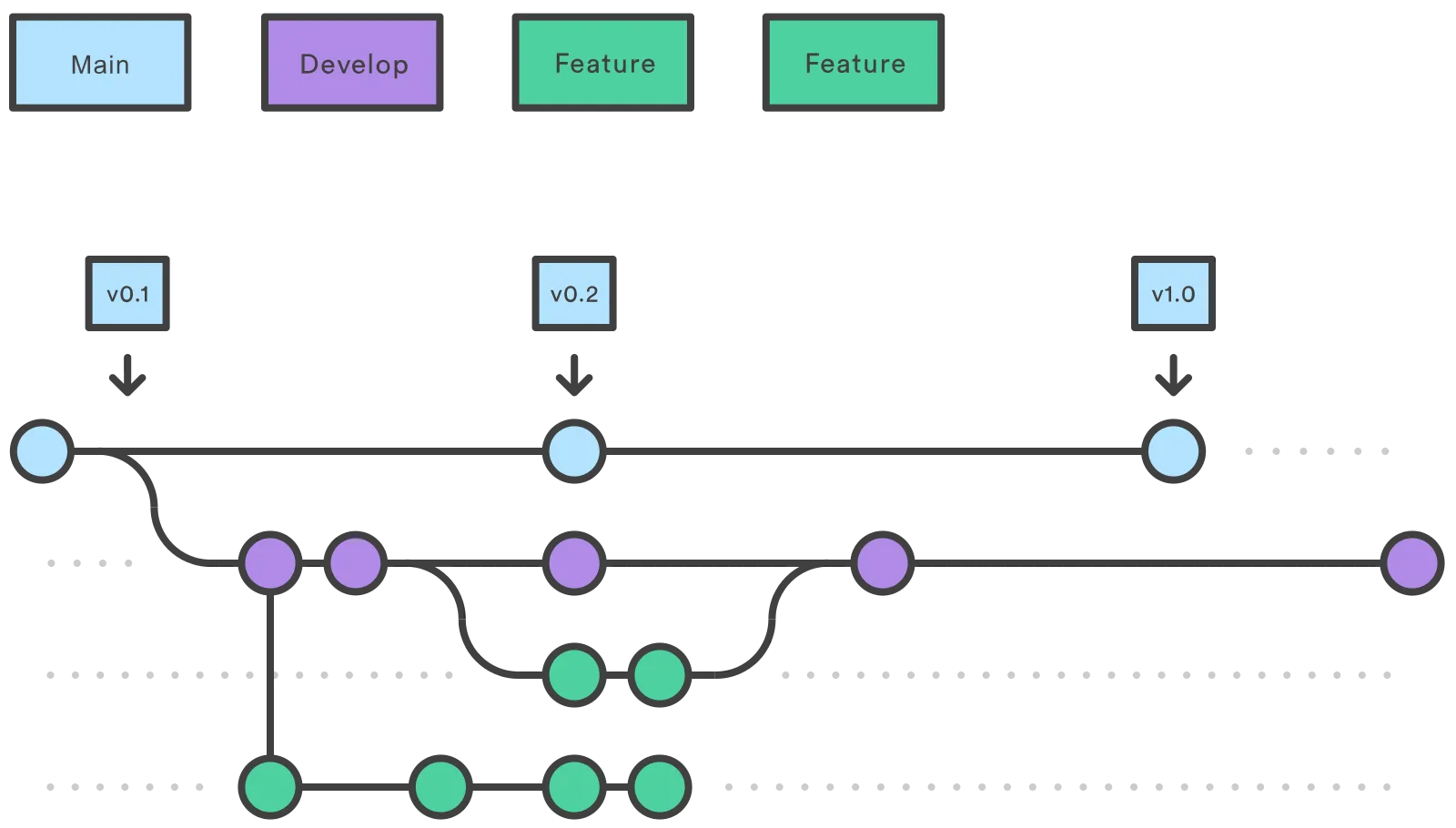
- git branch : List local branches
- git branch -a: List local as well as remote branches and indicates the current active branch
- git checkout branchname: To switch to the new branch that exists
- git checkout -b branch_name: To switch and create branch at same time
- git branch -m {oldname} {newname} : To rename the branch name if you are in different branch
- git branch -m new_name: From the same branch
- git branch -d newbranch: To delete the branch
- git merge {name of the source branch to be merged}: To fast forwardly merge the changes between the branches
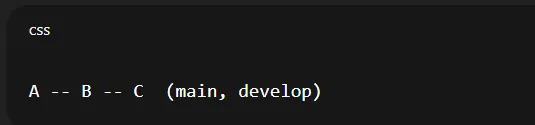
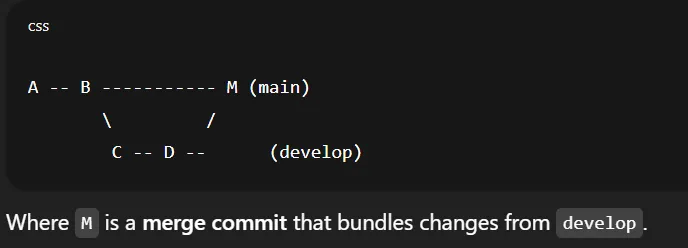
- git merge branchname –no-ff: Using
--no-ffpreserves the branch history in which we are merging and keeps their commits in separate branches. Most used in industry.
Merge Conflicts
When we make changes to the same line of the code or files in different branches then it will create merge conflict. Due to incompatibility between different files it will create merge conflict.
Why merge conflicts happens ?
1.Two or more developers make different changes to the same line of the code.
2. One developer modifies a file while another detects it.
3.Multiple developer makes changes to the same file at the same time.
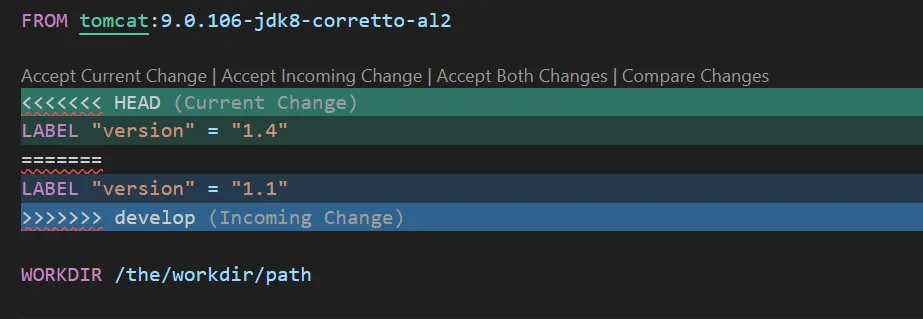
When conflict occurs during merging we can see a file like this.
Here HEAD means the change in this branch and Incoming change means the change that is done in another branch due to which conflict is occurring.
So to resolve this remove the lines of one branch and save it. For example.
Now add the file and commit a message and now if you try to merge it will not raise error.
So to avoid merge conflicts continuously merge the branches.
Rebase
Git Rebase is a command that moves or combines a sequence of commits to a new base commit.
- git rebase branch_name : To rebase the branch. Here branch_name is the name to which we want to rebase it.
- git rebase –abort: To abort the rebase
Git Stash
Sometimes you need to quickly switch tasks or fix a bug, but you’re not ready to commit your work. git stash lets you save your uncommitted changes and return to a clean working directory. You can come back and restore your changes later.
git stash: Saves your uncommitted changes (tracked files only) and cleans your working directory.- **
git stash save "msg":**Saves changes with a custom message . git stash -u: Stashes both tracked and untracked files.git stash list: Lists all saved stashes with index and message.git stash show stash@{1}: Shows a summary of changes in a specific stash.git stash apply stash@{1}: Applies a specific stash but keeps it in the list.git stash pop: Applies the latest stash and removes it from the list.git stash drop: Deletes the latest stash entry.**git stash drop stash@{**1}: Deletes a specific stash by index.git stash clear: Deletes all stashes permanently.git stash branch newchanges: Creates a new branch, applies latest stash, and drops it automatically.- After this saving the stash to that branch we need to merge those changes in our main branch

Git Tagging
Tags are reference that point to specific point in git history, Tagging is generally used to capture a point in history that is used for marked version release [Ex: V 1.0.1]
- git tag {tagname}: These kinds of tags are call light weight tag. This command is used to create light weight tag.
- git tag myTag
- git tag -a tagname: Used to create annotated tag
- git tag -a v-1.0
- git tag {tag_name} -m “tag message”: To ad tag message
- git tag -a {tagname}{commit_id}: To add tag in specific commit ID
- git tag -a v-0.8-alpha -f {commit_id}: Updating tag of an existing commit ID
- git tag — list: To list all the tags
- git tag –delete {tagname} : To delete the tag
- git diff {tagname1} {tagname2}: To see differences between different tags
- git push origin {tagname}: To push specific tag to the remote repo
- git push origin main –tags: To push all the tags to remote repo
- git push origin –delete {Tagname}: To delete remote origin tag
Cherry-pick
- git cherry-pick {commit_id}: To pick certain commit ID
- git cherry-pick {commit_id commit_id}: To pick multiple commit id’s
- git cherry-pick {commit_id} -n: To pick cherry pick without directly commiting to the branch
While using cherry pick

git cherry-pick {commit_id}

By using only this will add this code to your file.
But in the case of conflict you need to do

git add .
git cherry-pick --continue

and resolve the conflict manuallyGit Squashing
- git merge –squash branch_name
Keep reading
- GIT INTRODUCTION
Version control system VCS is basically software designed to record changes within one or more files over time. It allows us to undo or to cancel all made or pending changes within one or more…
- Ansible playbook II
First Read ansible playbook1 before starting this section. Ansible “file” and “template” module File ownership create directory create file permission syslinks Template To understand this let’s…
- Docker file, Best practices and Registry
Dockerfile Docker can build images automatically by reading the instructions from a Dockerfile. A Dockerfile is a text document that contains all the commands a user could call on the command line to…